Once created, the content can be edited in the content editing screen. In the content editing screen, you can change not only the content itself but also the content's status and other related information.
In the content editing screen, you can change the status of the content (publication state). The table below shows the possible changes for each status. Each column represents the content status, while each row represents the status change operations.
Drafting
Published
Published and Drafting
Publication Ended
Publish
The content is published (Drafting → Published)
The published content is updated while remaining published (No status change)
The draft content is reflected, and the content is published (Published and Drafting → Published)
-
Re-publish
-
-
-
The content is published again (Publication Ended → Published)
Add Draft
-
A draft is added to the published content (Published → Published and Drafting)
-
-
End Publication
-
The published content ends publication (Published → Publication Ended)
-
-
Revert to Draft
-
The published content reverts to draft (Published → Drafting)
-
The content with ended publication reverts to draft
(Publication Ended → Drafting)
Discard Draft
-
-
The drafting content is discarded and reverts to published (Published and Drafting → Published)
-
Save Draft
The drafting content is updated while remaining a draft (No status change)
-
The drafting content is updated while remaining a draft (No status change)
-
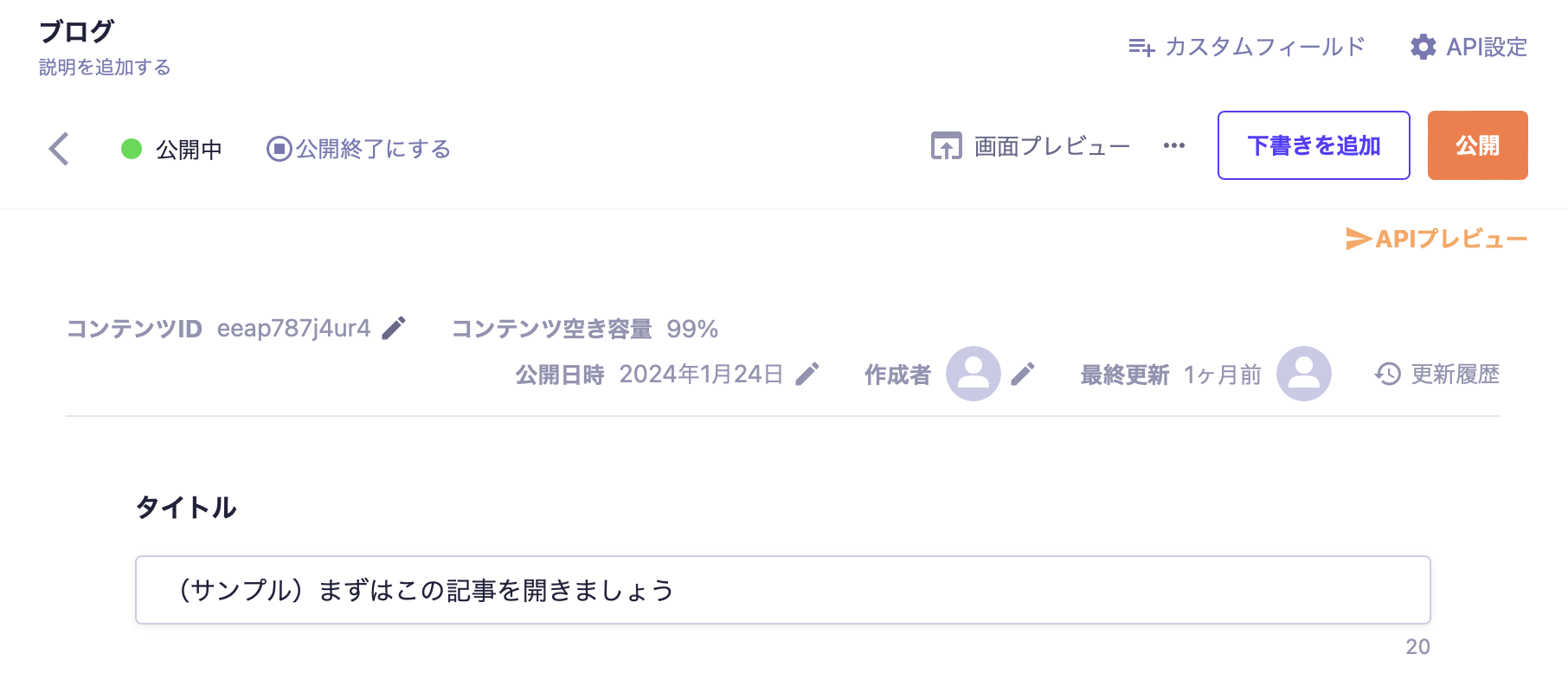
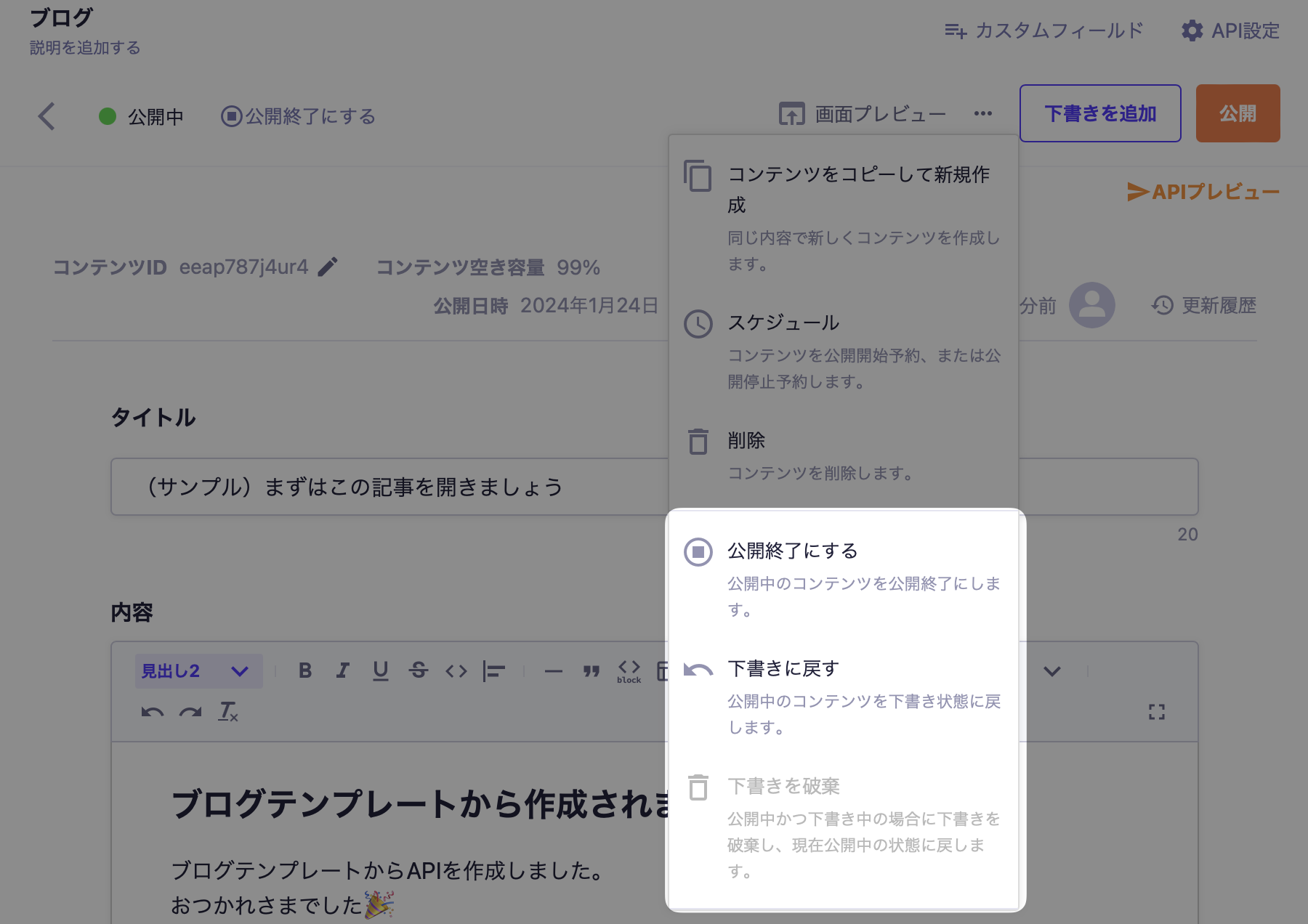
Various status change operations can be executed from the operation area at the top of the screen or from the operation menu displayed by pressing the three-dot icon. Additionally, the available operations vary depending on the content's status. The following capture shows the view when displaying content that is "Published".
▼ When the three-dot menu is expanded
For more details on content status and custom status, please refer to the following documents.
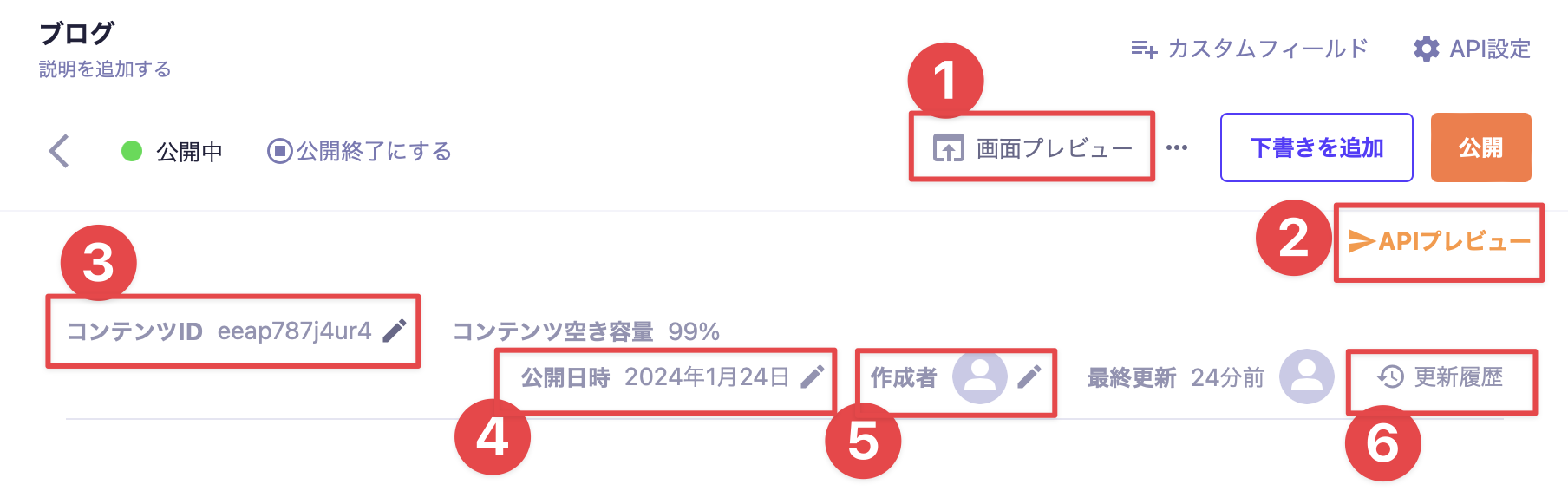
This section explains various operations other than status changes.
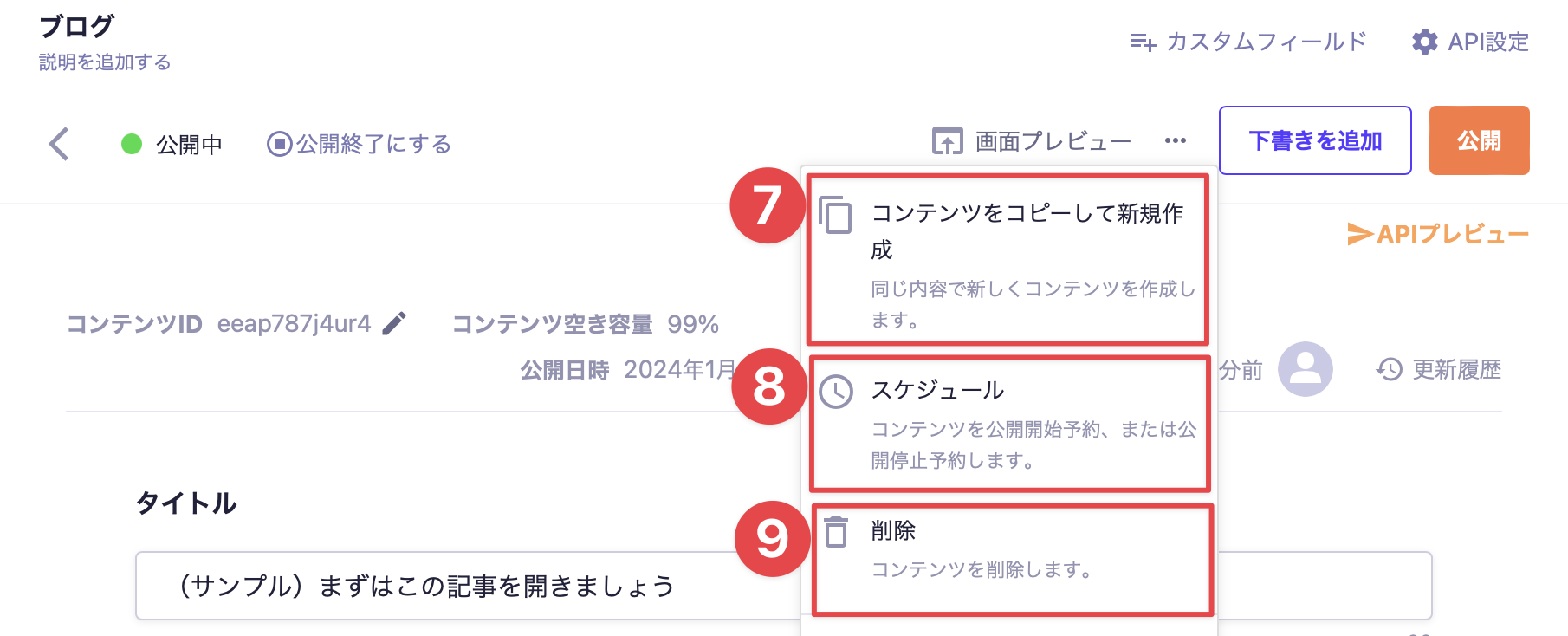
▼ When the three-point menu is expanded
Information
The range of actions a user can perform varies depending on the settings of the assigned role (permissions).
(Example) If the permission for "Show Developer Settings" is not granted in the "Developer Menu" section of the role settings, the API preview button will not be displayed.
This feature allows you to preview what the response will look like when the current content is retrieved via the API. For more details, please refer to the page on "API Preview".
You can change the content ID. Clicking will open a modal window, so please set it to your desired ID. For details on setting the content ID itself, please refer to the page on "Setting Content ID".
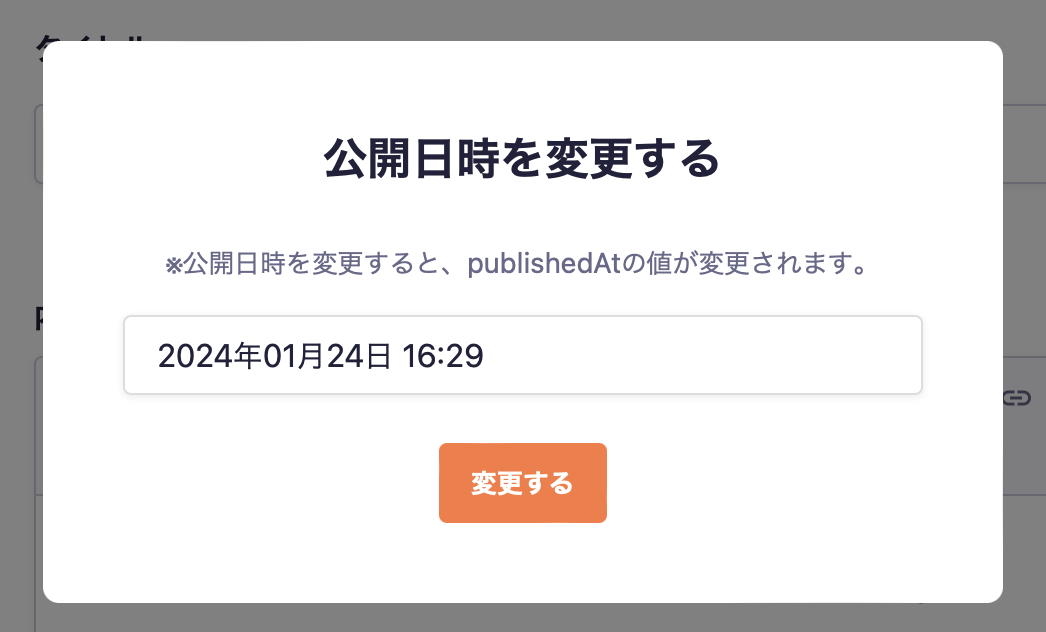
You can change the publication date of the content (publishedAt). Clicking will open a modal window, so please set it to your desired publication date. For more information about publication dates, please refer to the page on "Automatically Assigned Values to Content".
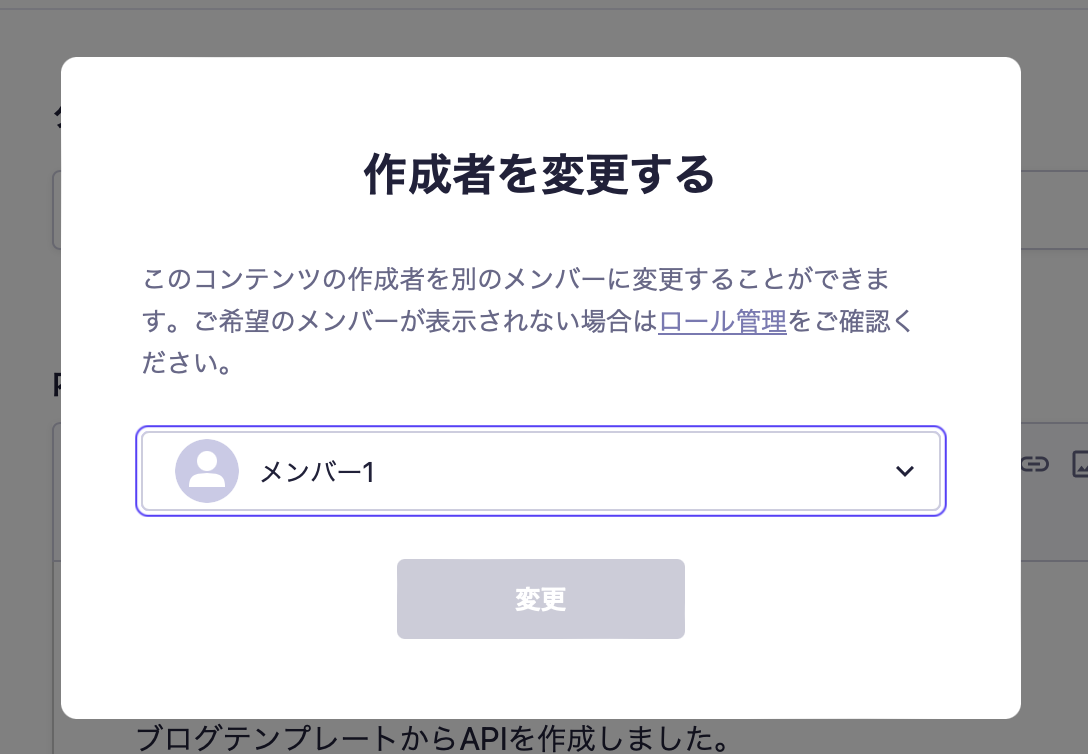
You can change the creator of the content. Clicking will open a modal window, so please set it to your desired member.
Information
If you cannot find the member you want to set, it may be due to restrictions on permissions by the role feature. In that case, please check the settings with an administrator.
If the "Read" item under role settings for "Content" is assigned to "Only content created by members of this role" or "Only content created by myself", please be aware that changing the creator will alter the range of members who can read the relevant content.
You can copy the current content to create new content. Clicking will take you to the new content creation screen (with the current content already filled in).
After that, edit the content as needed, and save it as a draft or publish it.
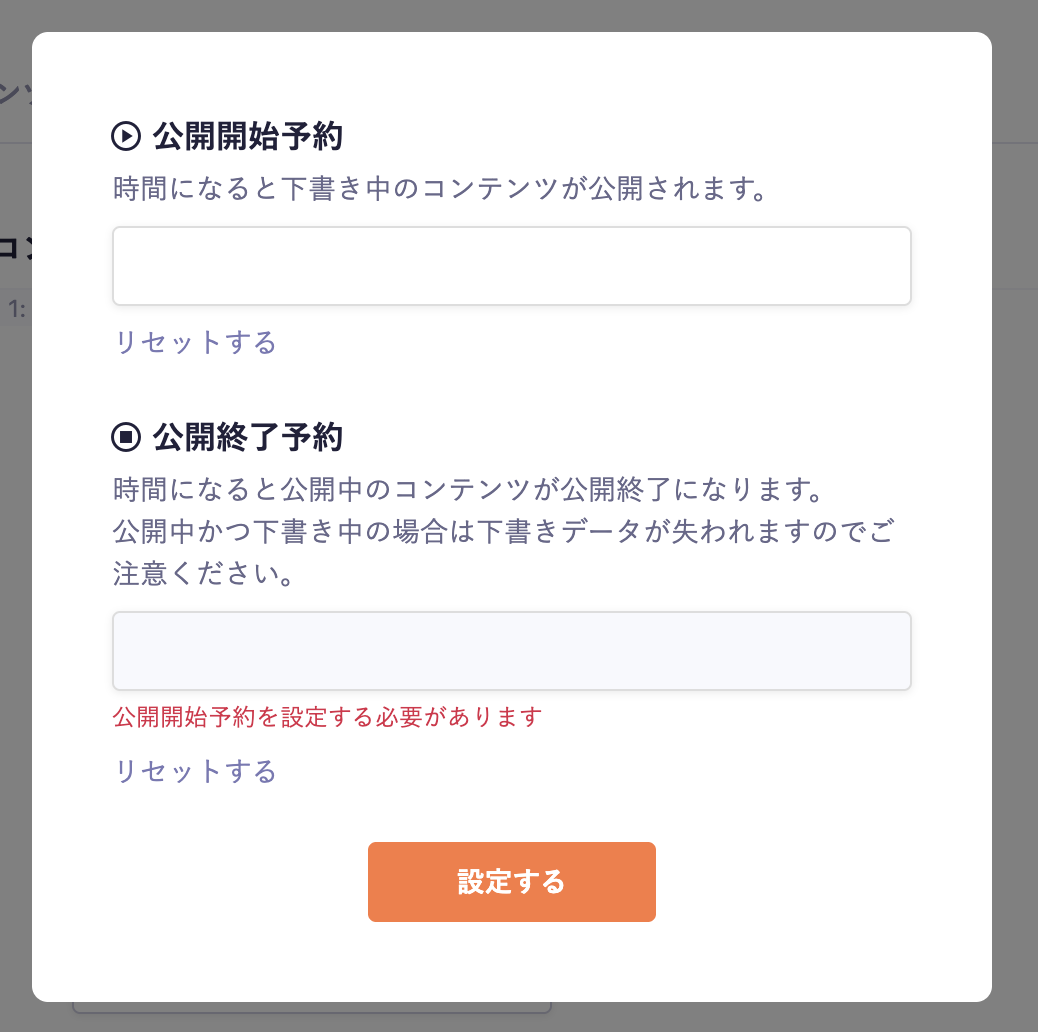
You can set up the schedule for content publication start and end. Clicking will open a modal window, where you can set the desired date and time in the publication start and end reservation fields.
Caution
For content that has a scheduled end of publication and also has a draft, the draft will be deleted simultaneously with the end of publication, so please be aware of this. In this case, the currently published value will be retained and will have an end of publication status.
Information
Service Settings allows you to enable restrictions on reserved content, which can limit operations such as adding or deleting drafts for reserved content.
The display of editing members is a feature available in the Business and Enterprise plans. For details on the features available for each plan, please refer to the pricing page.
If there are members editing the content, a notification saying "Other members are currently editing" will be displayed at the bottom of the screen, along with the member icons.
Caution
This feature uses WebSocket communication, so it may not be available if communication is blocked in your environment. Please unblock it if necessary.
Information
If the range of members who can view is restricted by permission management, the members currently editing will be displayed as "private users."



 Information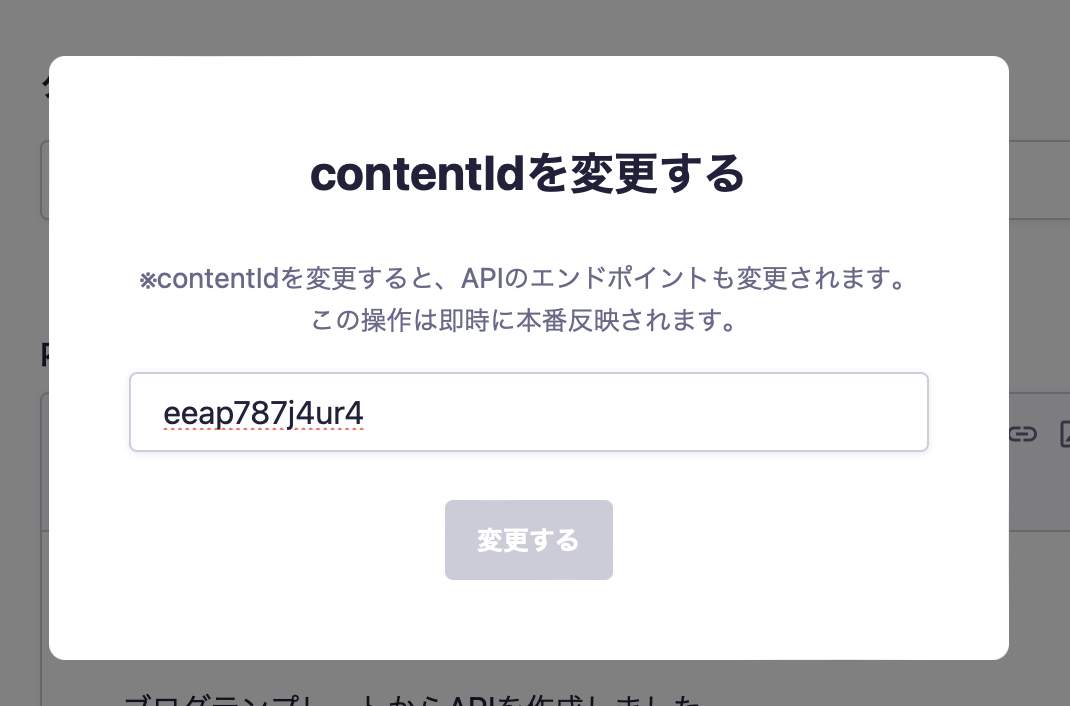
 Caution