How to Use the Rich Editor
This page explains how to operate the rich editor and its features.
About the Rich Editor
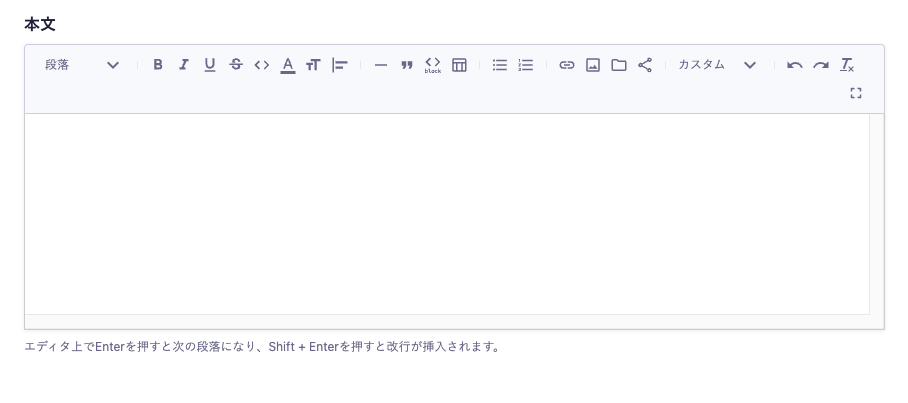
The rich editor is an editor that allows you to input formatted text.
You can create content with a high degree of freedom, including headings, bold text, links, and image insertion. The created content can be retrieved as HTML via the API.

The rich editor is also known as a WYSIWYG editor and is commonly used in other CMSs and tools. The basic operation feels similar, so those who are familiar with it can quickly master it.
Information
- When using the rich editor, it is assumed that you will directly input text in the management screen. Please note that while the submission format may be somewhat maintained when pasting text created in Word or HTML data, we cannot guarantee that all submitted content will be saved correctly.
Headings and Paragraphs
h1 to h5 and p tags are supported.
h1 to h5 will have a hashed string assigned as the id. (This means that the id remains fixed as long as the text is not changed.)
<h1 id="h634aaf8fde">Heading 1</h1>
Using the assigned id, it is possible to generate a table of contents on the frontend.
For more details, please refer to the article below.
Line Breaks and Paragraphs
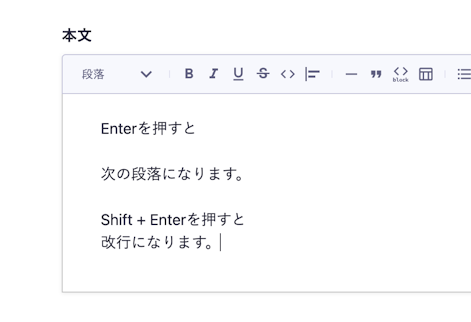
Pressing Enter in the editor creates a new paragraph.
Pressing Shift + Enter inserts a line break.
// Paragraph
<p>Pressing Enter creates</p>
<p>a new paragraph.</p>
// Line Break
<p>Pressing Shift + Enter inserts<br>a line break.</p>
The difference between line breaks and paragraphs is visually indicated by spacing in the editor screen.

Bold
Text is enclosed in the strong tag.
<strong>Text that becomes bold</strong>Italic
Text is enclosed in the em tag.
<em>Text that becomes italic</em>Underline
Text is enclosed in the u tag.
<u>Text that is underlined</u>Strikethrough
Text is enclosed in the s tag.
<s>Text with strikethrough</s>Code
Text is enclosed in the code tag.
<code>console.log("Hello microCMS!")</code>Text Color
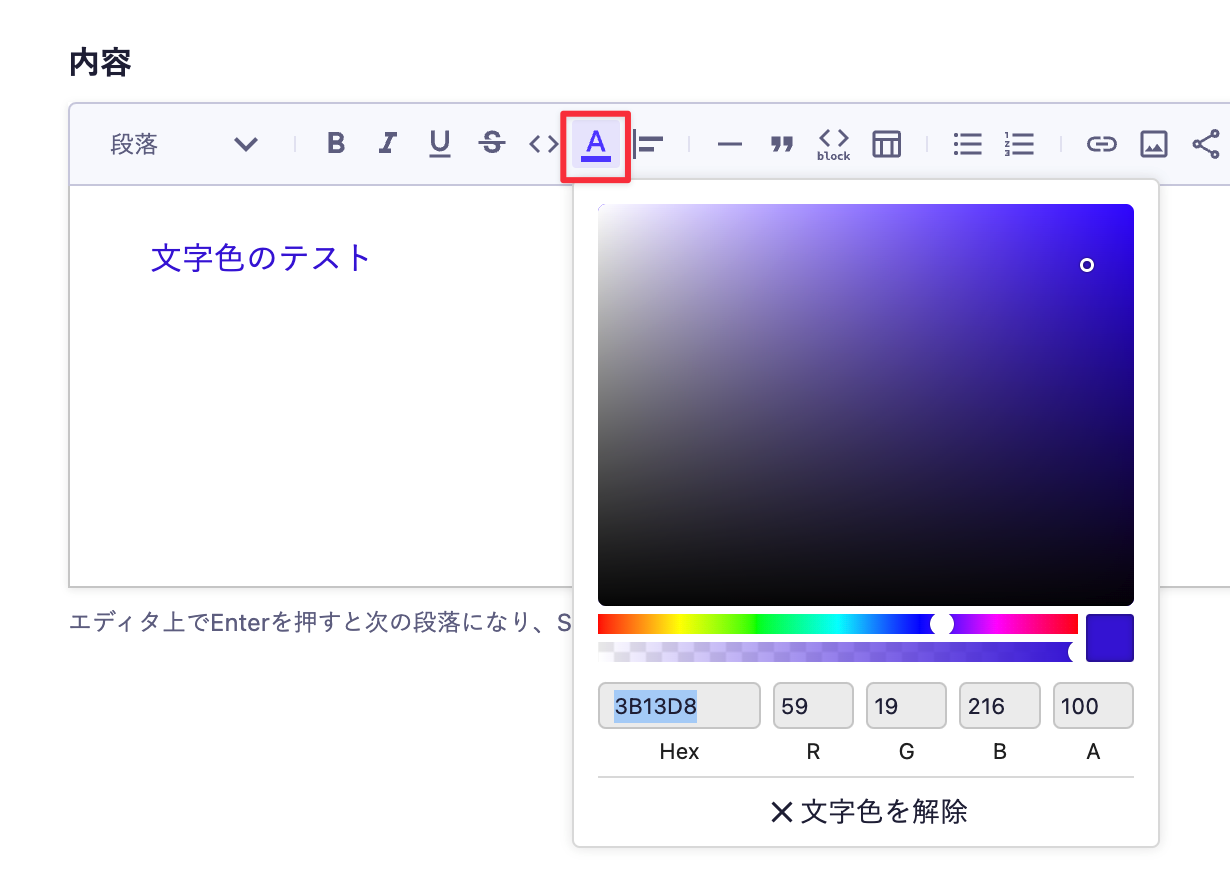
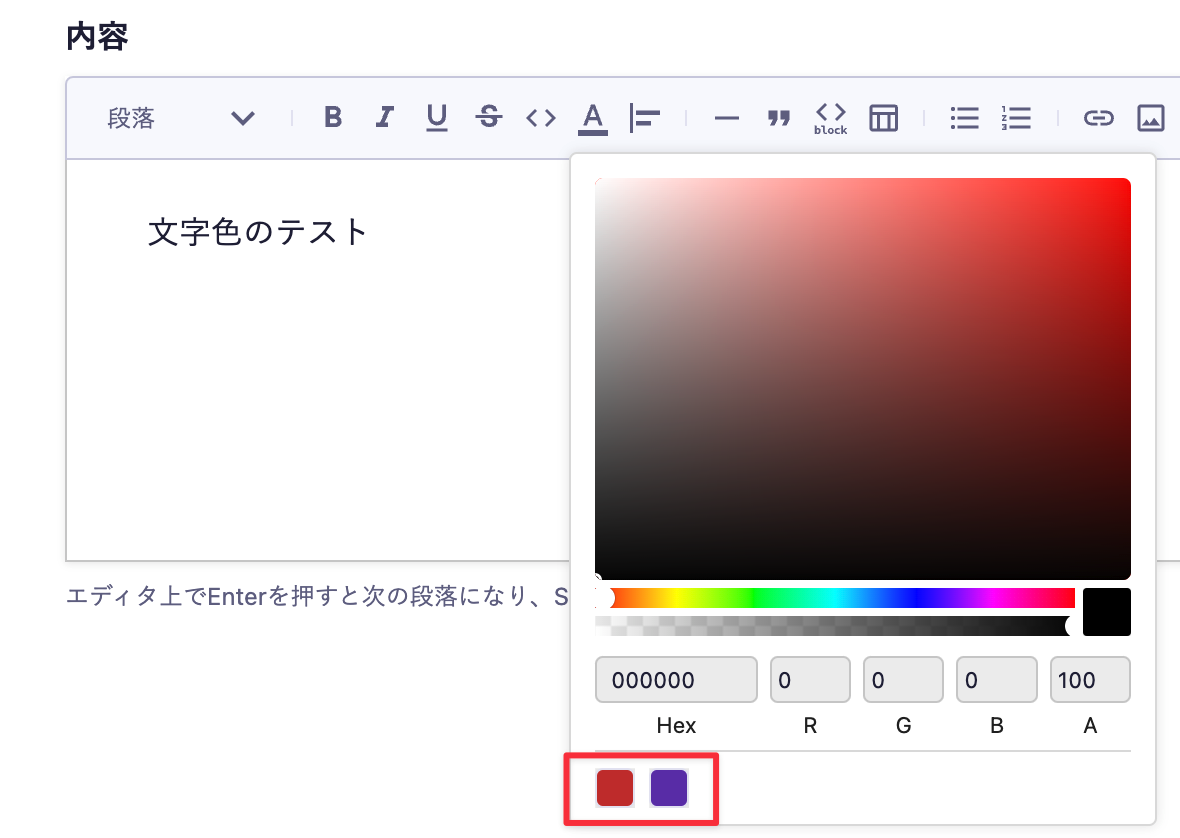
You can specify any text color.

Text is enclosed in the span tag, and the style attribute is set with the color property (text color).
<span style=\"color: #ff0000\">Text Color</span>Choose from Color Presets
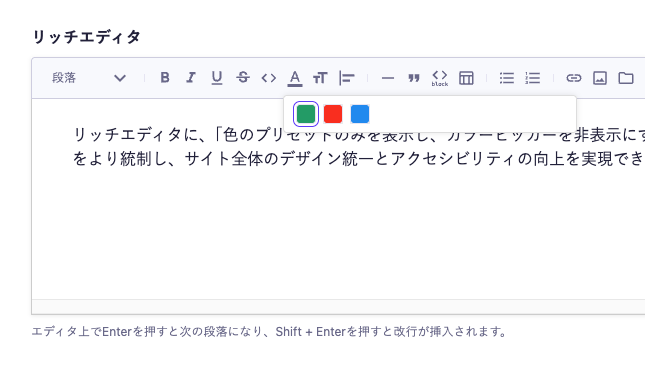
You can also select colors defined in the API settings in advance.

Limit Selectable Colors to Registered Presets
Enabling "Show only color presets and hide color picker" in the API settings allows you to select only the preset colors registered in advance.

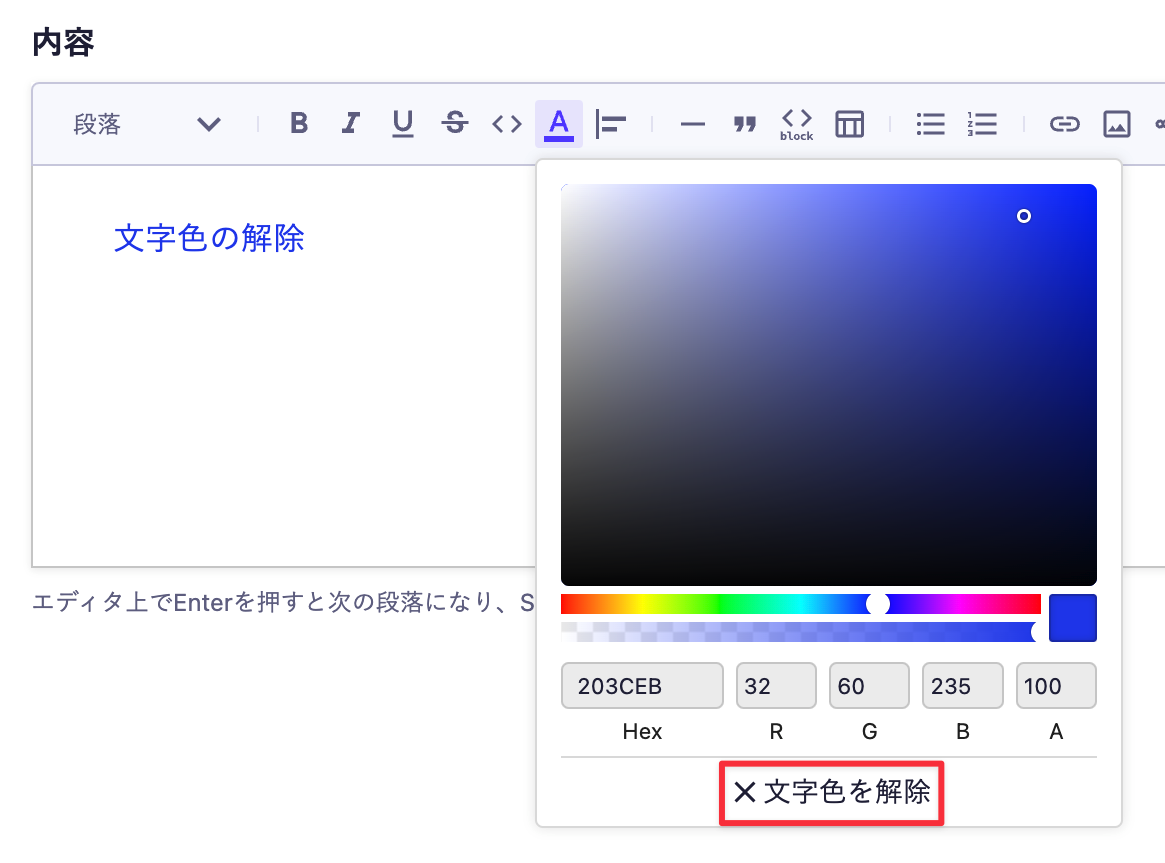
To reset the text color, select [Remove Text Color].

Text Size
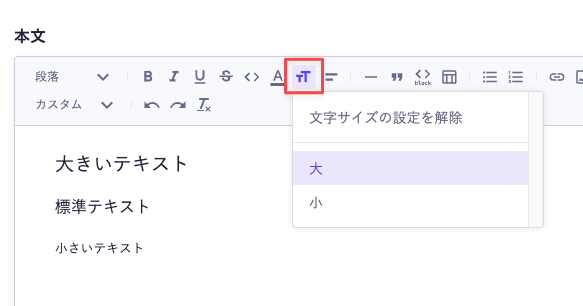
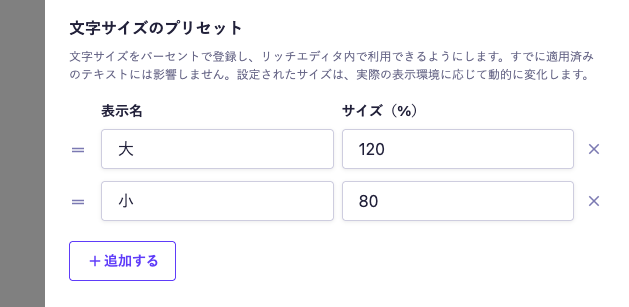
You can specify any text size.

Text is enclosed in the span tag, and the style attribute is set with the font-size property (text size).
<span style=\"font-size: 120%\">Large Text</span>
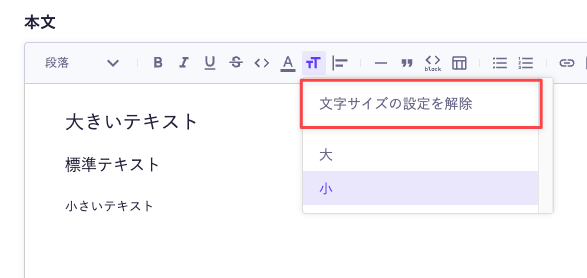
To specify text size, you need to register presets in advance in the API settings.

To reset the text size, select [Remove Text Size Setting].

Text Alignment
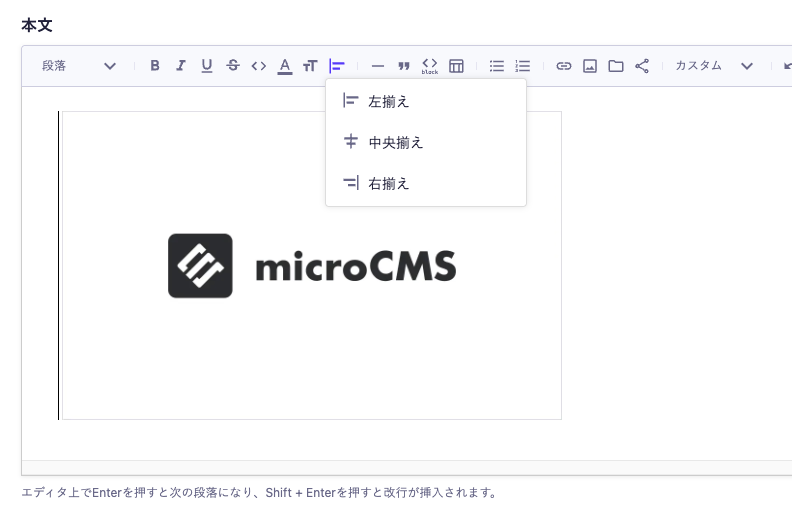
You can specify left align / center align / right align.
Left Align (Default)
<p>Left aligned text</p>Center Align
<p style="text-align: center">Center aligned text</p>Right Align
<p style="text-align: right">Right aligned text</p>Horizontal Line
The hr tag is inserted.
<hr>Quote
Text is enclosed in the blockquote tag.
<blockquote><p>Quoted text</p></blockquote>Code Block
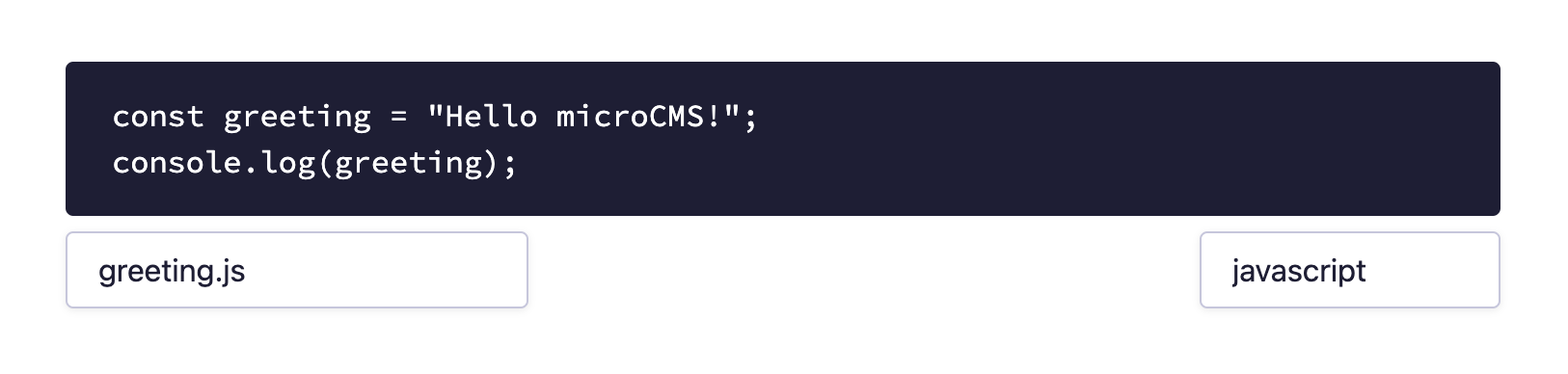
You can write source code over multiple lines.

Text is enclosed in the pre and code tags.
<pre>
<code>const greeting = "Hello microCMS!";\nconsole.log(greeting);</code>
</pre>You can specify a filename and language for the code block.
If specified, the response changes as follows.
<div data-filename="greeting.js">
<pre>
<code class="language-javascript">const greeting = "Hello microCMS!";\nconsole.log(greeting);</code>
</pre>
</div>Table
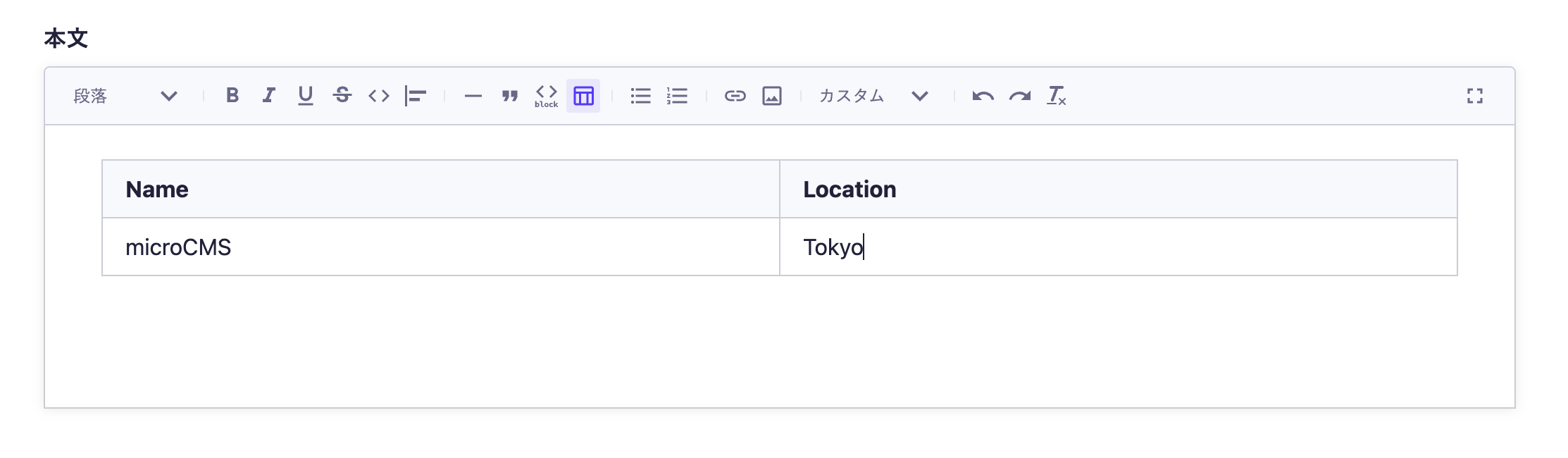
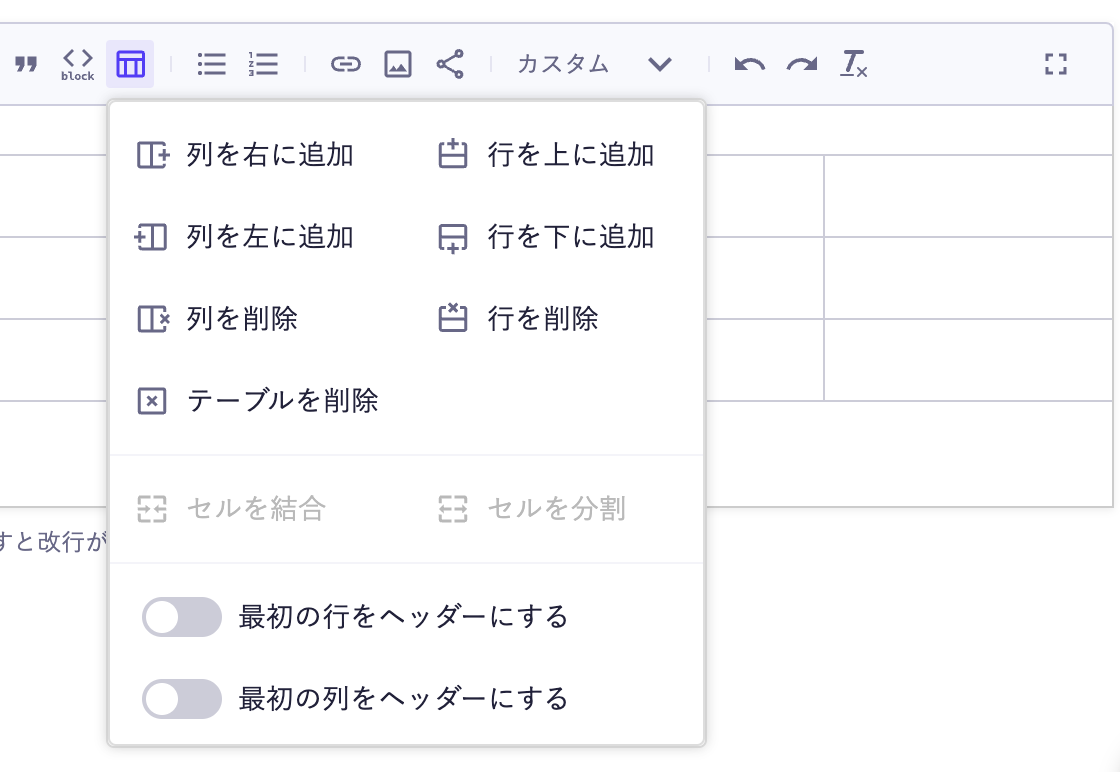
You can input a table.

You can add rows and columns, merge and split cells, and set the first row and column as headers.

Data is represented using the table tag.
<table>
<tbody>
<tr>
<th colspan="1" rowspan="1">
<p>Company</p>
</th>
<th colspan="1" rowspan="1">
<p>Location</p>
</th>
</tr>
<tr>
<td colspan="1" rowspan="1">
<p>microCMS</p>
</td>
<td colspan="1" rowspan="1">
<p>Tokyo</p>
</td>
</tr>
</tbody>
</table>List
Text is enclosed in ul and li tags.
<ul>
<li>Apple</li>
<li>Orange</li>
</ul>Lists can be nested. If nested, the response will look like this.
<ul>
<li>Japan
<ul>
<li>Tokyo</li>
<li>Osaka</li>
<li>Saitama</li>
</ul>
</li>
<li>America</li>
</ul>Information
- If the structure becomes deeply nested, there is a possibility of errors occurring due to database storage constraints. The number of nestings that can be configured varies depending on the structure, so if you have any questions, please contact us via the chat box in the bottom right corner.
Numbered List
The text will be enclosed in ol and li tags.
<ol>
<li>Account Registration</li>
<li>Service Registration</li>
<li>Create API</li>
</ol>Information
- If the structure becomes deeply nested, there is a possibility of errors occurring due to database storage constraints. The number of nestings that can be configured varies depending on the structure, so if you have any questions, please contact us via the chat box in the bottom right corner.
Links
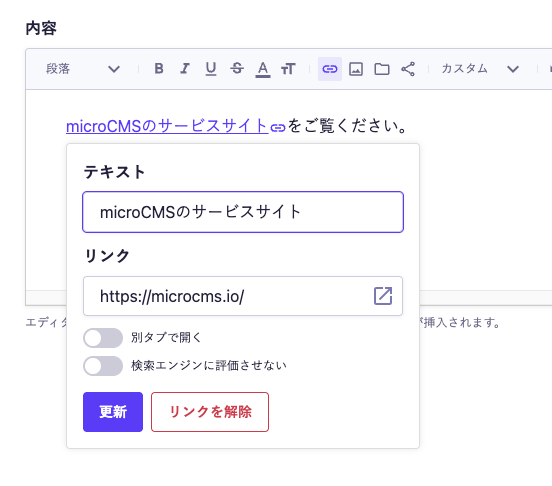
You can specify links.

Text is wrapped in the a tag.
<p><a href="https://microcms.io">microCMS Service Site</a></p>Enabling "Open in a new tab" allows you to specify that the link opens in a new tab.
<p><a href="https://microcms.io" target="_blank" rel="noopener noreferrer">microCMS Service Site</a></p>Enabling "Do not allow search engines to evaluate" allows you to add the nofollow attribute. Below is an example where both "Open in a new tab" and "Do not allow search engines to evaluate" are enabled.
<p><a href="https://microcms.io" target="_blank" rel="noopener noreferrer nofollow">microCMS Service Site</a></p>Supported Link Formats
The currently supported link formats are as follows:
- Absolute URL (e.g.,
https://example.com) - Relative URL (e.g.,
/about, *1) - Email link (e.g.,
mailto:example@example.com) - Phone link (e.g.,
tel:+1234567890,tel:81-90-1234-5678) - Fragment identifier only (e.g.,
#about)
Notes
(*1) Some formats are not supported for relative URLs.
- Specifying the parent directory (e.g.,
../) - Specifying the current directory (e.g.,
./) - Specifying only the directory name (e.g.,
about)
Images
You can specify images.
<figure>
<img src="https://images.microcms-assets.io/assets/service/test/file.png"
alt="" width="1200" height="630" />
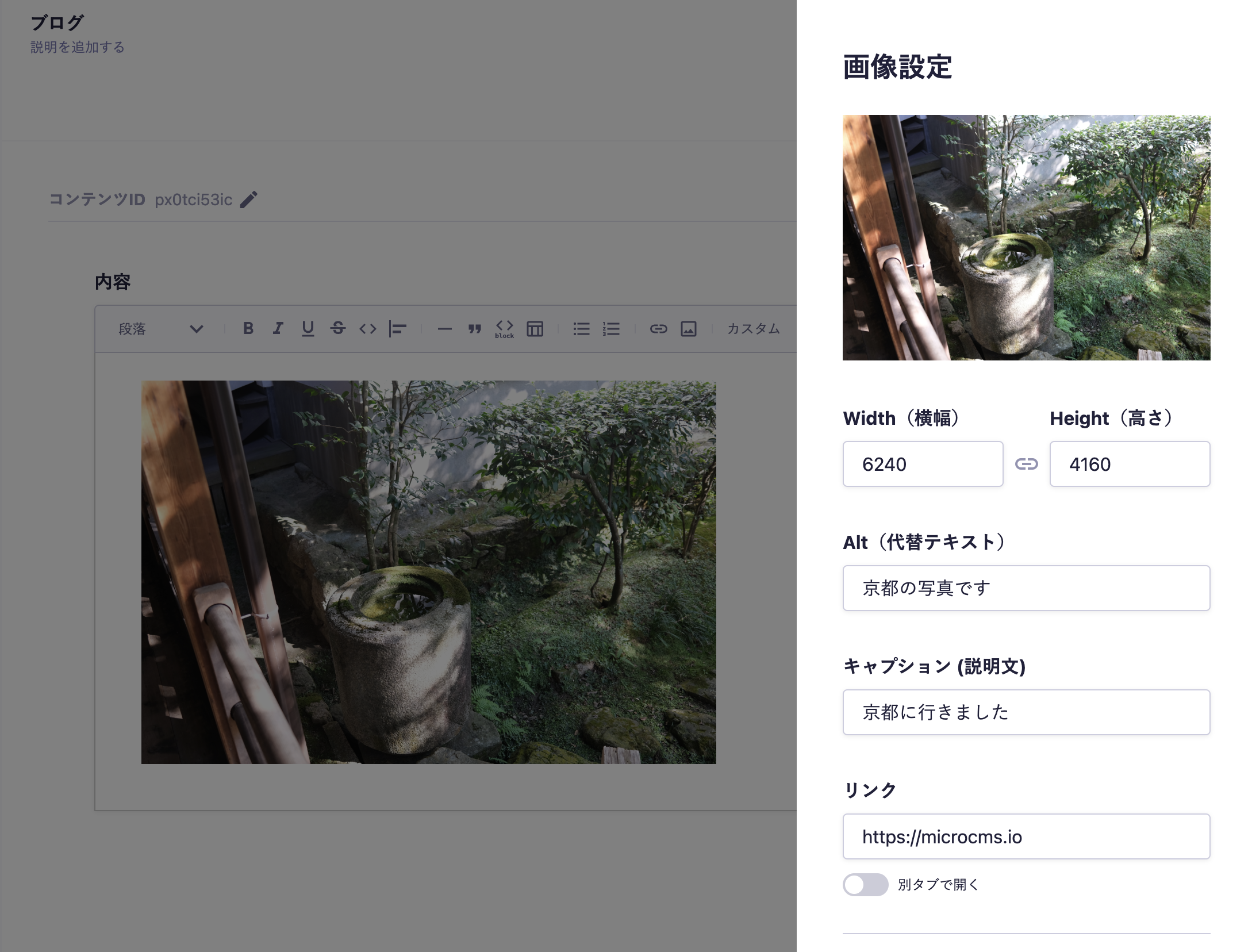
</figure>By clicking on the image entered in the rich editor, you can specify the image's width / height / alt / caption, as well as links (absolute path, relative path).
For the alt (alternative text), if it has been set from the media management screen, it will be overwritten by the value set in the rich editor.

If a link is specified for the image
<figure>
<a href="https://example.com">
<img src="https://images.microcms-assets.io/assets/service/test/file.png" alt="" width="1200" height="630" />
</a>
</figure>If a caption is set for the image
<figure>
<img src="https://images.microcms-assets.io/assets/service/test/file.png" alt="" width="1200" height="630" />
<figcaption>caption</figcaption>
</figure>Note that the supported link formats are the same as those that can be specified for text elements. For details, please refer to the section on "Links".
Image Alignment

The style attribute of the figure tag will have the text-align property added.
<figure style="text-align: left;">
<img src="https://images.microcms-assets.io/assets/service/test/file.png"
alt="" width="1200" height="630" />
</figure>Files
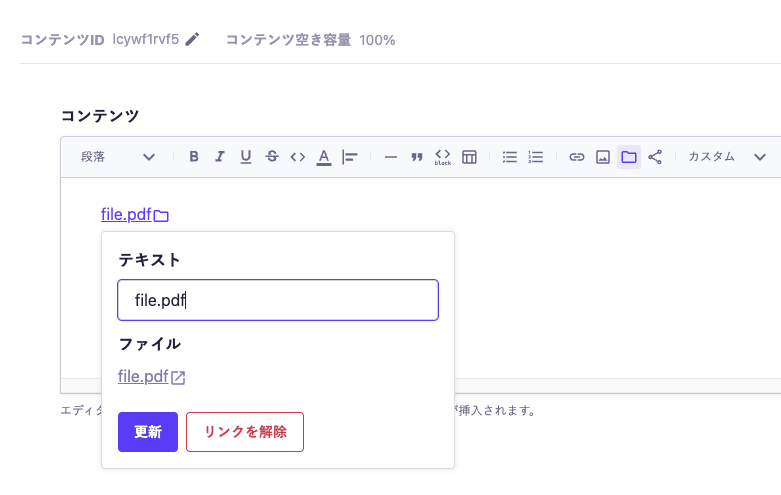
You can specify files.
- Text is wrapped in the
atag - The value of
data-embed-typeis fixed tofile - The value of
data-mime-typevaries depending on the file type - The value of
targetis fixed to_blank
<a
href="https://files.microcms-assets.io/assets/service/test/file.pdf"
target="_blank"
data-embed-type="file"
data-mime-type="application/pdf"
>
file.pdf
</a>
By clicking the link in the rich editor, you can change the link text.

Custom Class

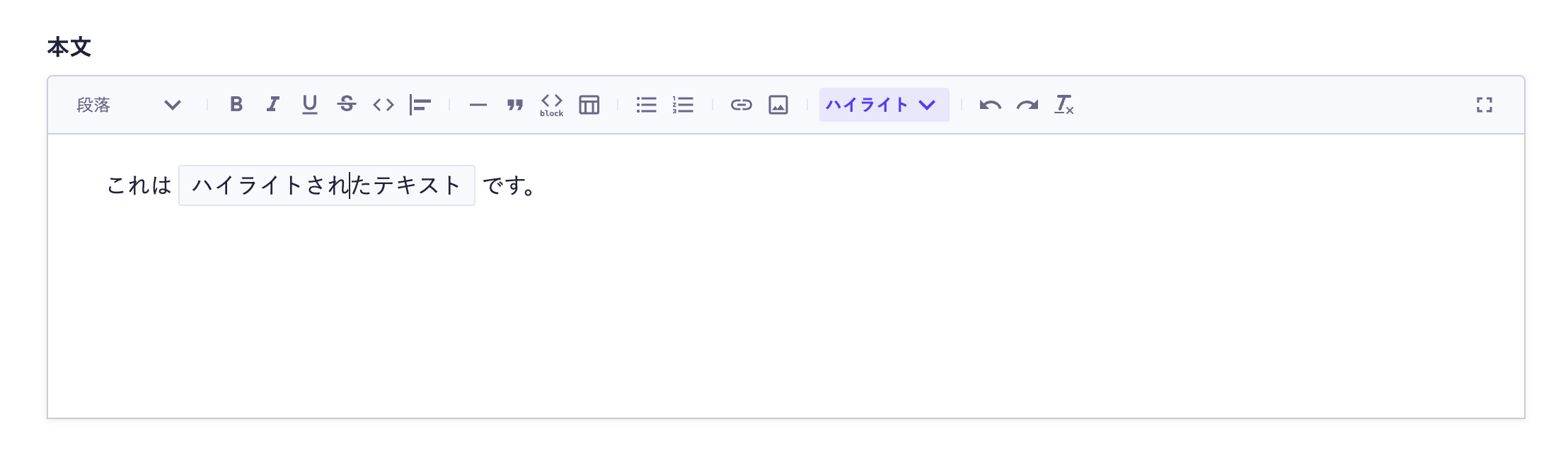
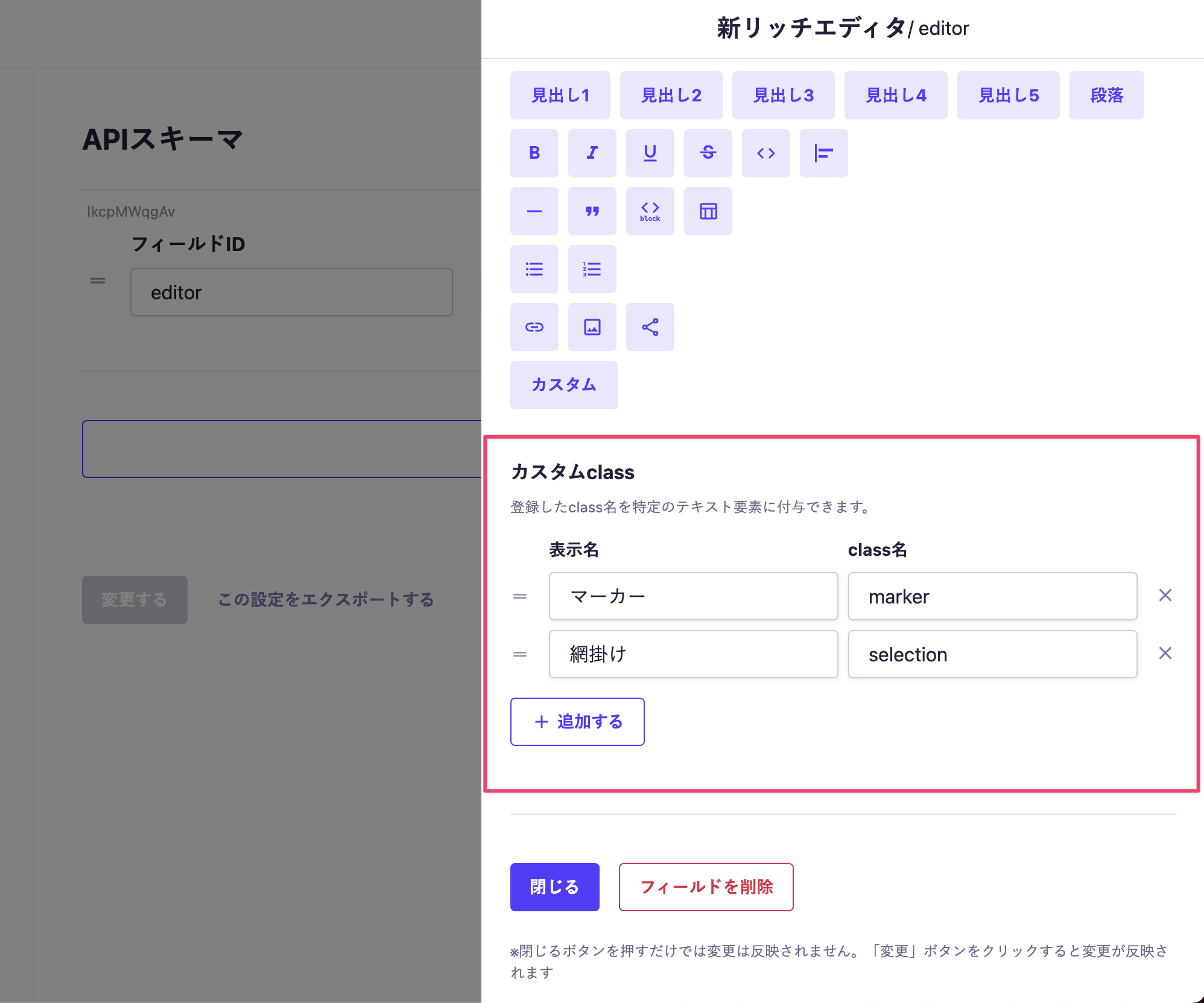
This feature allows you to apply any class to the text.
The applied class can be freely utilized, such as applying styles on the front-end implementation.
<p><span class="highlight">Highlighted text</span></p>
The types of custom classes can be selected from the content defined in the API settings in advance.

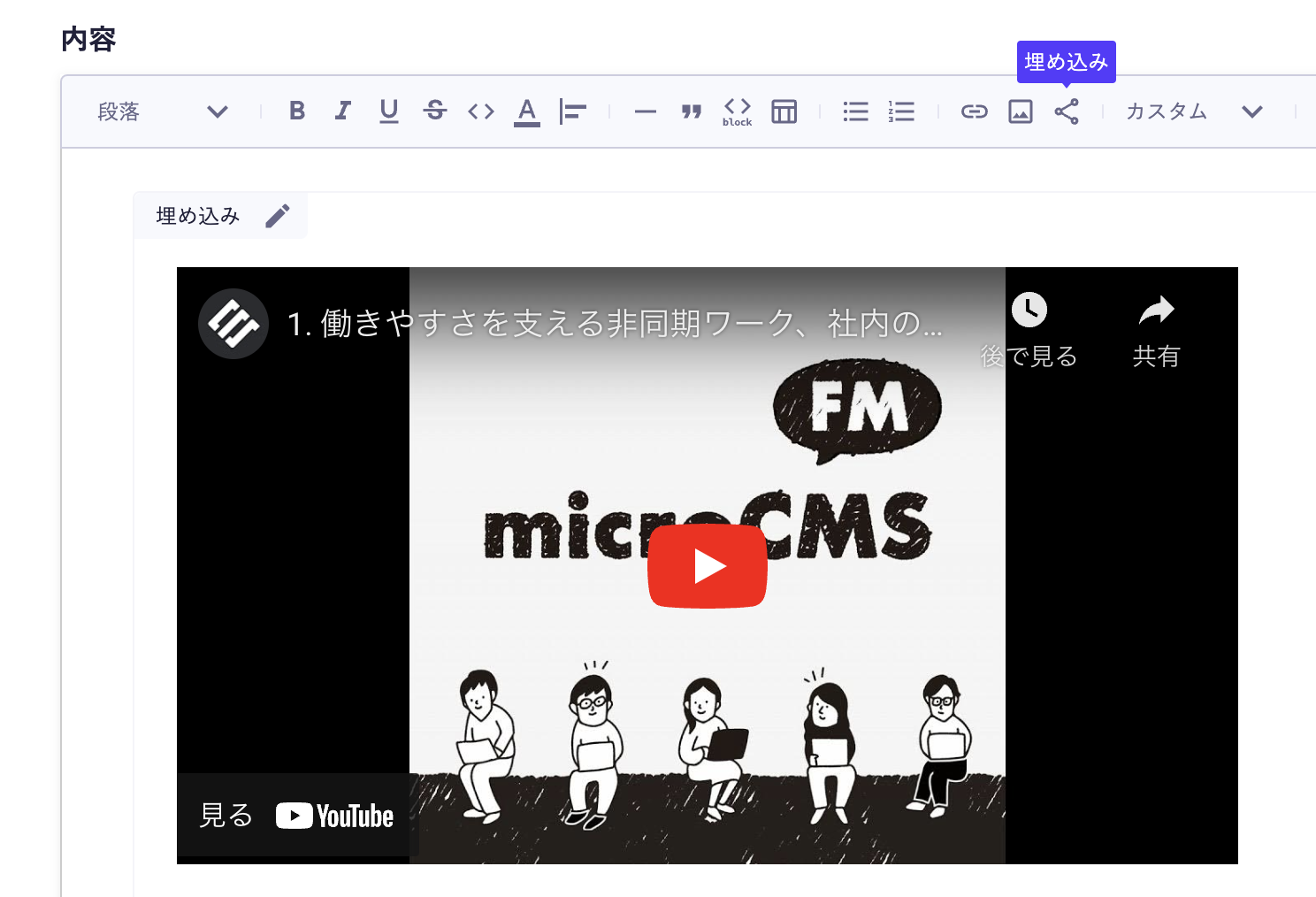
Embedded Editing

You can embed external services like X and YouTube.
It supports approximately 1,900 types of external services. You can also embed general website URLs that are not dependent on specific services.
For the services in question, please refer to the "Iframely Embeds API Domains".
▼Example of YouTube embedding
<div style=\"left: 0; width: 100%; height: 0; position: relative; padding-bottom: 56.25%;\"><iframe src=\"https://www.youtube.com/embed/omKyoU5Ia04?rel=0\" style=\"top: 0; left: 0; width: 100%; height: 100%; position: absolute; border: 0;\" allowfullscreen scrolling=\"no\" allow=\"accelerometer; clipboard-write; encrypted-media; gyroscope; picture-in-picture; web-share;\"></iframe></div>Clear Formatting
You can reset styles and HTML tag information for the selected range.
Undo / Redo
You can go back one step or move forward.
Markdown Syntax
Markdown syntax is also possible in the rich editor.
The following syntax is supported.
# Heading
**Bold**
*Italic*
~~Strikethrough~~
- List
1. Numbered List
> Quote
`Code`
```Code Block```Shortcut Keys
The following shortcut keys are available in the rich editor.
*However, they may not work in some environments.
esc → Exit full screen
⌘ (Ctrl) + S → Save draft
⌘ (Ctrl) + Shift + S → Publish
⌘ (Ctrl) + Alt + 1-5 → Headings 1-5
⌘ (Ctrl) + B → Bold
⌘ (Ctrl) + I → Italic
⌘ (Ctrl) + U → Underline
⌘ (Ctrl) + Shift + X → Strikethrough
⌘ (Ctrl) + E → Code
⌘ (Ctrl) + Shift + E → Center align
⌘ (Ctrl) + Shift + R → Right align
⌘ (Ctrl) + Shift + B → Quote
⌘ (Ctrl) + Alt + C → Code block
⌘ (Ctrl) + Shift + 8 → List
⌘ (Ctrl) + Shift + 7 → Numbered list
⌘ (Ctrl) + Z → Undo
⌘ (Ctrl) + Shift + Z → RedoThe new rich editor uses Tiptap for its editor part. Please also refer to Tiptap's keyboard shortcuts.
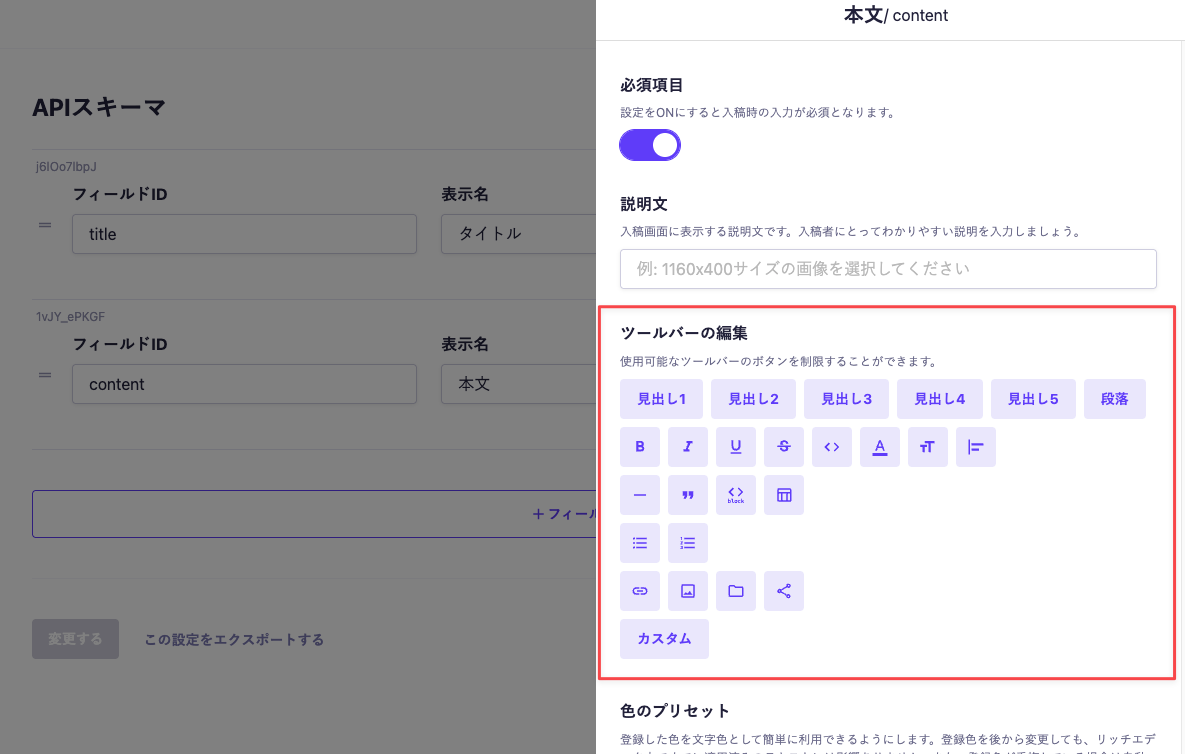
Editing the Toolbar
You can customize the decoration buttons of the rich editor. By clicking on Advanced Settings from the rich editor in the API schema, a side menu will open, allowing you to customize from Edit Toolbar.
You can conveniently use it by narrowing down to only the decorations considered on the website.

Differences Between the New Rich Editor and the Old Rich Editor
New Features in the Rich Editor
- Inserting tables
- Inserting horizontal lines
- Setting custom classes
- Specifying language and file name in code blocks
- Setting the "Open in a new tab" option for links
- Paragraph separation with Enter (p tag) / Line break with Shift + Enter (br tag)
- Adding image captions
- Embedded editing
- Submitting HTML strings using the WRITE API
- Specifying text color from a registered color palette
Features No Longer Available in the New Rich Editor
- Response in object format (
richEditorFormat) - Setting background colors
- Setting indents
- Setting superscript and subscript
Information
We recommend using custom classes as an alternative to the discontinued decorations.
How to Migrate from the Old Rich Editor to the Rich Editor
The old Rich Editor is treated as a separate field due to its different internal data structure.
Therefore, switching from the old Rich Editor requires manual migration work.
For more details, please refer to the help page below.

Contents
- About the Rich Editor
- Headings and Paragraphs
- Line Breaks and Paragraphs
- Bold
- Italic
- Underline
- Strikethrough
- Code
- Text Color
- Text Size
- Text Alignment
- Horizontal Line
- Quote
- Code Block
- Table
- List
- Numbered List
- Links
- Supported Link Formats
- Images
- Image Alignment
- Files
- Custom Class
- Embedded Editing
- Clear Formatting
- Undo / Redo
- Markdown Syntax
- Shortcut Keys
- Editing the Toolbar
- Differences Between the New Rich Editor and the Old Rich Editor
- New Features in the Rich Editor
- Features No Longer Available in the New Rich Editor
- How to Migrate from the Old Rich Editor to the Rich Editor