microCMS

Setting Up Two-Factor Authentication

You can set up two-factor authentication as a feature to enhance the security of your account.

informationInformation

With the Enterprise plan, access to the service can be restricted to members who have set up two-factor authentication.
For more details on this feature, please see "Mandatory Two-Factor Authentication".

What You Need

For two-factor authentication, a dedicated authentication application is required.
Please prepare a smartphone app as follows.

informationInformation

You can use authentication apps other than "Google Authenticator," but the only app that is officially supported is "Google Authenticator."

Steps to Set Up Two-Factor Authentication

1. Open the Two-Factor Authentication Settings Screen

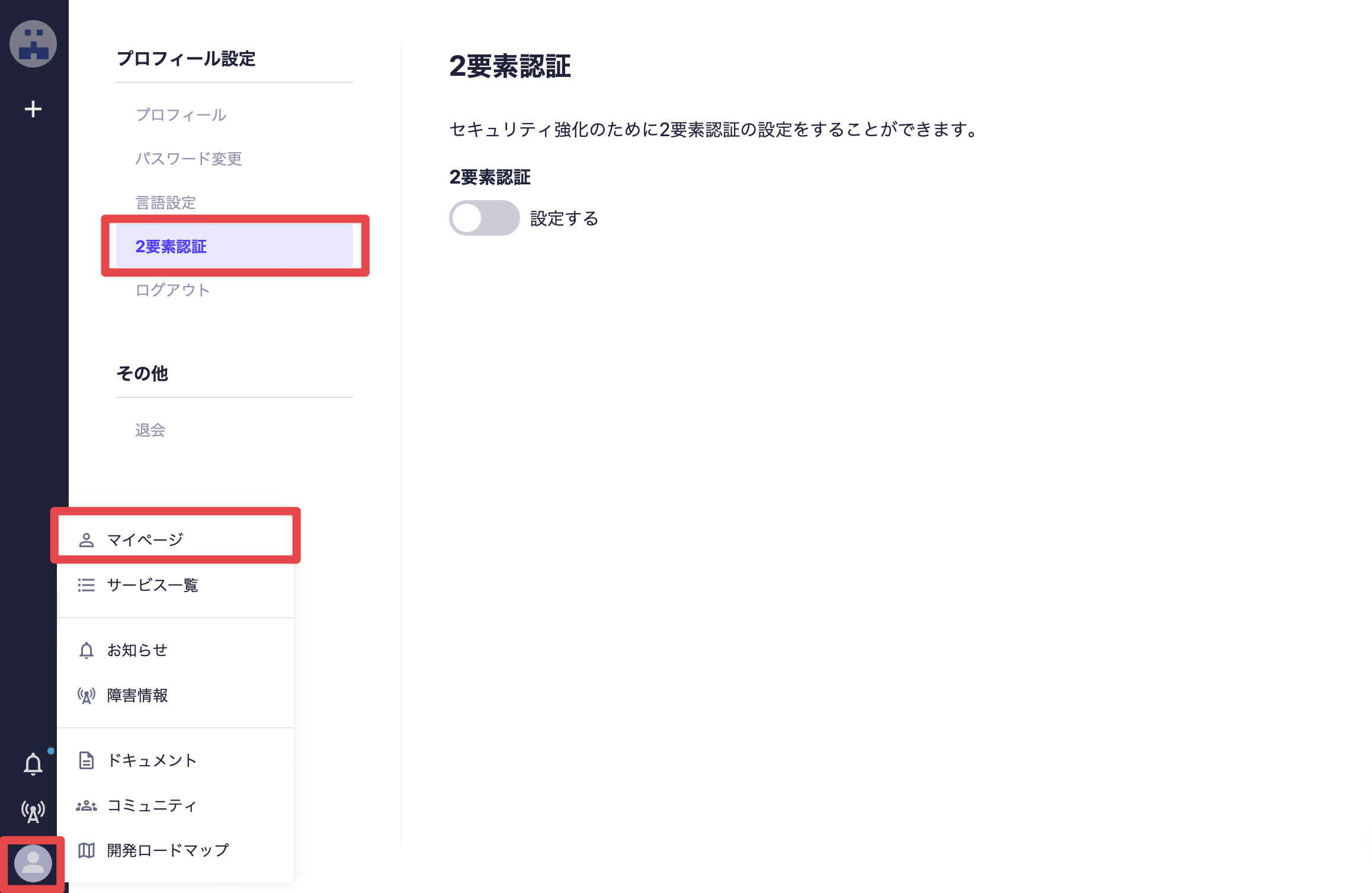
Click the menu icon at the bottom left of the admin panel, and in the displayed menu, click [My Page].
In the profile settings menu on the left, click [Two-Factor Authentication] to display the two-factor authentication settings screen.


2. Turn ON the [Enable] Switch

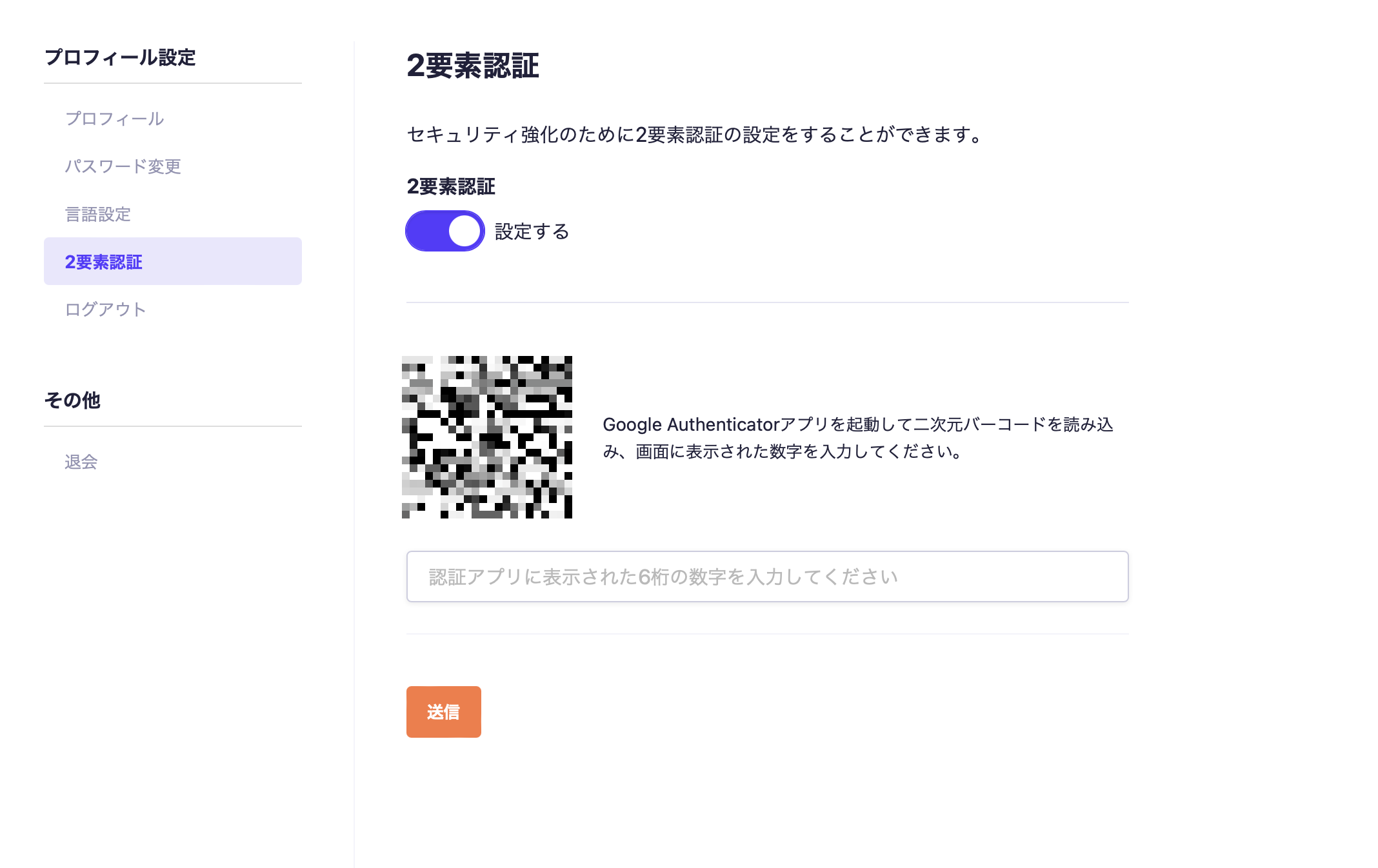
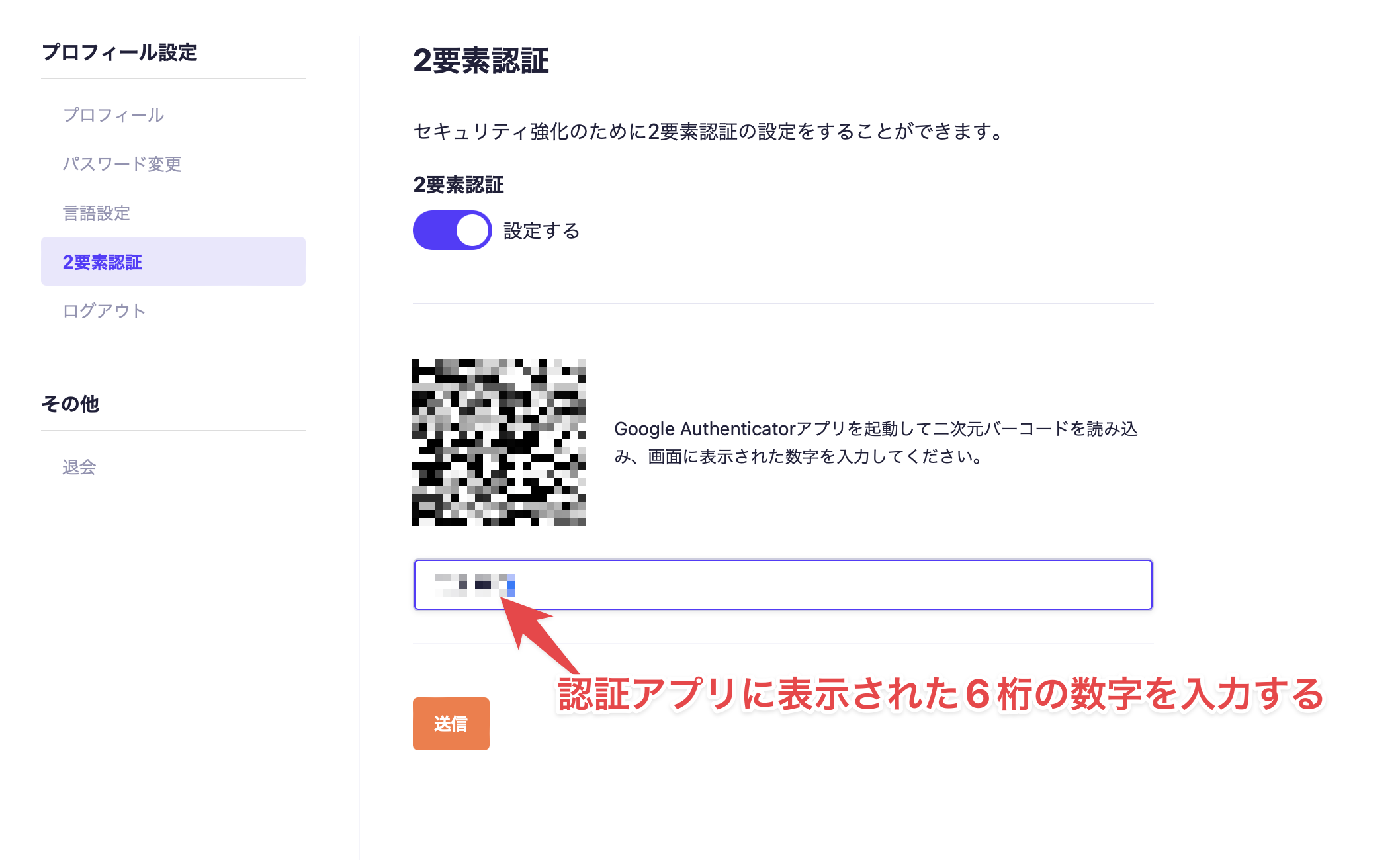
Turn ON the [Enable] switch.
When turned ON, the QR code scanning screen will be displayed.


3. Scan the QR Code with the Authentication App

Use an authentication app installed on your smartphone, such as "Google Authenticator," to scan the QR code displayed on the screen.


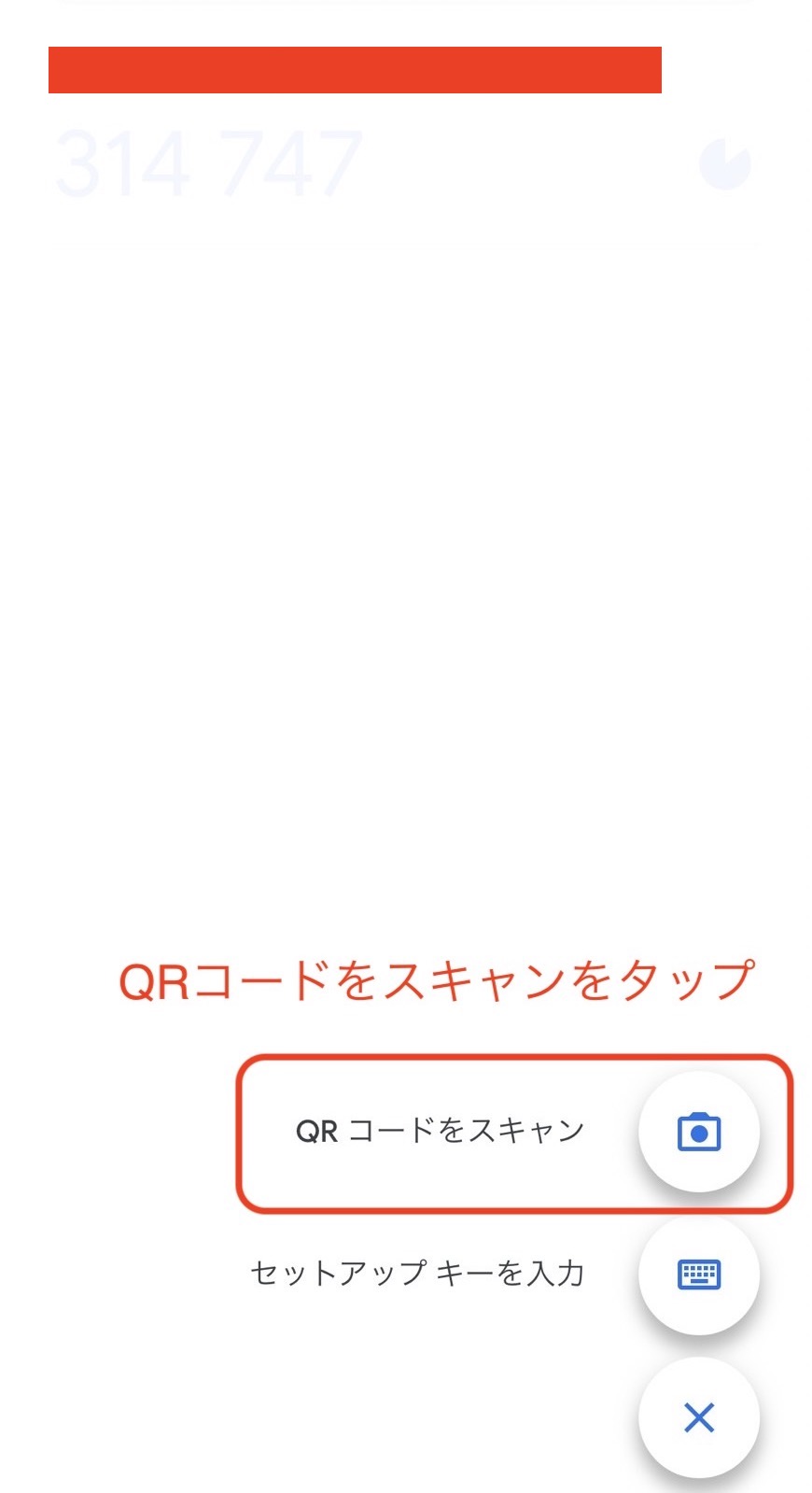
First, launch the authentication app and tap [Scan QR Code].


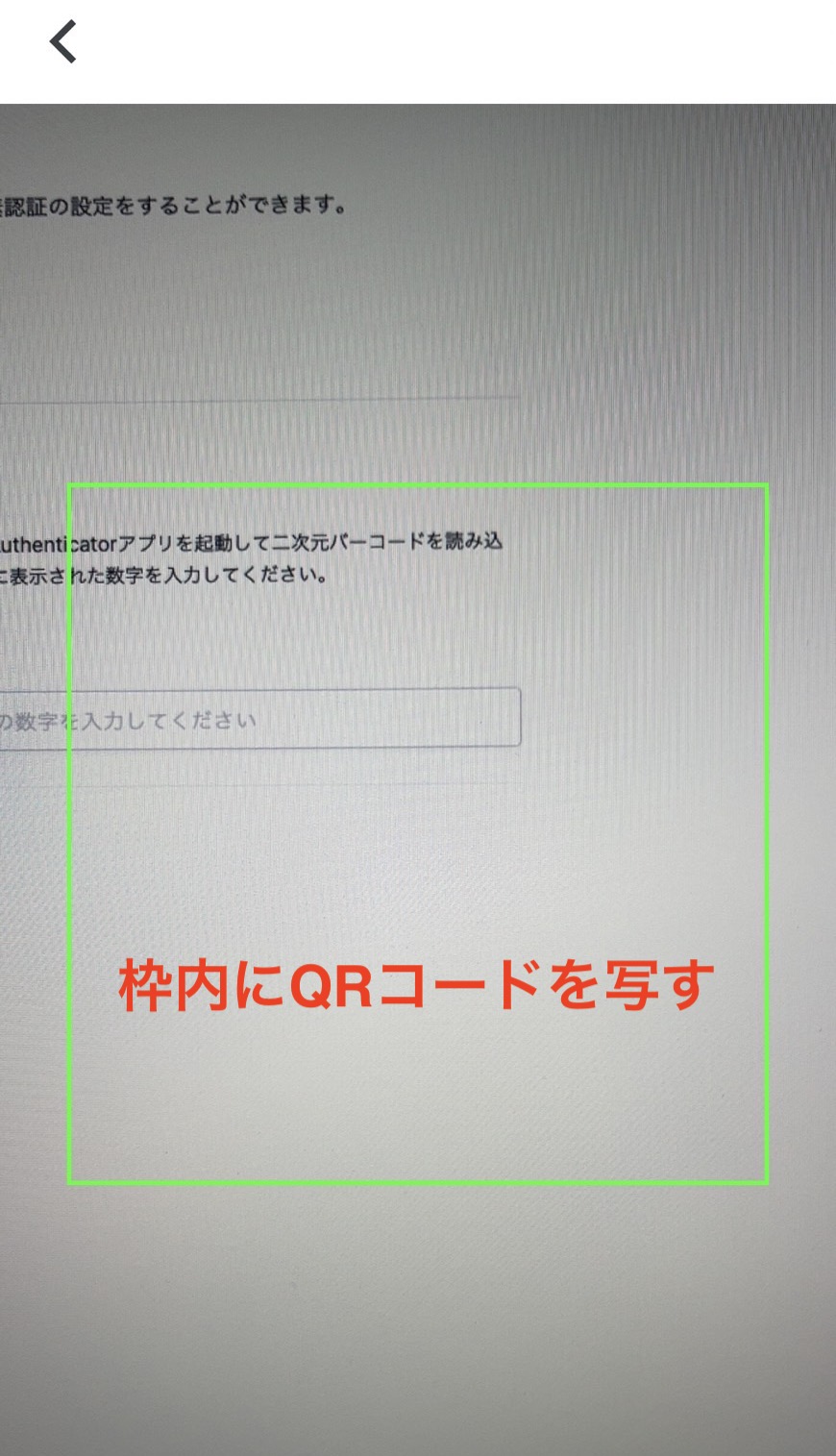
The QR code scanning screen will be displayed, so scan the QR code shown on the microCMS admin panel.


4. Read the Numbers Displayed in the Authentication App

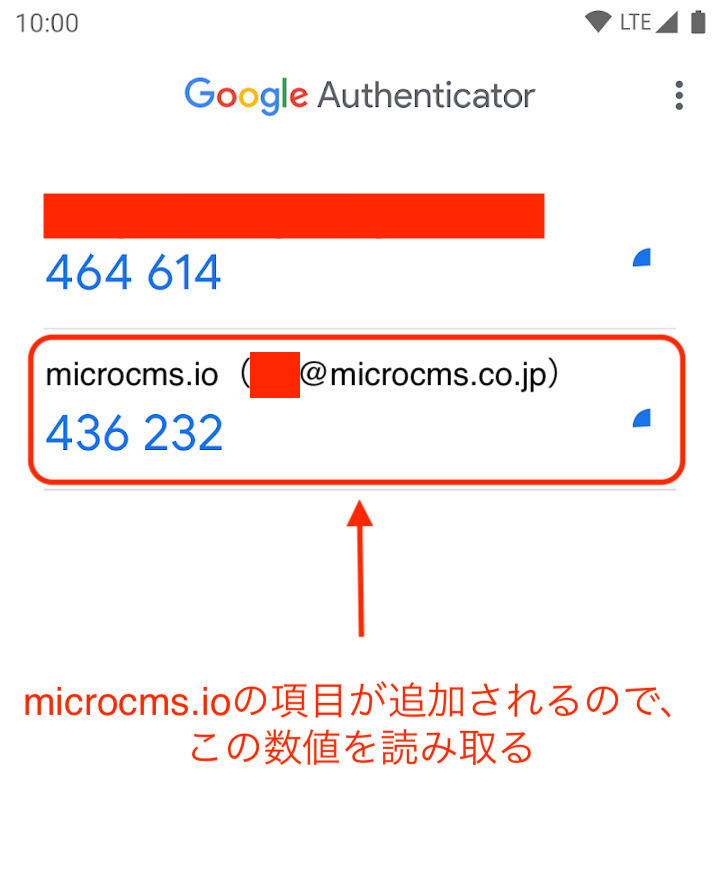
After scanning the QR code with the authentication app, an entry for "microcms.io" will be added. Read the 6-digit number listed under this entry.

informationInformation

The numbers will be reset at regular intervals, so please make sure to enter your input before the numbers change.

5. Enter the number read by the authentication app into the two-factor authentication settings screen

Enter the 6-digit number read by the authentication app into the two-factor authentication settings screen of microCMS. Once entered, click the [Submit] button.


If the correct number is entered, the setup is complete.
From the next login onwards, two-factor authentication will be required.

6. Log in with two-factor authentication

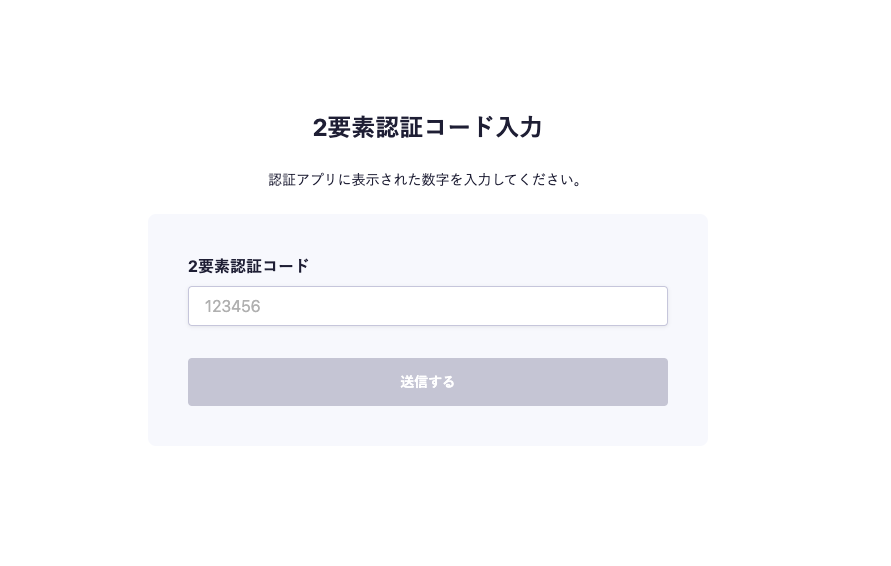
After setting up two-factor authentication, a screen for entering the two-factor authentication code will appear after verifying your email address/password.
Enter the number displayed in the authentication app used during setup and click [Submit].


If authentication is successful, the login will be completed.

cautionCaution

If you lose or damage the device required for two-factor authentication, you will be unable to log into your account. Please handle it with care.