Multiple Images
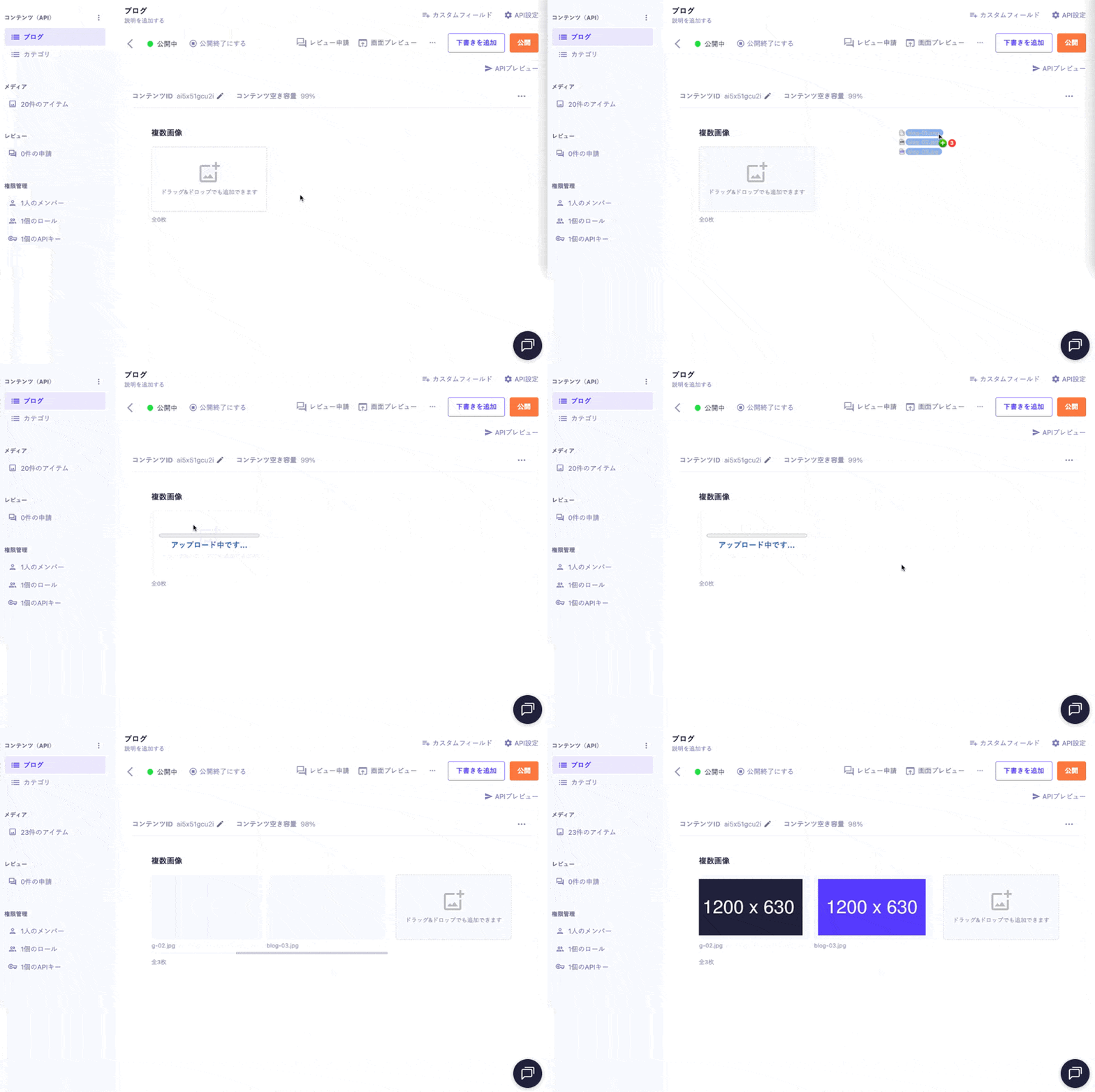
The multiple image field is used to manage multiple images. It is suitable for building carousel displays or photo galleries within articles.
How to Upload Data

- The method for selecting images is the same as the Image Field.
- For multiple image fields, you can upload multiple images at once by dragging and dropping them.
- The order of the selected images can be changed by dragging and dropping.
For information on uploading using the API and CSV, please refer to the following documentation.
Settings | Description |
|---|---|
Required Field | When enabled, input is required during submission. |
Description Text | This is the description text displayed on the submission screen. |
Image Size Limit | Limits the values of |
Layout | Sets the display in the management screen. The default is scrollable, and it can be set to 2-4 columns. |
Response Format of GET API
Please refer to the documentation below for details.
How to Use in Frontend
The multiple image field returns an array of objects containing image information (url, width, height, alt). You can process the array sequentially and pass the information of each element to the component for display.
export default async function Page({ params }) {
const { slug } = await params;
// Fetch data using the microCMS JavaScript SDK (https://github.com/microcmsio/microcms-js-sdk)
const data = await client.getListDetail({
endpoint: "blog",
contentId: slug,
});
return (
<main>
{/* imageList is the field ID. Please replace it with the actual field ID */}
{data.imageList.map((image,index) => (
<Image
key={index}
src={`${image.url}?w=800&fm=webp`} // Specify the image API
alt={image.alt || ""}
width={image.width}
height={image.height}
/>
))}
</main>
);
}