On the content creation screen, a form will be provided according to the defined API schema. Fill in the necessary information.
The "Content Capacity" is displayed at the top of the screen. If there is a lot of content, please check as you enter. For details on content capacity, refer to the "Limitations / Notes" page.
Once the content is finalized, click [Save Draft] to save it in draft status, or click [Publish] to make it public. Published content will be accessible via the API.
Additionally, content that has been saved as a draft or published can be edited in the content editing screen. For information on how to use the content editing screen, refer to "Editing Content".
Information
If you want to register multiple pieces of content, the CSV import feature is convenient. For details on this feature, please refer to "CSV Import of Content".
In the object format API, only a single piece of content can be submitted. Therefore, when you click on any object format API in the content (API) menu, you will immediately be taken to the content creation/editing screen.
The steps after entering the fields are the same as in the list format.
Tips
If you are unable to submit multiple contents, it is often the case that the API has been created in object format. If you are having trouble submitting multiple contents, please check this.

 Information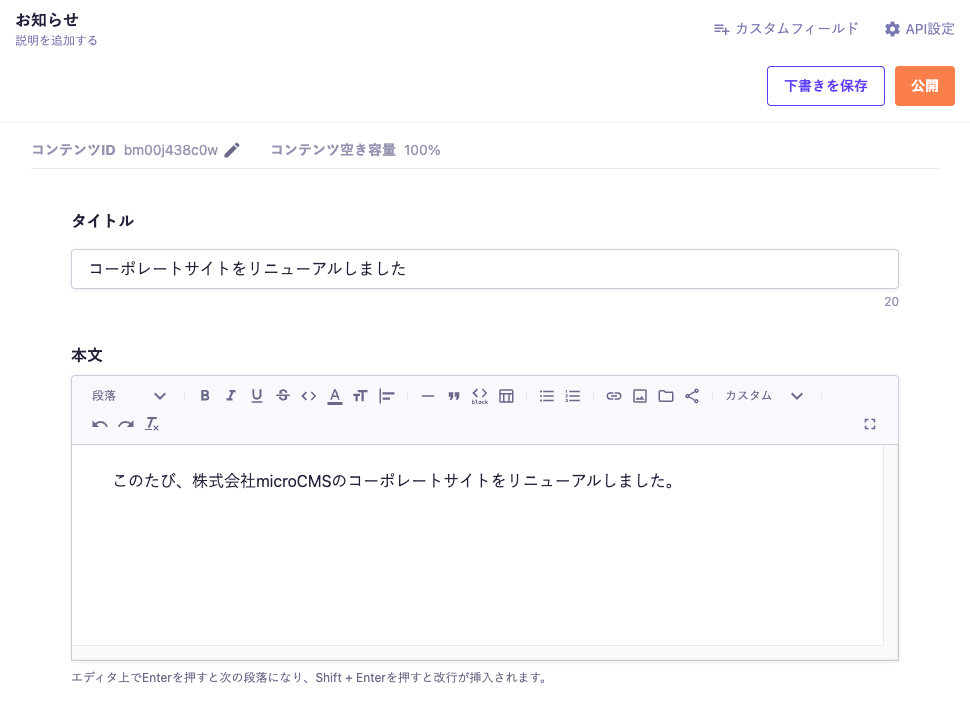

 Tips
Tips