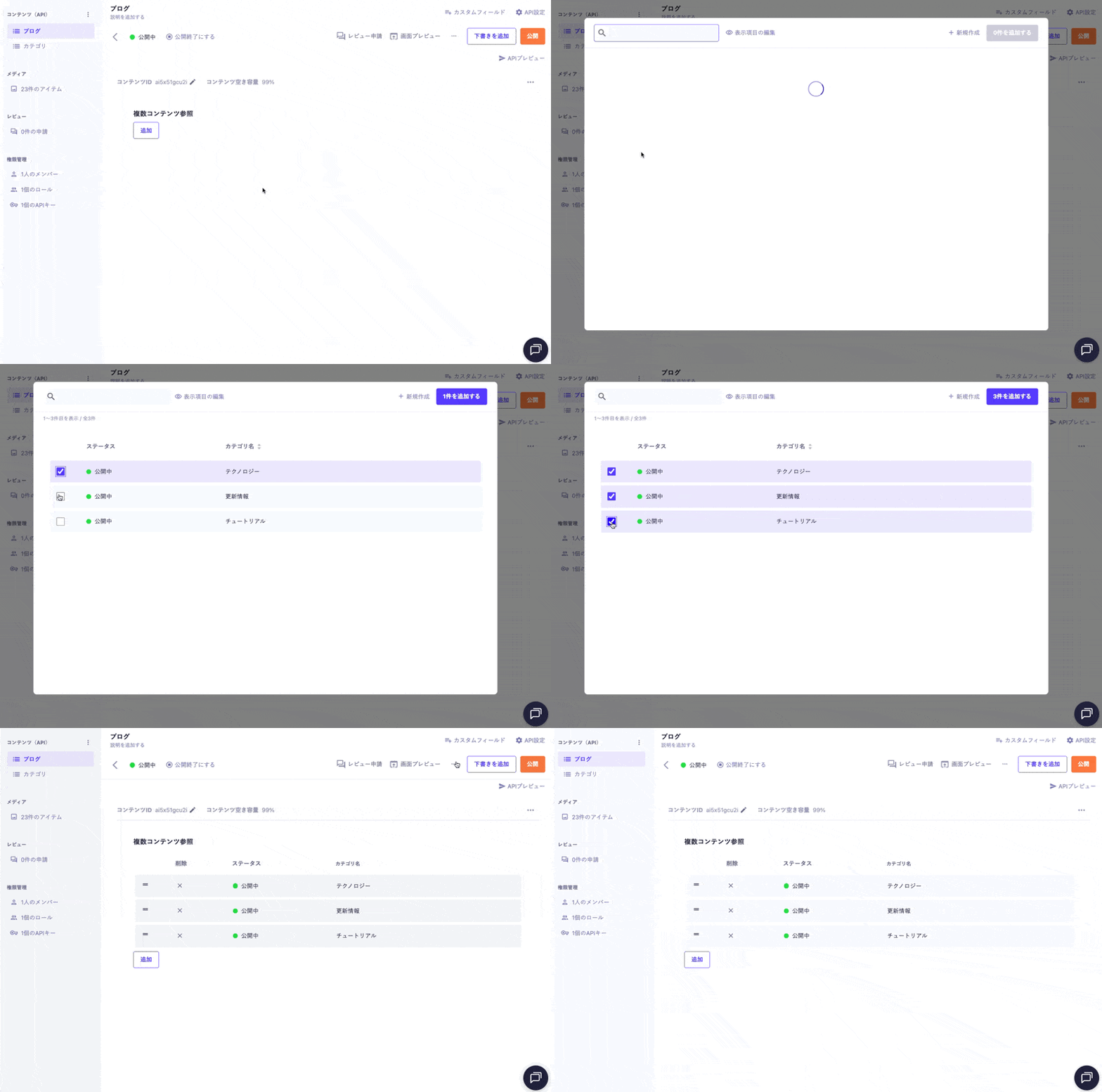
The multiple content reference is a field that allows you to link multiple pieces of content managed by a different API.
It is used to associate multiple categories with an article or to select and link multiple related articles, facilitating information sharing and establishing relationships.

Please refer to the following documents for uploading using API and CSV.

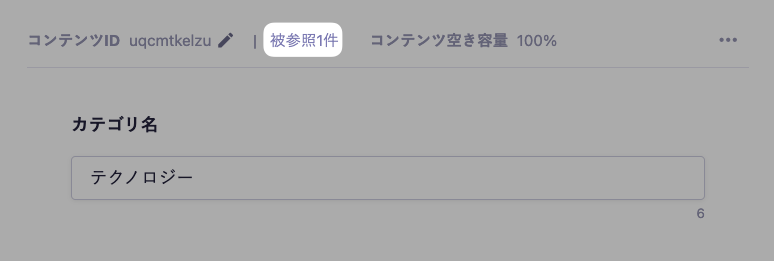
If a specific content is referenced by other contents, a button labeled [Referenced n times] will appear in the upper right corner of the content detail screen, allowing you to check the current number of references.
Clicking this button will display a list of the referencing contents in a modal window.
Setting Item | Description |
|---|---|
Required Field | When enabled, input is required during submission. |
Description | This is the description displayed on the submission screen. |
Referenced Content | Select the API to reference. This can only be selected when creating a new entry. |
Items Displayed on the List Screen | You can select items to display on the contents list screen from Content ID or text field items. If the specified item does not exist, the Content ID will be displayed instead. |
Limit the Number of Multiple Content References | Set the minimum and maximum number of selectable contents. |
Default Value | You can set up to 5 content references as default values during submission. |
Please refer to the documentation below for details.
The multiple content reference field returns data in the form of an array of objects, so you can display the referenced information using a loop.
Below is an implementation example in Next.js that shows a list of related articles on the article detail page.
export default async function Page({ params }) {
const { slug } = await params;
// Fetch data using the microCMS JavaScript SDK (https://github.com/microcmsio/microcms-js-sdk)
const data = await client.getListDetail({
endpoint: "blog",
contentId: slug,
});
return (
<main>
<h2>Related Articles</h2>
<div>
{/* relatedArticles is the field ID. Please replace it with the actual field ID */}
{data.relatedArticles.map((article) => (
<article key={article.id}>
<Link href={`/blog/${article.id}`}>
<Image
src={article.eyecatch.url}
alt={article.eyecatch.alt || ""}
width={200}
height={120}
/>
<p>{article.title}</p>
</Link>
</article>
))}
</div>
</main>
);
}