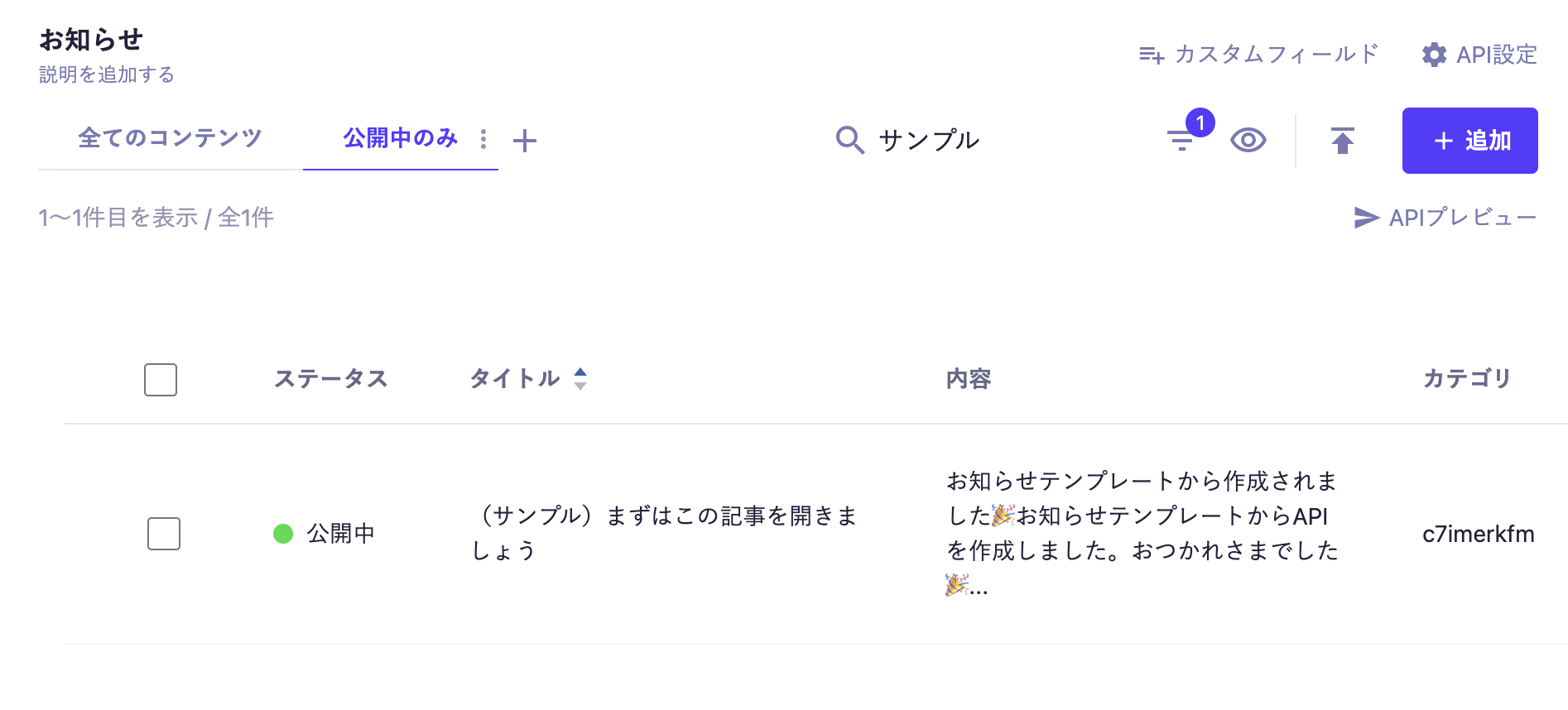
The view feature allows you to save the search conditions set on the content list screen and switch between them as tabs. This is useful for efficiently managing daily updates and large amounts of content, as you can quickly reproduce frequently used filtering conditions and sorting orders.
Information
The created views are saved as individual settings for each user. They will not be reflected on other members' screens and will not have any impact on them.
Views are configured per API. Common settings across APIs cannot be established.
Information
The view is a feature available in the Team, Business, and Enterprise plans. For details on the features available in each plan, please refer to the pricing page.
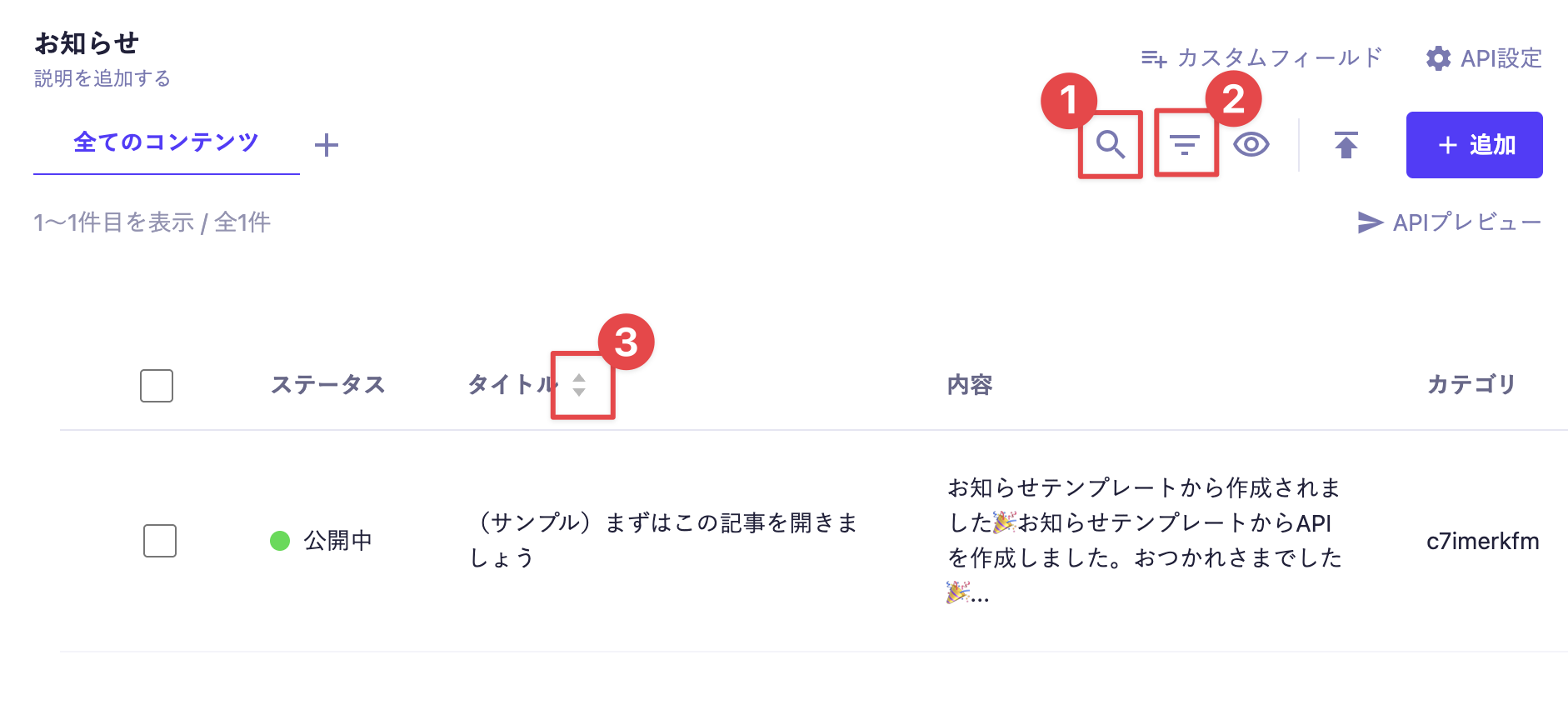
In a view, you can save search conditions such as string search, filtering, and sorting that can be set on the content list screen. There are two main methods for creating a view.
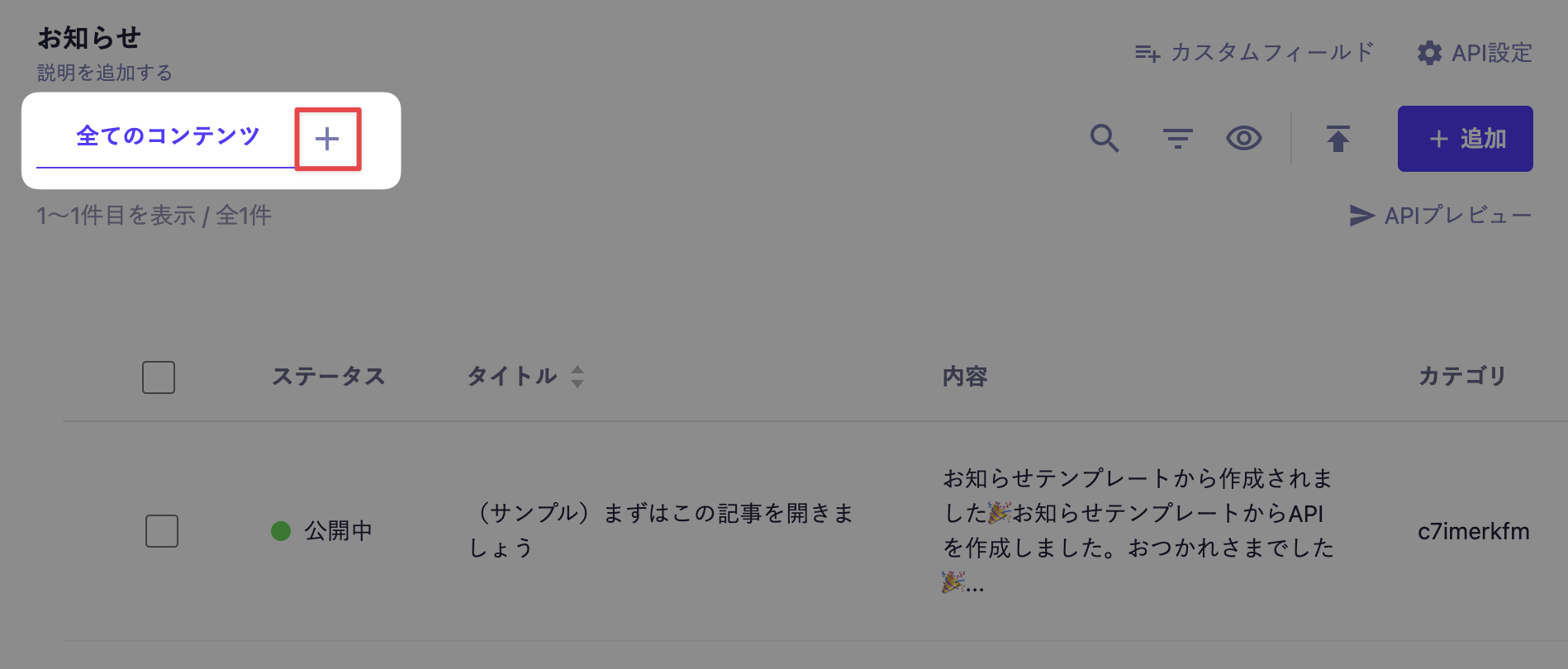
1. Press the new addition button ([+]) located at the far right of the view tab list.
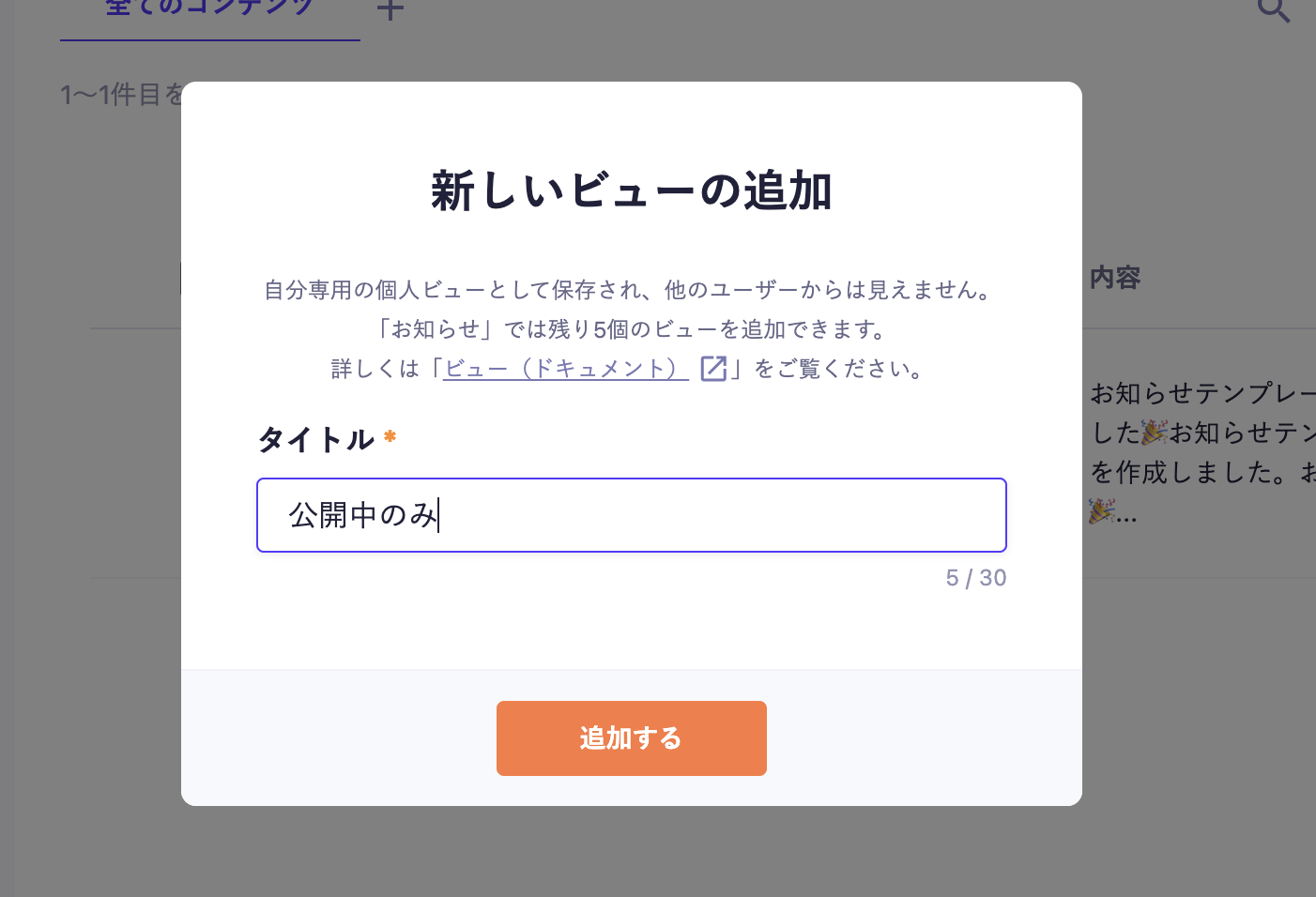
2. A window titled "Add New View" will appear, so enter a desired title and press [Add] to save.
3. Set the search conditions (string search, filtering, sorting) you want to save.
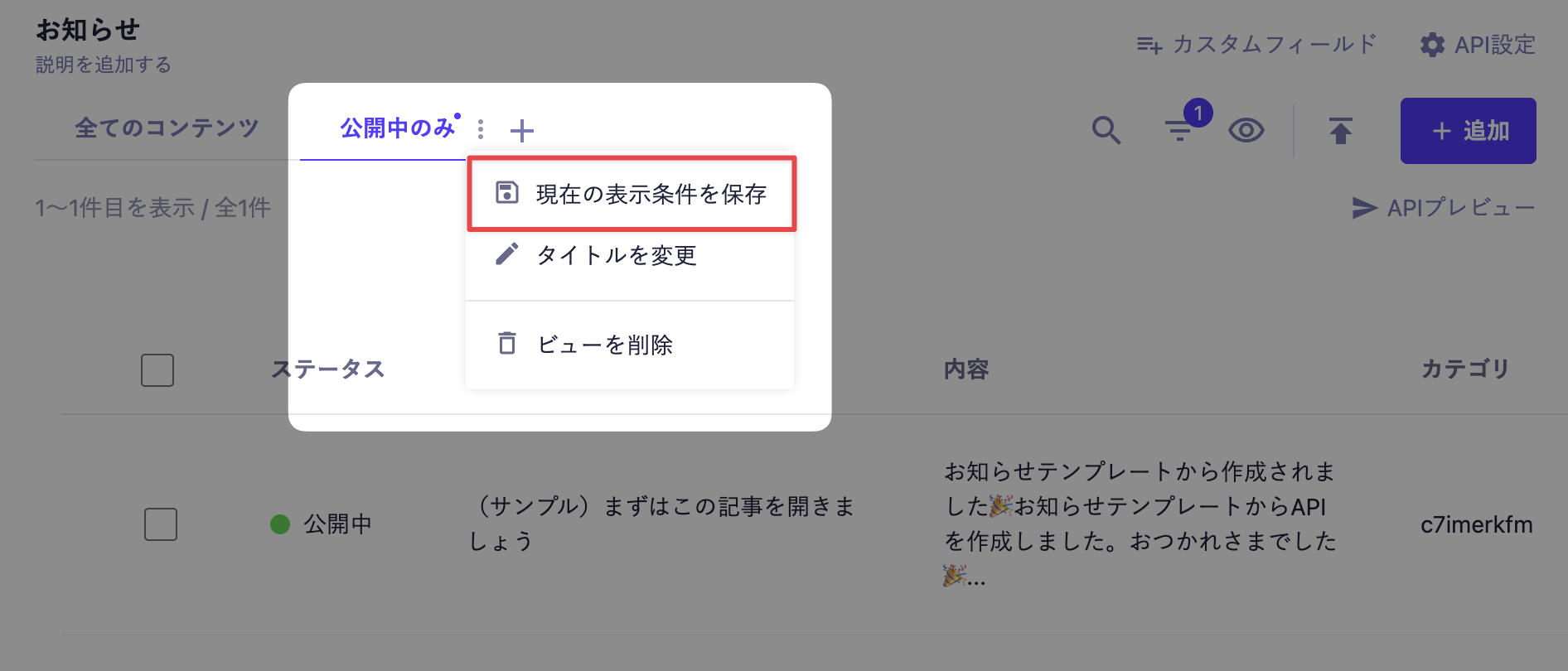
4. Press the menu button ([︙]) on the right side of the added tab, and from the displayed settings menu, press [Save Current Display Conditions] to save.
Information
When you press the new add button ([+]) while switched to a view with saved search conditions, a new view will be created with the search conditions carried over.
Information
The maximum number of views that can be created per API varies by plan.
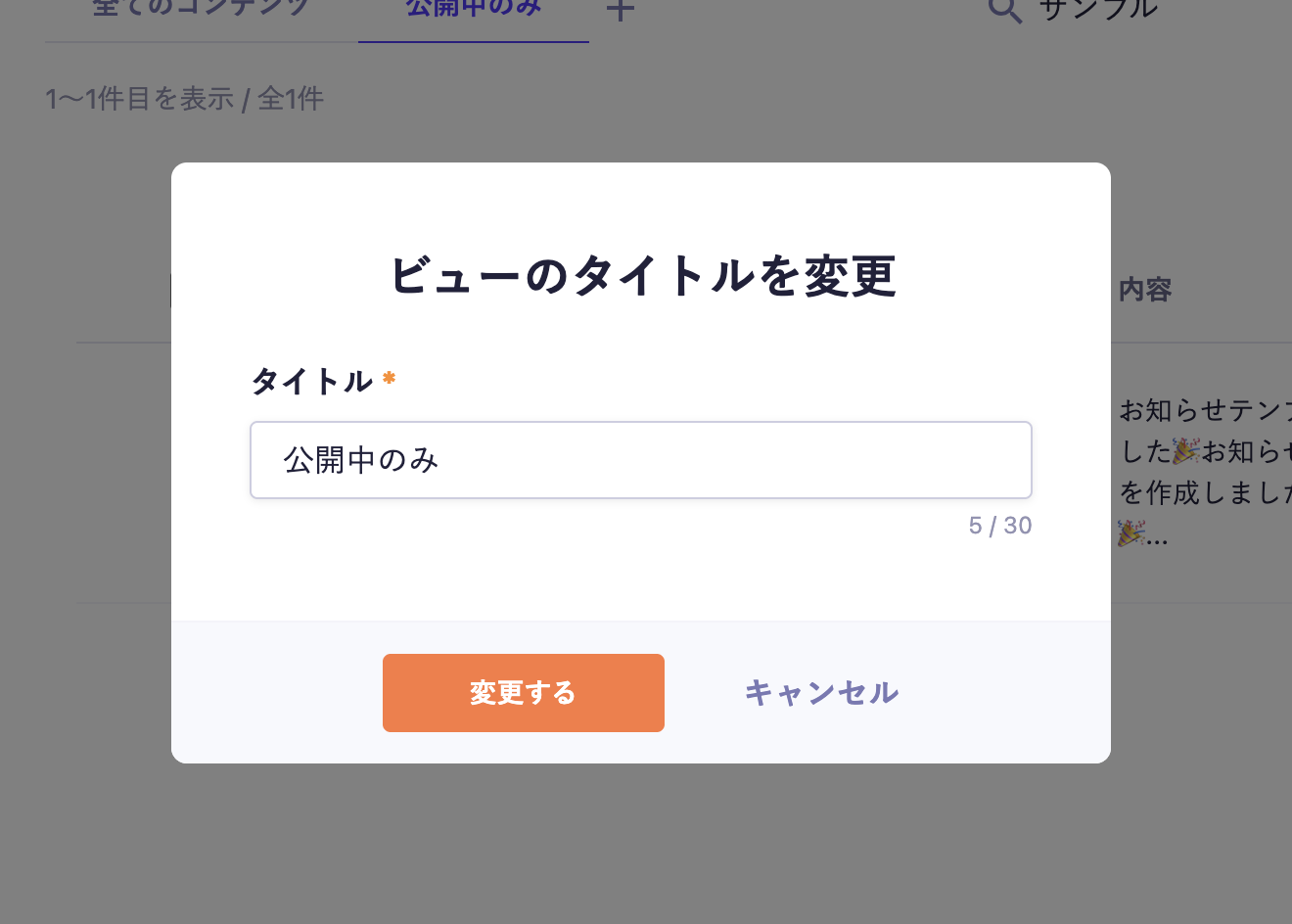
Press the menu button ([︙]) of the view you want to change, and select[Change Title] from the displayed settings menu. A window titled "Change View Title" will appear, where you can enter your desired title and press[Change] to save it.
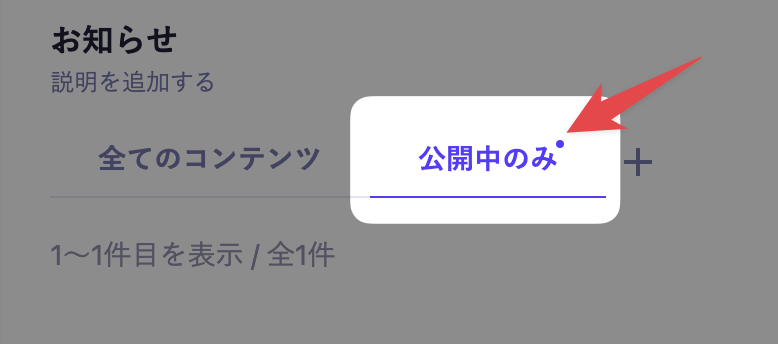
While switched to any created view, change any of the search conditions (string search, filter, sort). When changed, a mark (・) indicating that the settings are unsaved will appear on the tab.
In this state, press the tab's menu button (
[︙]) and select[Save Current Display Conditions] from the displayed settings menu to save.

 Information