The role feature allows you to flexibly set operation permissions for members in the management screen. Please use it when multiple members from different positions are managing content simultaneously, or when you want to set operation permissions by department or store.
Information
The role is a feature available in the Business and Enterprise plans. For details on the features available in each plan, please refer to the pricing page.
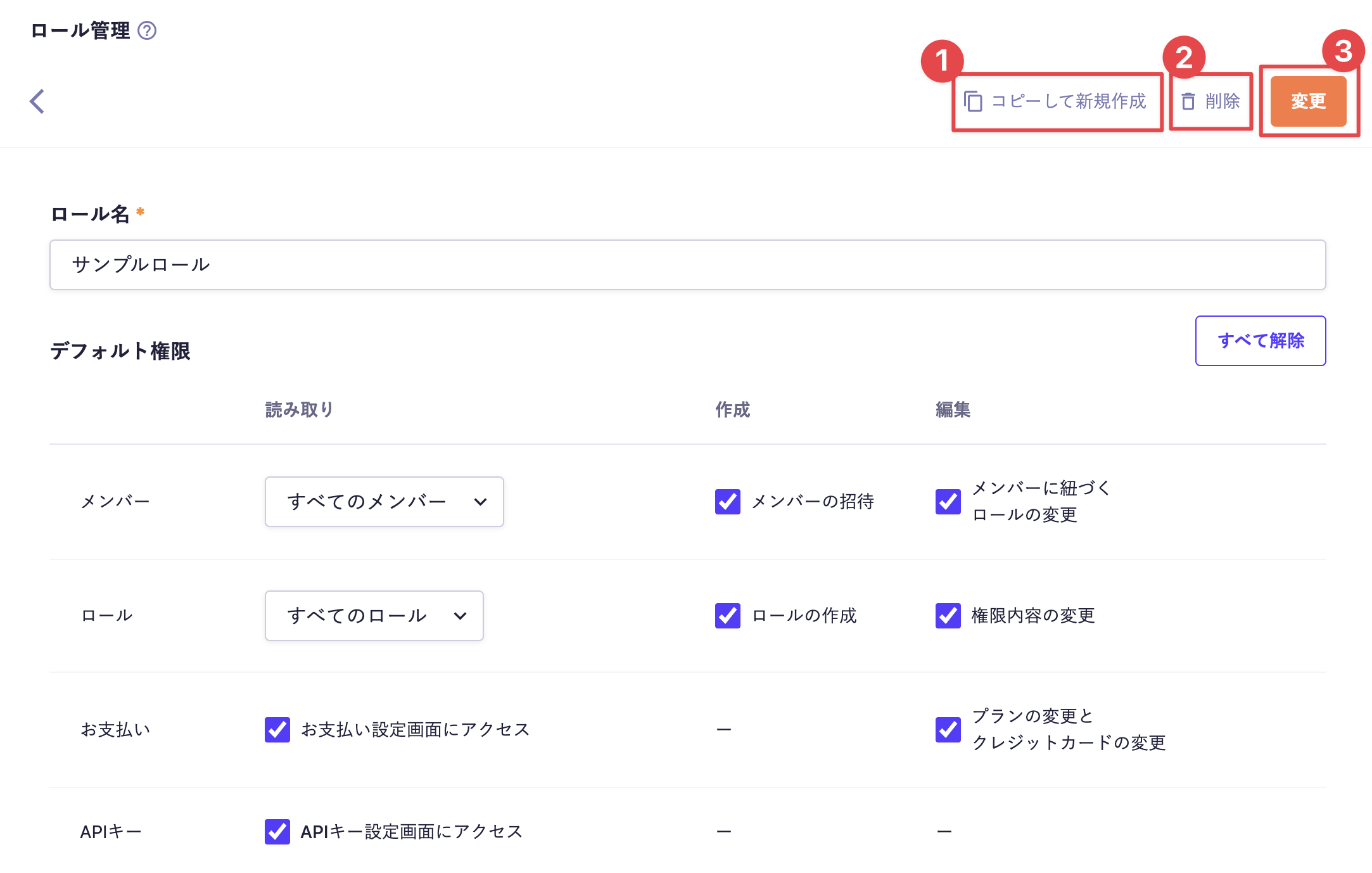
You can copy the settings of the selected role to create a new role. Press [Copy Role to Create New] to navigate to the new role creation screen, where the settings of the selected role will be reflected in their initial state. Please make any necessary edits and create the role.
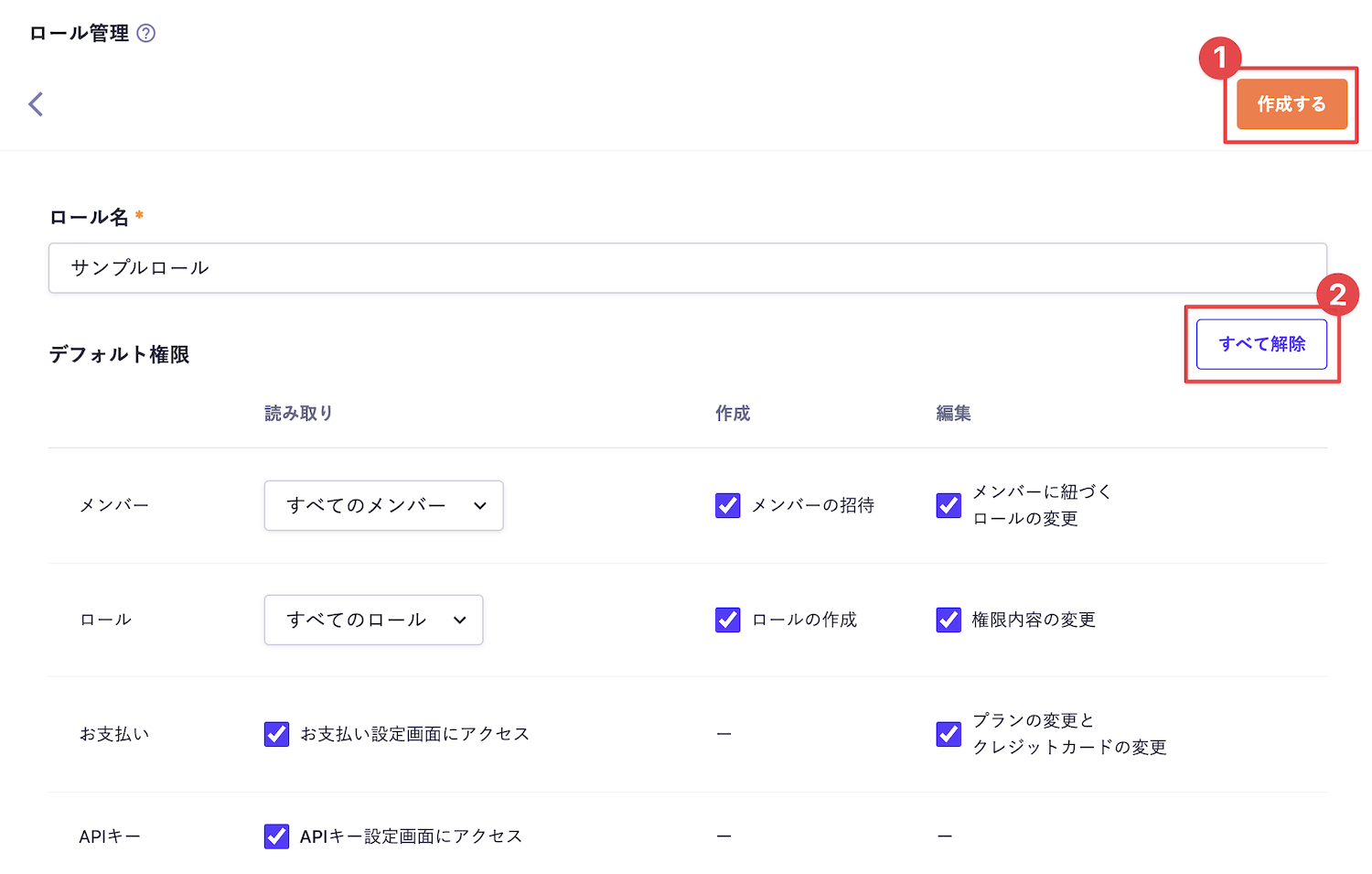
You can deselect all or grant all for each permission item. When individual permissions are added, a [Deselect All / Grant All] button will be provided for each individual permission.
This mainly affects the viewing of the member list screen and detail screen, as well as the reading of reviewer, creator, updater information, and members currently editing.
All Members
Information about all members can be read.
Members with this role assigned Information about members assigned the same role can be read.
This mainly affects viewing the API Key list screen, detail screen, and reading the API Key during API Preview. All information regarding API Keys will be accessible for reading.
You can view the list of duplicate environments and access all environments.
Only environments with known URLs (not recommended)
The list of duplicate environments will not be displayed, but you can access them directly if you know the URL. This setting is equivalent to the traditional read permission. If you want to restrict access to environments more strictly, it is recommended to set it to "None" or "Only specific environments."
Caution
If you are using SAML authentication, you cannot access the URL directly even if you know it.
Specific Environments Only
Only the explicitly specified environments can be listed and accessed. Environments that are not specified cannot be accessed even if the URL is known.
None
Access to duplicate environments is not allowed. Access is also not permitted if the URL is specified directly.
When creating an environment, having creation permissions allows you to verify a lot of data, as it enables the copying of settings and content from the production environment.
Only reviews created by members of this role You can only view reviews requested by members assigned the same role. The determination of whether members belong to the same role is based on the current role, not the role at the time of the review request.
Only Review Requests I Created
You can only view reviews that you have requested.
To change the publication status, the following permissions are additionally required for the target content.
Publish/Schedule for Publication: "Publish/Schedule Approved Content"
End Publication/Schedule to End Publication: "End Publication/Schedule Approved Content"
Edit and Comment Only
You can complete, reapply, post comments, edit the review title and description, set the scheduled time, configure the reviewer, assign the AI Reviewer on the review screen (manual execution), and execute a re-review.
No Editing
No edits can be made regarding the review.
Information
Permissions for Executing AI Review To manually execute (or re-review) an AI review, in addition to the review permissions mentioned above, you must have “read permissions for all content related to the review target”. If there is any data within the target content, such as referenced content or image data, for which you do not have read permissions, you will not be able to manually execute (or re-review) the AI review.
※Note that if "Automatic Review" is set to ON in the review settings, the execution will be performed by the system, and it can be executed regardless of the operator's permissions.
This mainly affects viewing the media list screen, reading images from the Rich Text Editor, and reading in image/file fields.
All Media
You will be able to read information about all media (images and files).
Media Created by Members of This Role Only
You can only view media created by members assigned the same role. The determination of whether they belong to the same role uses the current role, not the role at the time of media creation.
This mainly affects viewing the content list screen and detail screen, as well as reading content reference fields.
All Content
You can view all content.
Content Created by Members of This Role Only
You can only view content created by members assigned the same role. The determination of whether they belong to the same role uses the current role, not the role at the time of content creation.
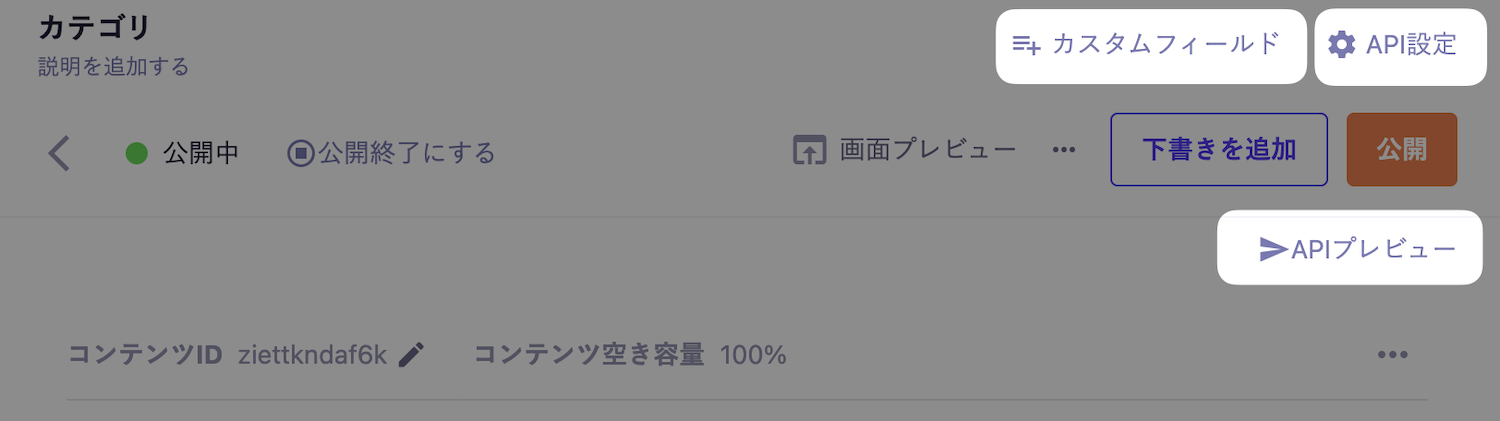
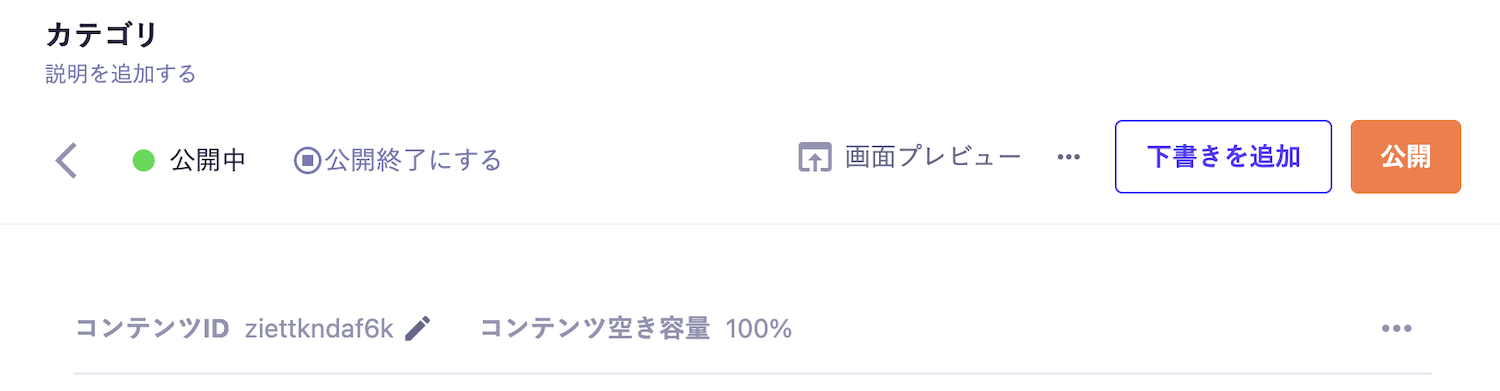
You can hide developer settings. If set to hidden, the following menus will not be displayed.
Custom Fields
API Settings
API Preview
▼View When Developer Settings are Set to "Visible"
▼View When Developer Settings are Set to "Hidden"
Caution
You can view Custom Fields and API Settings by directly entering the URL. The Developer Menu is intended for basic control, so if you need to restrict actual access, please use the permission settings related to the API.
The Administrator role is a default role that has permissions for all operations. This role cannot edit (change permission contents) or delete. Additionally, it must be assigned to at least one member within the Service.
There are operations in the Administration console that can only be executed by the Administrator role. Therefore, when comparing a newly created role with all permissions granted to the Administrator role, the Administrator role can perform a wider range of operations.
Operations that can only be executed by the Administrator role include the following:
Viewing and operating certain items in Service Settings
Creating, editing, and deleting API Keys
Changing environment names and label colors
Creating, editing, and deleting API Groups
Granting and editing roles other than the one they belong to
Enabling AI Features and individual functionalities
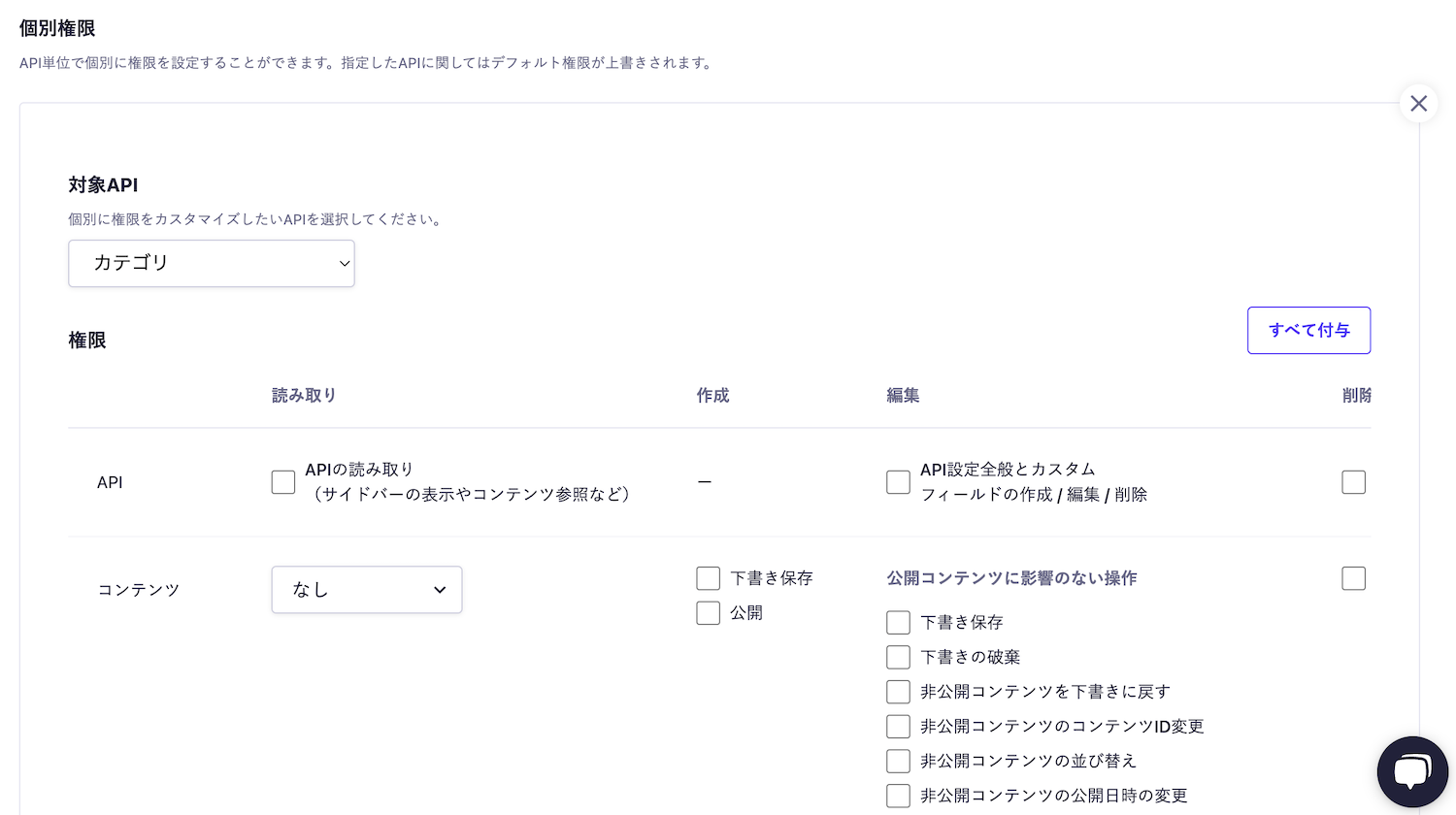
Default permissions are permissions applied at the service level, and restrictions are applied to all APIs / contents. This is effective when you want to set permissions for the entire service at once.
On the other hand, custom permissions are permissions applied at the API level, which can override default permissions. With custom permissions, you can set the following items:
Members with roles other than the Administrator role are only permitted to perform the following actions regarding role assignment and editing.
Edit the permissions of the role they belong to
Grant or revoke their own role to/from another member
If you hold a role other than the Administrator role and wish to grant or edit roles other than your own, please assign the relevant role to the corresponding member. Roles can be assigned to multiple members, and stronger permissions take precedence.
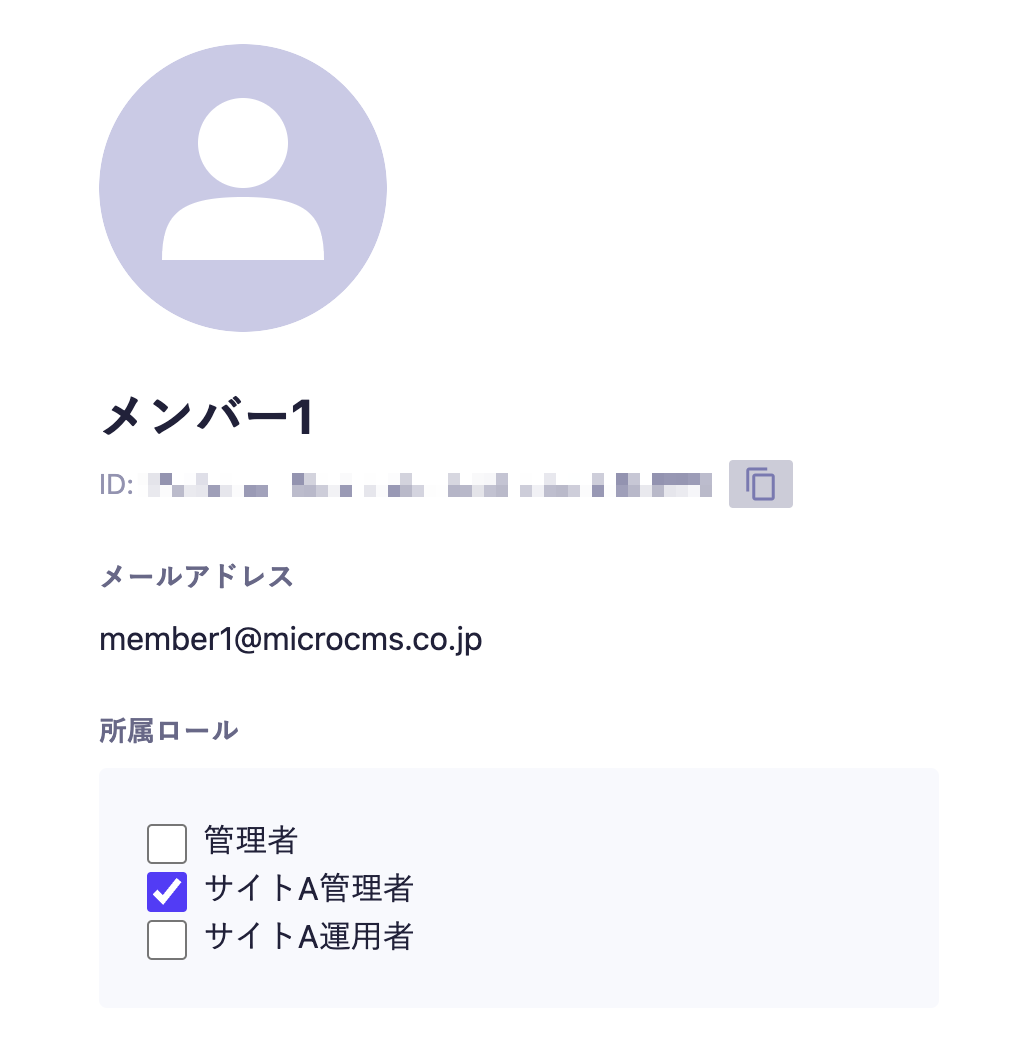
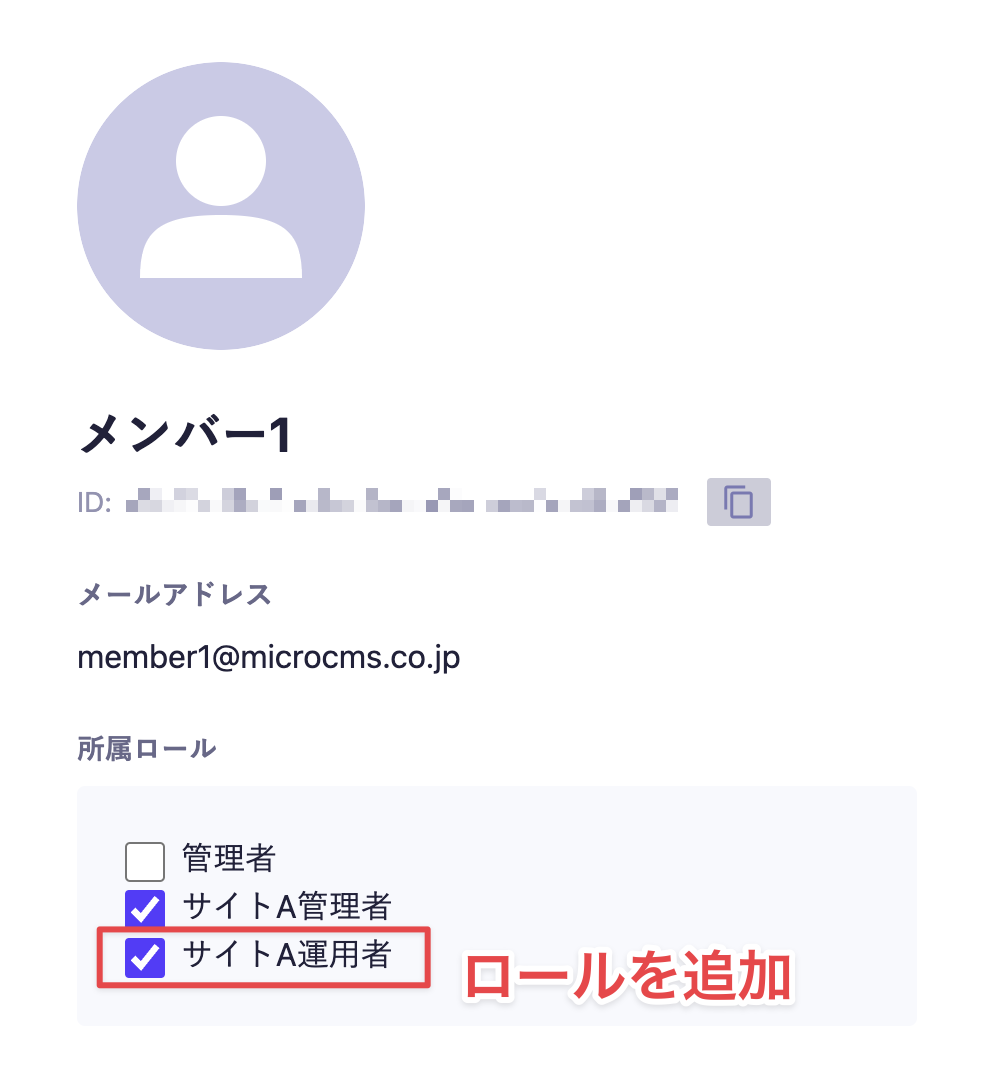
Assume there are two roles: "Site A Administrator" and "Site A Operator," and there is a member with the "Site A Administrator" role.
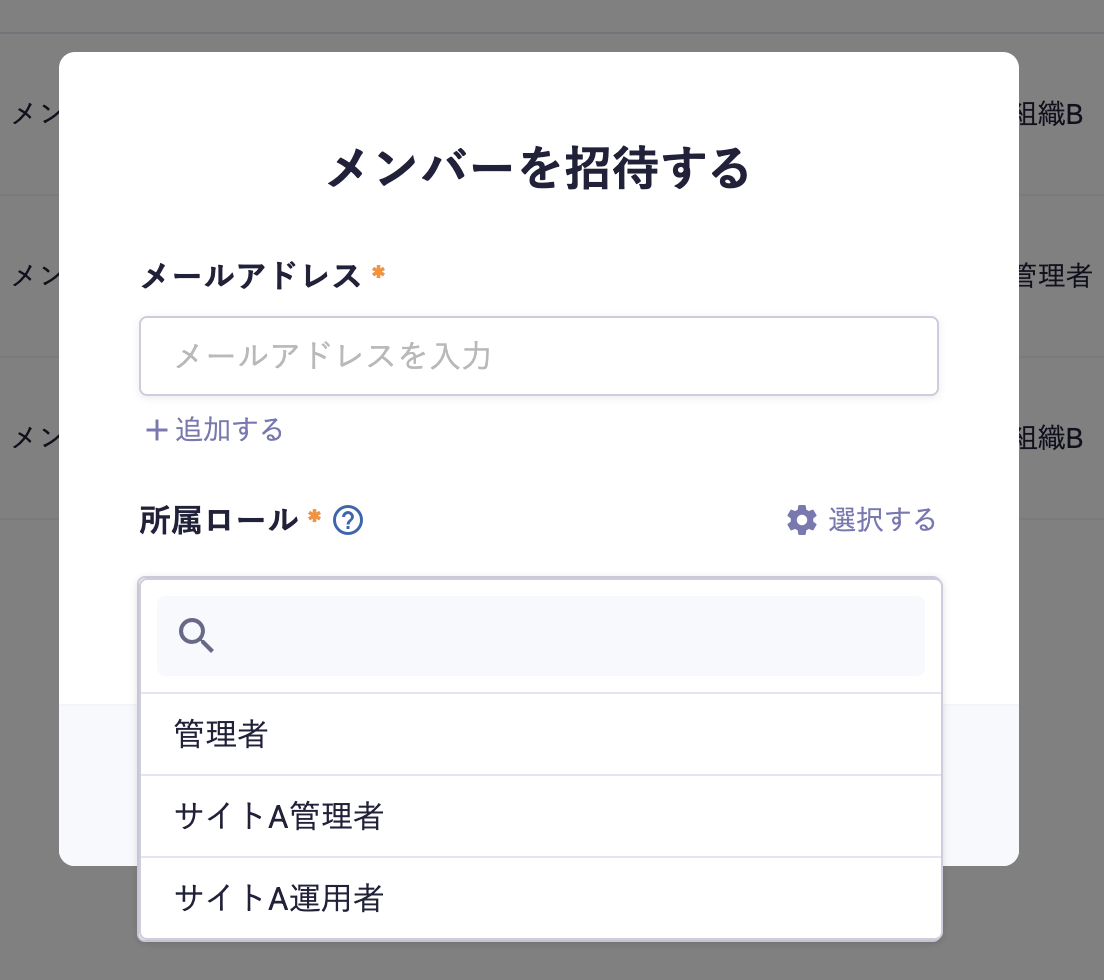
Now, consider the case where this member wants to add a member with the "Site A Operator" role (a role they do not possess). In this case, by granting the "Site A Operator" role to this member, they will be able to select the "Site A Operator" role when adding a member.
▼ When adding a member, the "Site A Operator" role will also be selectable

 Information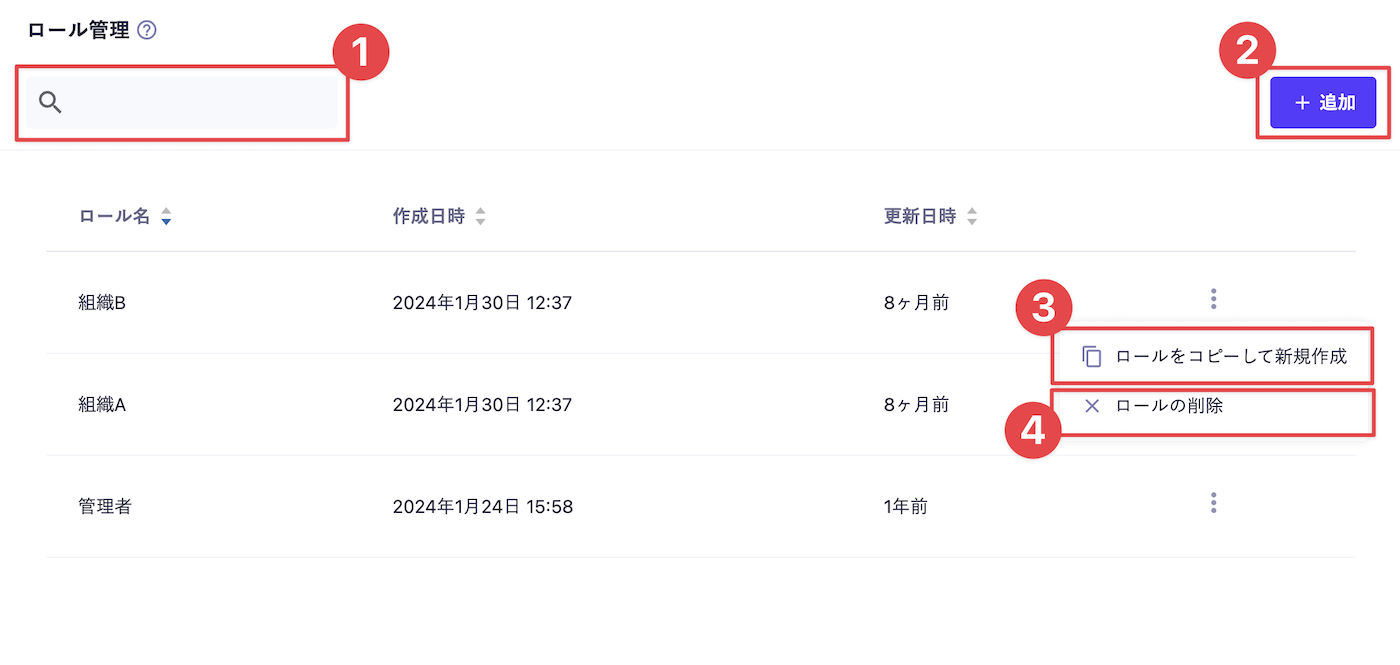
 Caution