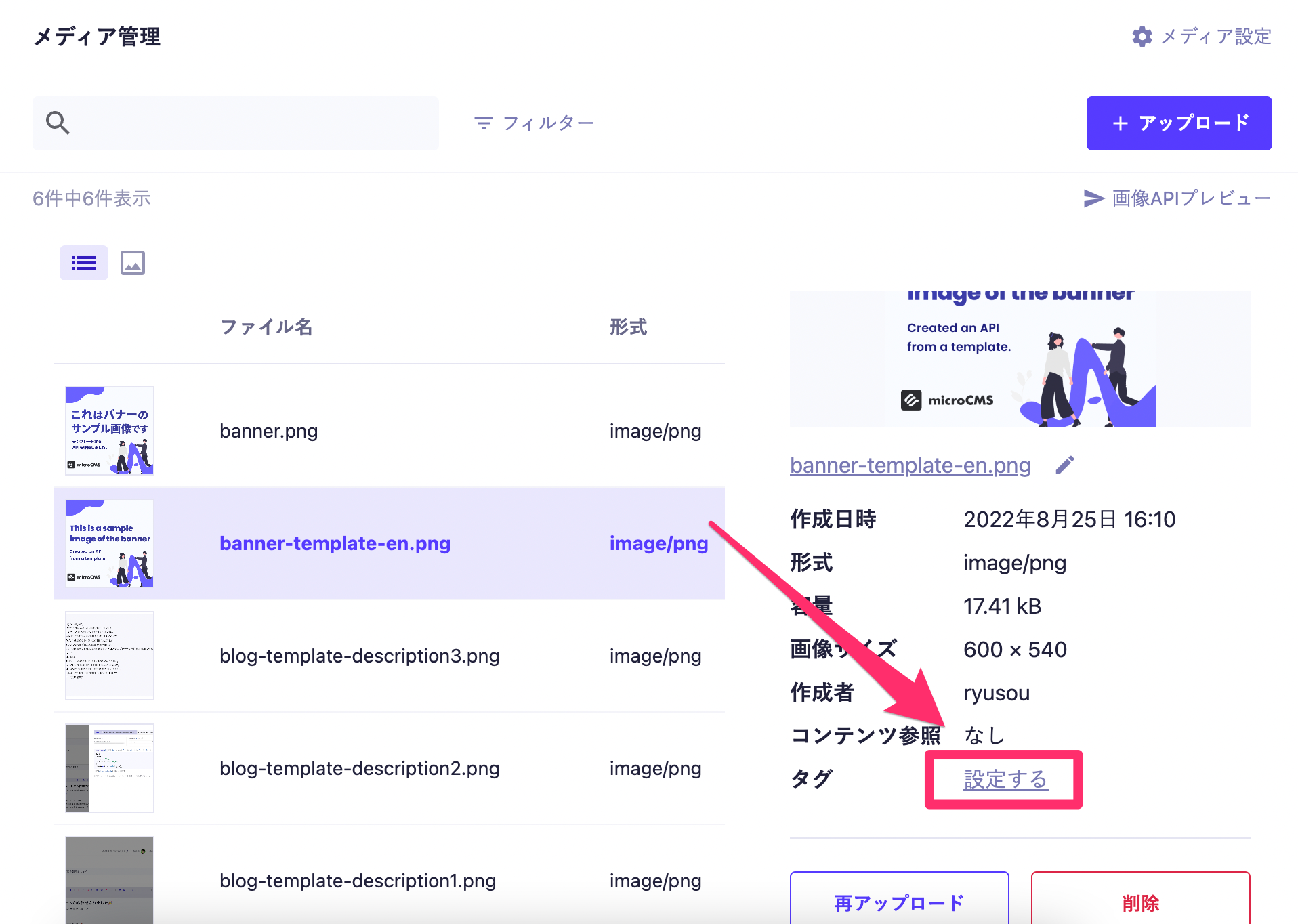
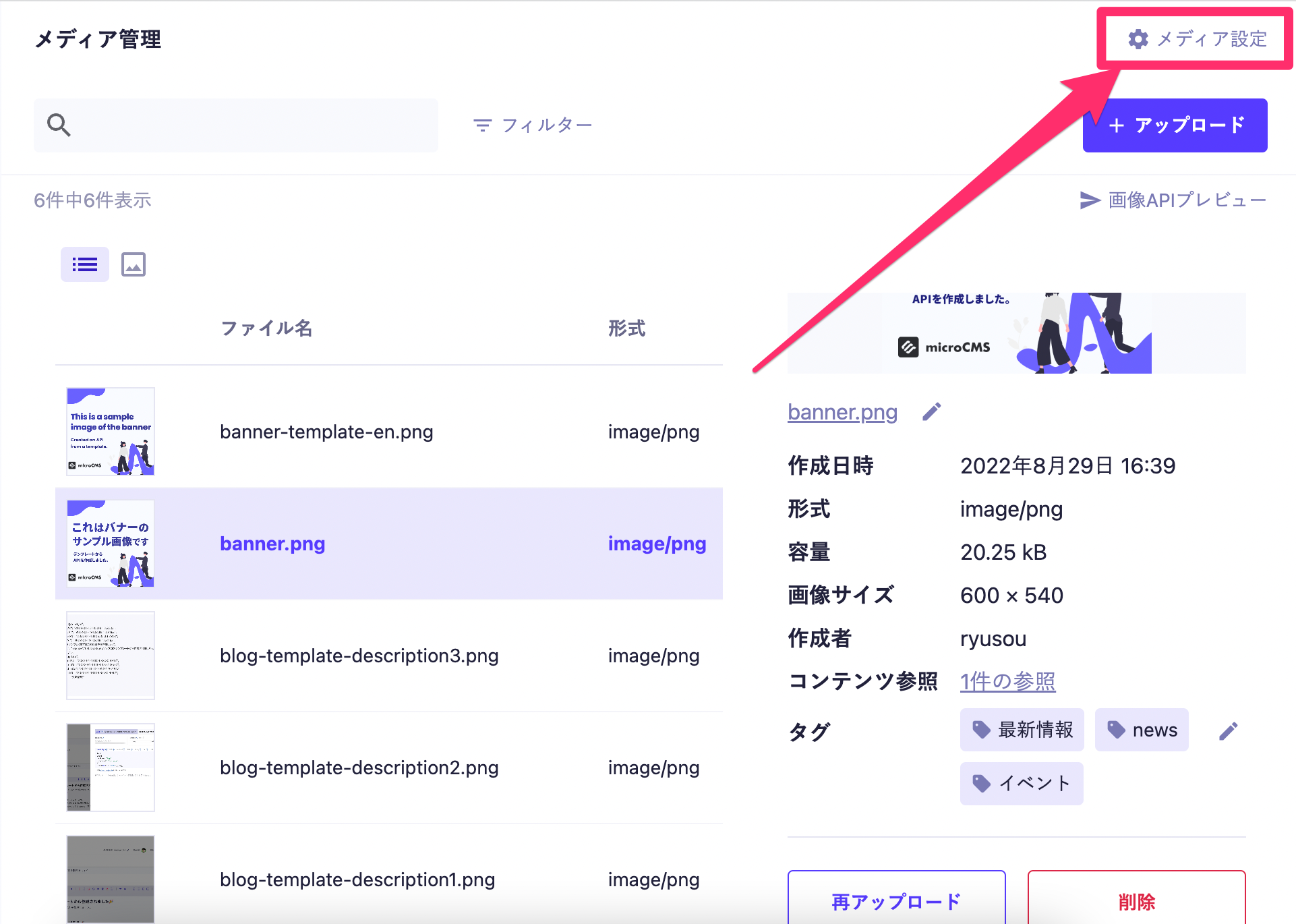
You can link tags to media from the media list screen. Click on the "Set" button for tags in the media details to open the settings screen.
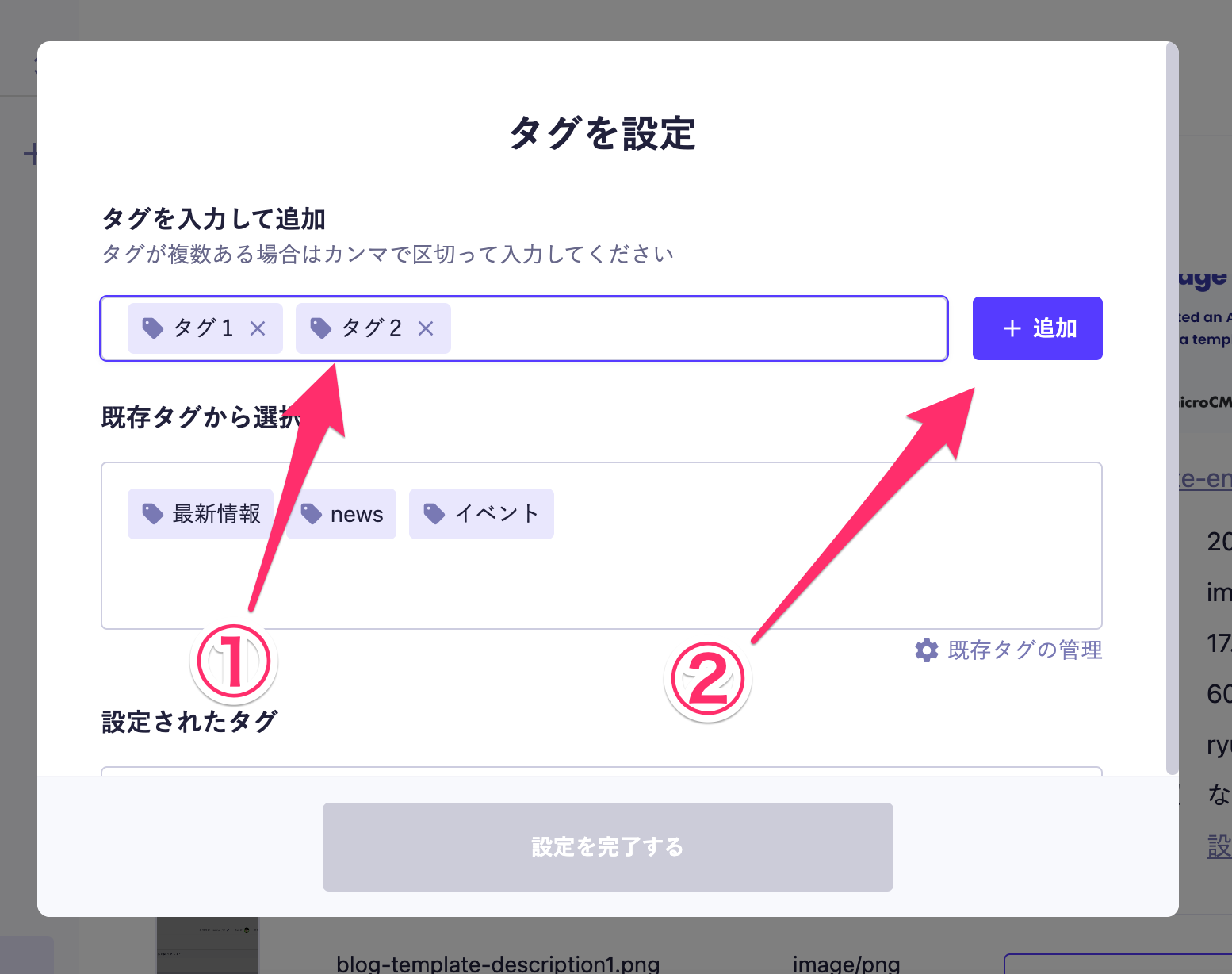
To create a new tag, enter the tag name and click the add button. You can add multiple tags at once, separated by commas.
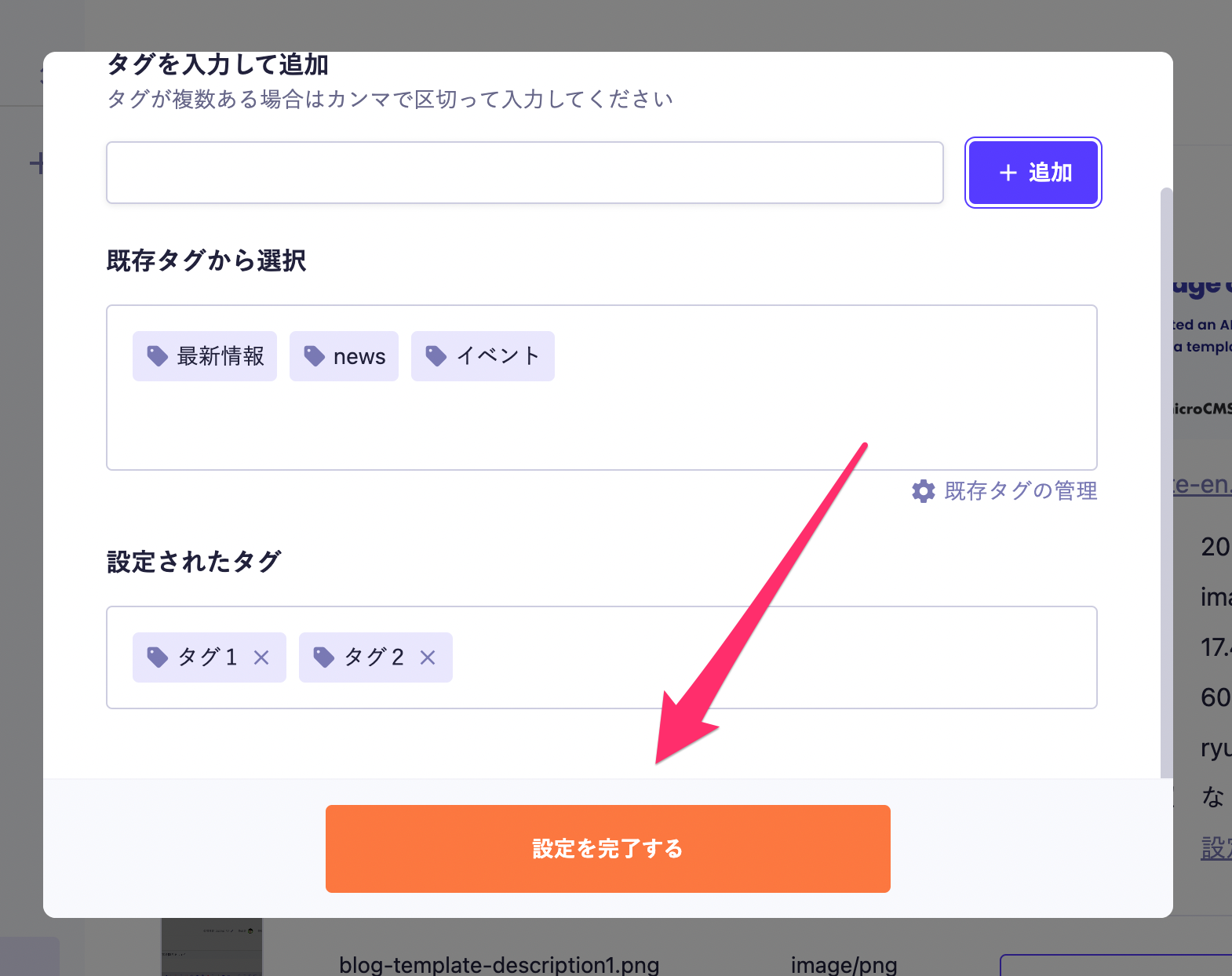
Confirm that the added tags are set in the "Set Tags" section. By clicking "Complete Settings," the tags will be linked to the media. Up to 10 tags can be linked to a single media.
Tags that have been created once will be saved in the "Select from Existing Tags" section, allowing reuse in other media. Up to 100 tags per service can be created.
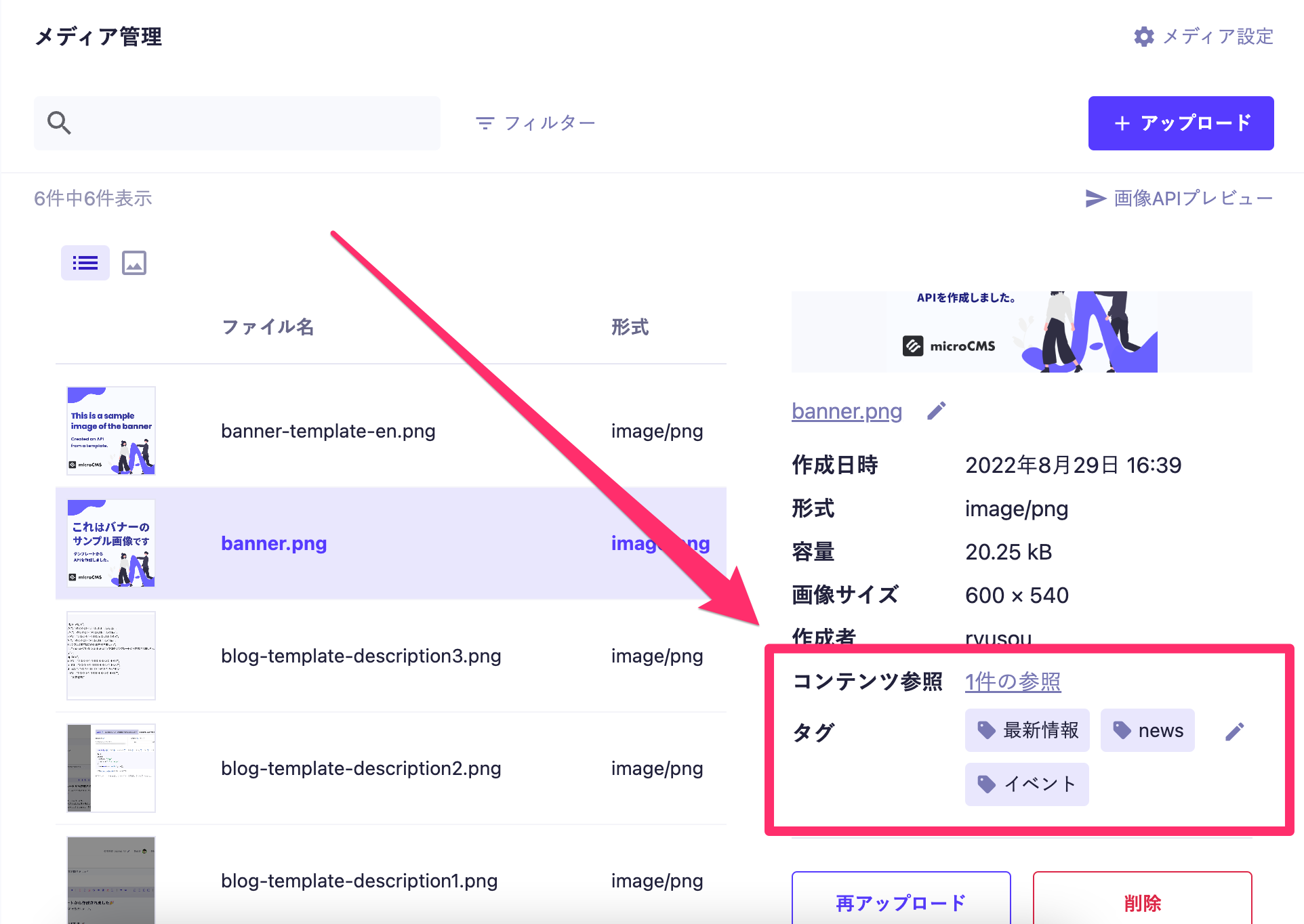
The set tags will be displayed in the media information. You can edit the tags by pressing the edit button. Additionally, clicking on a tag will filter and display the media associated with that tag.
To manage tags in a list, click on "Media Settings" in the upper right corner of the media list screen or "Manage Existing Tags" on the screen that opened when creating tags.
Clicking will take you to the tag list screen. On this screen, you can:
Search for tags
Edit tag names
Delete tags
Tags linked to media cannot be deleted, so please unlink the tags from the media before deleting them.