AI Review
The AI review is a feature that automatically reviews content created on microCMS, providing suggestions for corrections and feedback in the form of comments. It helps reduce the review workload before publication and contributes to improving the quality of the content.
Information
This page provides a detailed explanation focused on AI reviews. For general operations related to content management reviews, please refer to the Review Function Manual.
Information
AI Review is a feature available to customers on the Team, Business, and Enterprise plans.
For details on the features available for each plan, please visit the Pricing Plan page.
Confirmation Items Before Use
To use the AI review feature, the following conditions must be met.
- To utilize this feature, prior agreement to the "Terms of Use for AI Features" from a legal perspective, as well as activation of the feature, is required.
- This feature is only applicable to "Public Reviews." It cannot be used for "Closed Reviews."
Feature Details
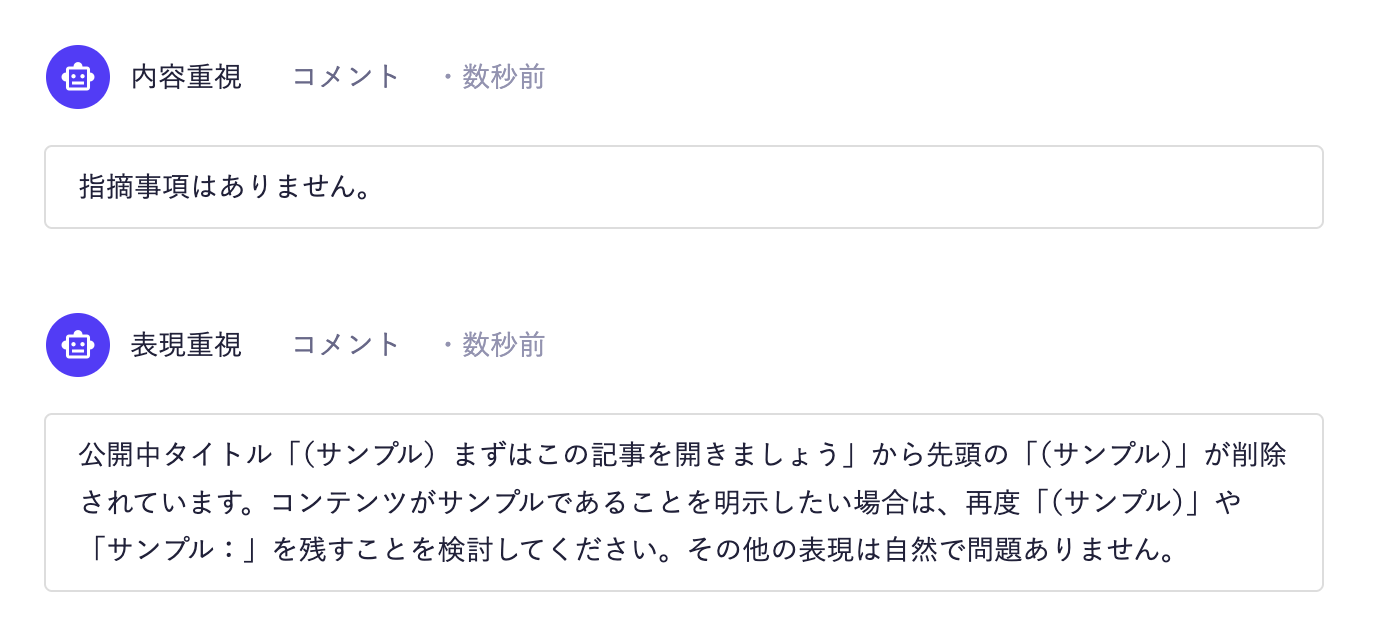
By assigning the pre-configured "AI Reviewer" on the review detail screen, the AI reads the content and provides feedback in the review comments section.

Main Differences from Human Reviewers
No Approval or Publishing Actions
In AI reviews, the AI can only "leave comments on the review". The AI itself cannot perform status changes such as "approve and publish," so the final approval and publishing tasks must be carried out by human members, just like in the usual workflow.
Notifications
When the AI reviewer completes the process and adds comments, no individual notifications will be sent via email or other means. Please check the processing status on the screen.
Individual Reviewer Removal (Deletion) is Not Possible
Human reviewers can unassign themselves from the review details screen using the [×] button, but once assigned, the AI reviewer cannot be unassigned from the individual review details screen.
Fields Subject to Review
When AI review is executed, all text information from the fields included in the relevant content (such as text fields, rich editors, repeat fields, etc.) will be read by the AI and subject to review.
Under the current specifications, it is not possible to specify or exclude only certain fields for review.
Information
When applying to change from "Published and Draft" to "Published," the review will focus on the changes made.
1. Enabling AI Features
For the first time, it is necessary to enable the AI features themselves.
Information
Only members with "Administrator" privileges can perform the following operations (the same applies when disabled).
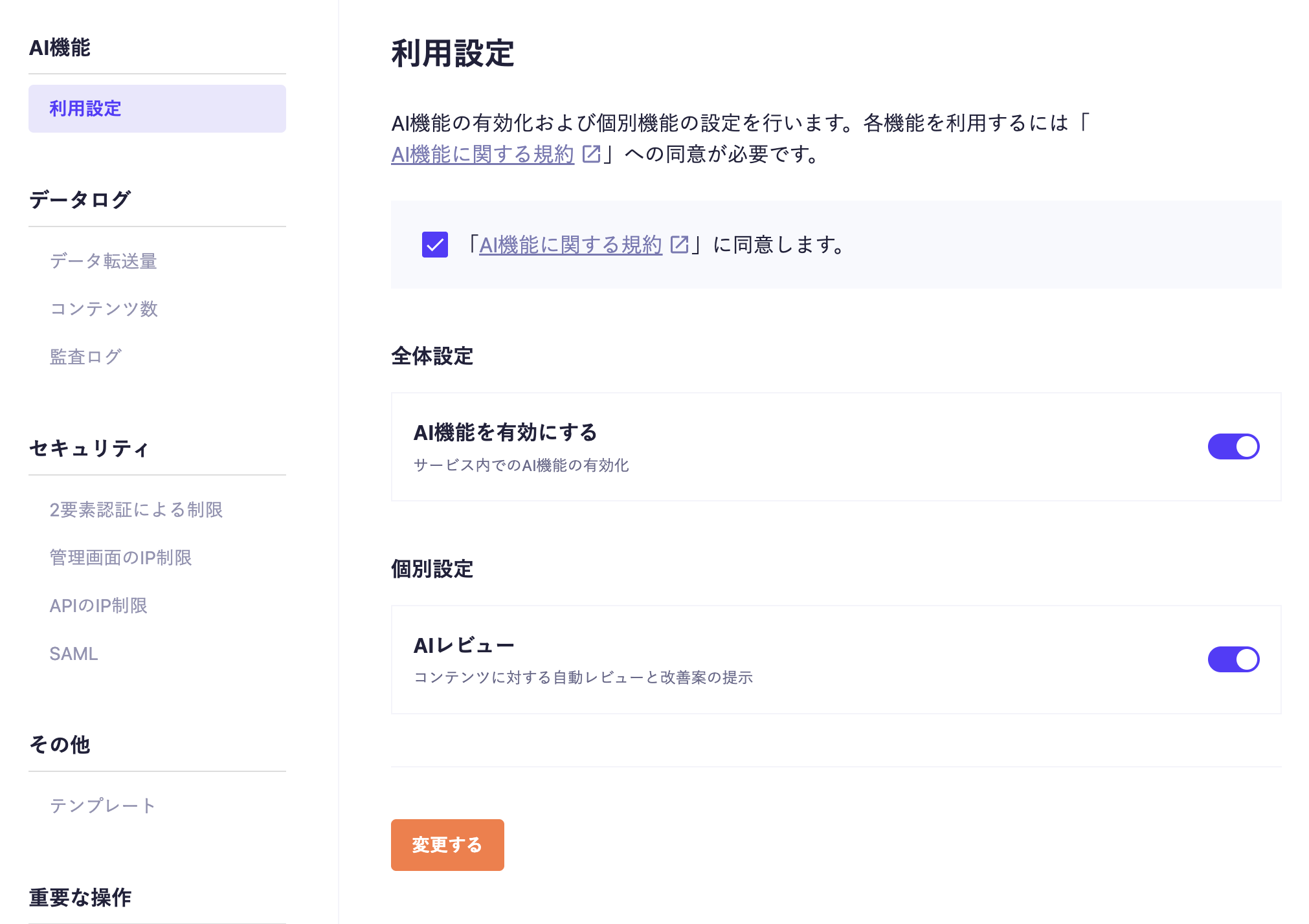
- Open the side menu and navigate to "Service Settings > AI Features > Usage Settings".
- Check the box for "I agree to the Terms of Use for AI Features".
- Turn on the toggle for [Enable AI Features].
- Turn on the toggle for the applicable [AI Review], press [Change], and save.

Information
- The only AI feature currently available is "AI Review."
- While "Enable AI Features" is set to off, no content data on microCMS will be sent to external AI providers.
2. Adding and Configuring AI Reviewers
Add and edit AI reviewers according to the purpose and target API.
Information
Only members with "Administrator" privileges can perform the following operations.
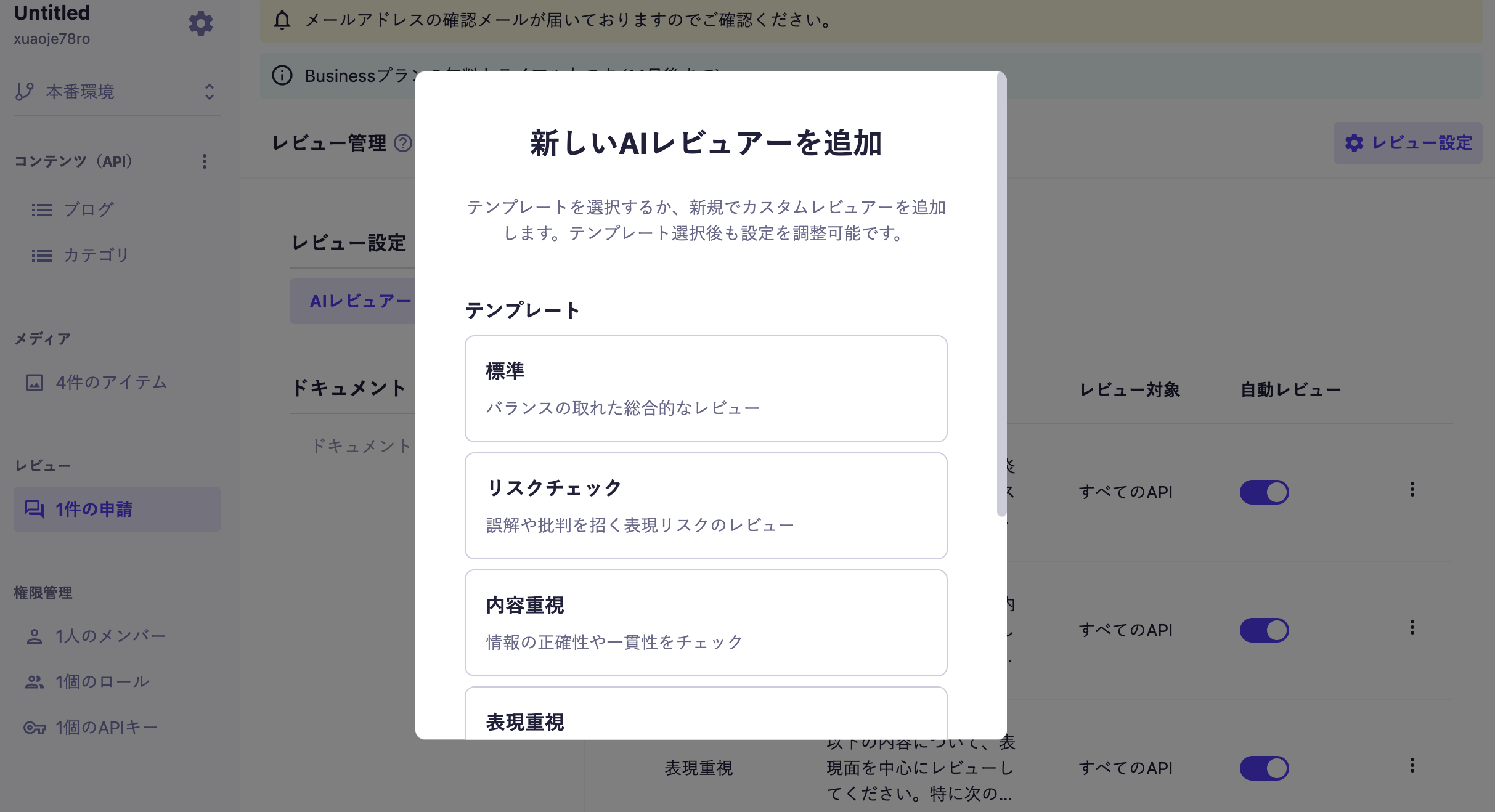
1. Open the "Review" in the side menu and access the [Review Settings] in the upper right corner of the screen.
2. In the "AI Reviewer" section, press the [Add] button to add an AI reviewer.
3. Select a template or create a new one.
You can choose to create the AI reviewer from a pre-prepared "template" or "create new" from scratch.
If you create from a template, instructions (prompts) tailored to your needs are pre-filled, allowing you to freely adjust and set them according to your operations.

Template
Created based on pre-prepared instructions (prompts).
- Standard: A prompt is set for conducting a balanced and comprehensive review.
- Risk Check: A prompt is set to detect expressions that may lead to misunderstandings or criticism.
- Content Focused: A prompt is set to verify the accuracy and consistency of information.
- Expression Focused: A prompt is set to check the appropriateness of tone and language.
Create New
- Custom Reviewer: Create an AI reviewer from scratch with empty instructions tailored to your needs.
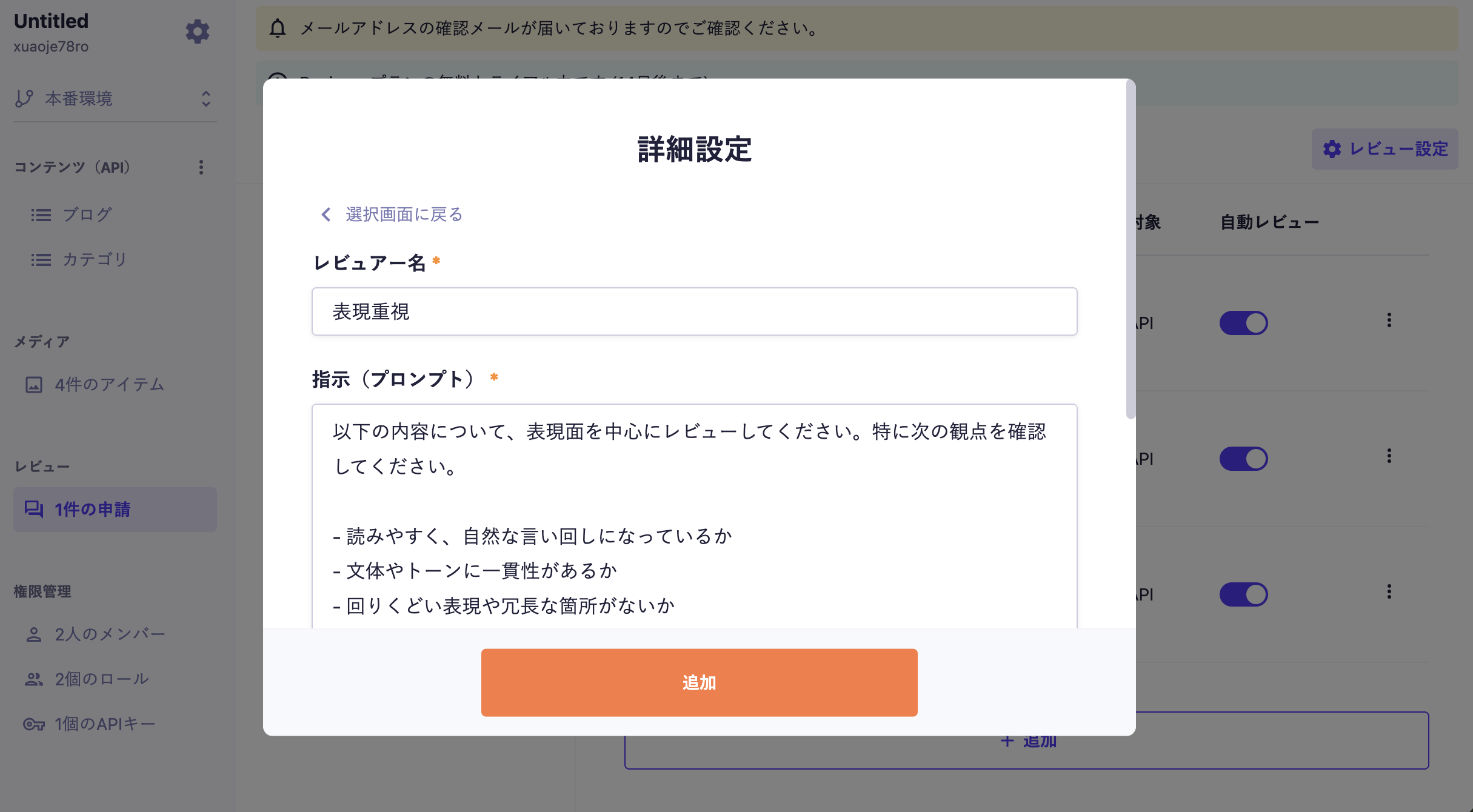
4. Open the detailed settings for the AI reviewer.
When you select a template or custom reviewer, the detailed settings screen will open.

Set the following items, and once completed, save by pressing the [Add] button.
Setting Item | Description | Example of Setting Value |
Reviewer Name | Set the name of the reviewer within 20 characters (required). | Legal check, typo verification |
Instructions (Prompt) | Clearly describe the aspects the AI reviewer will review (required). | For example, "Please check for inconsistencies in notation." |
Review Target | Specify the API that can utilize the AI reviewer (required). | All content APIs or specific content APIs (multiple selections allowed) |
Automatic Review | If set to "ON", this reviewer will be automatically set and the review will be executed not only for new review requests but also for resubmissions. | OFF / ON |
3. Executing and Operating AI Reviews
Once the setup is complete, the following operations are possible.
Manual Execution
In the review details screen, you can assign the AI reviewer and execute the review at any time.
Automatic Execution
If "Automatic Review" is set to ON in the review settings, the configured AI reviewer will be automatically assigned during the review request and re-request, and the review will be executed immediately.
Requesting a Re-review
After modifying the content, you can request a re-review using the icon next to the AI reviewer. During the re-review, past review comments and the context of interactions will not be carried over. A new review will be executed based on the latest content at that time, and new comments will be added.
Deleting AI Reviewer Comments
Comments posted by the AI reviewer can be manually deleted from the review details screen, just like comments left by regular members. This can be useful for organizing feedback that is no longer needed on the screen.
Canceling AI Reviews
An ongoing AI review can be canceled by pressing the [Cancel] button before the processing is complete. This can be useful in cases where the review was mistakenly executed.

Information
When using the cancellation feature, please be aware of the following points.
- Regarding the timing of cancellation: Depending on the progress of processing on the AI side, the cancellation operation may not be completed in time, and the review comment may be posted as is.
- Regarding the consumption of AI credits: Even if the cancellation is successfully completed, AI credits may be consumed depending on the progress of processing at the time the cancellation was executed. Thank you for your understanding.
4. About Disabling Settings (Off)
If you want to temporarily turn off AI reviews to prevent exceeding the AI credit limit, you can disable the settings at any time. This is possible even if you have already created an AI reviewer.
When you disable "AI Review," the AI reviewer will be hidden from the reviewer list on the review details screen, and new executions or re-reviews will no longer occur.
About AI Credits
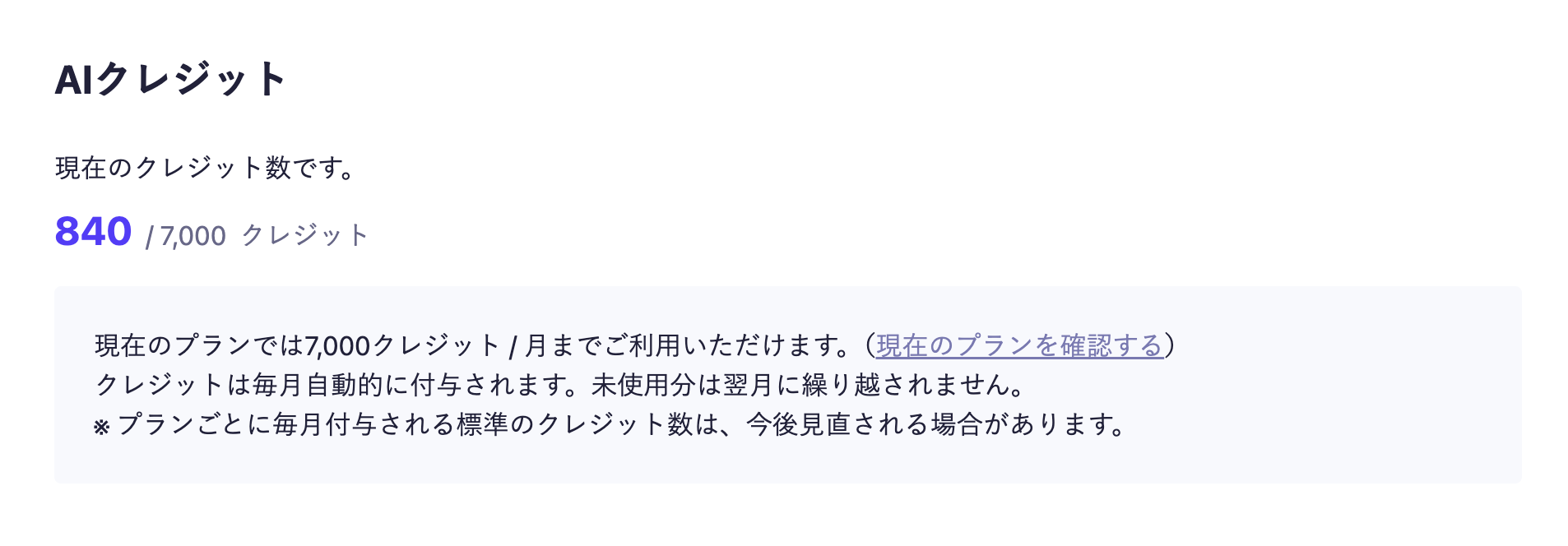
The use of AI features, including AI reviews, consumes " AI Credits " that are allocated monthly for each service. For the usage limits (number of credits) per plan, please refer to the Pricing Plan Page.
How to Check AI Credits
You can check your current usage and limit numbers from the management screen under "Service Settings > Data Log > AI Credits".

Information
- Reset Timing: AI credits are reset every month at the beginning of a new month (UTC time).
- Exceeding Credits: The number of credits used cannot be predicted until the AI processing is complete. Therefore, if you execute when the remaining credits are close to the limit, it is possible to exceed the limit and consume more credits (this will not result in an error, and the excess amount will be displayed as is).
- Additional Purchase: Currently, additional purchases of credits are not possible.
Restrictions / Notes
About Permissions
Various operations for AI review require the following role permissions in the management screen.
- Management of AI Reviewers: Operations such as adding, editing, and deleting AI reviewers can only be performed by members with the "Administrator" role.
- Operations on the Review Detail Screen: Manual execution of AI reviews, re-reviews, and deletion of comments depend on the editing permissions for "Review". Additionally, reading permissions for the content are also involved during manual execution.
For specific conditions and details regarding the necessary permissions, please refer to the Roles (Permission Management in the Management Screen) sections on Review and About Administrator Role.
Handling Across Multiple Environments
AI Review is independently available for each environment (production, development, etc.), but please note the following points.
- The setting status of "Enable AI Features" applies the production environment settings to the entire service.
- The settings for "AI Reviewer" are retained for each environment. When creating a new environment, the AI Reviewer settings from the parent environment are not copied.
- AI credits consumed across multiple environments are aggregated on the parent environment side.
Other Considerations
- If you downgrade from a target plan to the Hobby plan, existing AI Reviewers will be hidden, and new executions or re-reviews will not be possible.
- If the configured AI Reviewer is deleted or removed from the target API later, it will be treated as a "deleted AI Reviewer" in the details screen of already executed reviews, and re-reviews will not be possible.
Frequently Asked Questions
Q. Are there any additional fees for using the AI review?
A. No, if you are using one of the eligible plans (Team, Business, or Enterprise), you can use it without any additional fees.
Q. Will the data from the content reviewed be used for AI model training?
A. No, your data will not be used for AI training in any way. You can use it with confidence, even for confidential information or unpublished content.
Q. What AI model is used in the AI review? Can I change it myself?
A. Currently, we are using OpenAI's "GPT-5 mini." You cannot change the model yourself at this time. Please note that to provide a higher quality review experience in the future, the AI model used may be updated or changed without notice.
Q. How many AI credits are consumed per review?
A. The number of credits consumed per review varies based on the amount of content being reviewed, the specifics of the custom instructions (prompts), and the number of characters in the output, but it is estimated to be around 7 credits on average. Please note that we cannot provide an accurate prediction of the consumption until the processing is complete.
Q. Are the alt texts (alternative texts) of images included in the content also subject to review?
A. Yes, they are. In the AI review, all text information from the fields included in the content is read, so the alt texts entered as text will also be reviewed.
Contents
- Confirmation Items Before Use
- Feature Details
- Main Differences from Human Reviewers
- Fields Subject to Review
- Settings and Execution Methods
- 1. Enabling AI Features
- 2. Adding and Configuring AI Reviewers
- 3. Executing and Operating AI Reviews
- 4. About Disabling Settings (Off)
- About AI Credits
- How to Check AI Credits
- Restrictions / Notes
- About Permissions
- Handling Across Multiple Environments
- Other Considerations
- Frequently Asked Questions