microCMS

Content Management

You can manage the content created for each API on the content list screen.


Display Content

The content list screen displays the following information for each content item.

  • Editing Members
  • Status
  • Content ID
  • Creator
  • Last Updated By
  • Creation Date (createdAt)
  • Update Date (updatedAt)
  • Publication Date (publishedAt)
  • Revision Date (revisedAt)
  • Each Content Field

Editing Members Display

informationInformation

The display of editing members is a feature available in the Business and Enterprise plans.
For details on the features available for each plan, please refer to the pricing page.

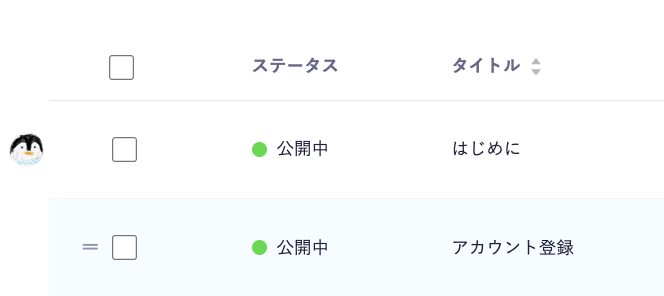
If there are members editing the content, their icons will be displayed on the left side of the content.

cautionCaution

This feature uses WebSocket communication, so it may not be available if communication is blocked in your environment. Please unblock it if necessary.

informationInformation

If the range of members who can view is restricted by permission management, the members currently editing will be displayed as "private users."

Order of Content

The order of content is determined by the internal timestamps used for sorting each piece of content.
Additionally, the order displayed on the content list screen also affects the order of the GET API response (when the orders parameter is not specified and defaults are used).

As mentioned later, the order of content can be changed through drag & drop operations or the individual content operation menu.

informationInformation

As a known issue, when performing a large number of sorting operations, there may be cases where you cannot place the content in the intended position. For more details, please refer to the help article "Cannot reorder content in the intended position on the content list screen".

informationInformation

The results of the various operations below will only be reflected in your own display.
Among the options below, you can save the search conditions for "Search", "Filter", and "Change Display Order (Sort)". For more details, please check the "View".

Search

You can search for content.
The target data and search logic depend on internal specifications.

Filter

You can narrow down content using filters.


Clicking on the word "Filter" will open a modal window from the right side of the screen. Here, you can select the items you want to filter.


You can filter content by the following items:

  • Content ID
  • Status
  • Creation Date
  • Update Date
  • Publication Date
  • Revision Date
  • Creator
  • Last Updated By
  • Each Content Field

After selecting the filtering criteria, click "Apply" to reflect the filtering results in the content list.

Edit Display Items

You can edit the display items for each content.


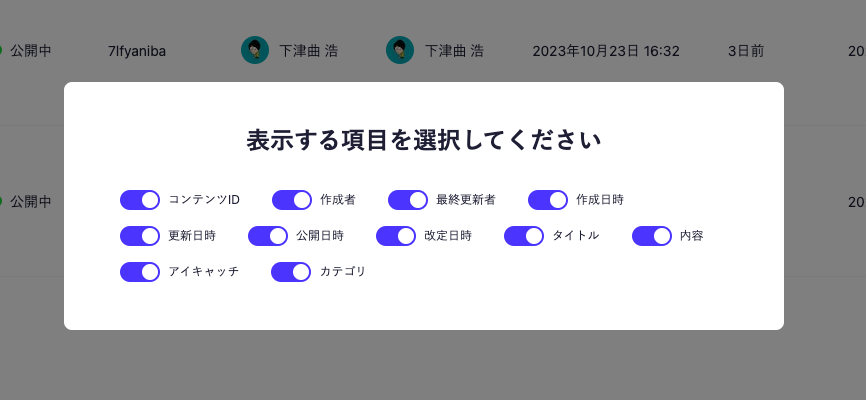
Clicking on "Select Display Items" will show a modal window where you can turn ON the items you want to display.


After setting, clicking outside the modal window will result in only the selected items being displayed.

Edit Display Count

You can set the number of contents displayed on one screen.
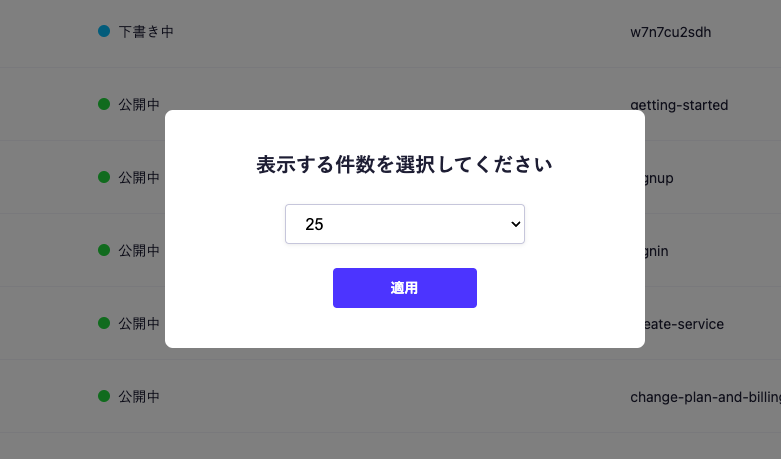
To edit, click on the display count section of the content ("Display items 1 to N / Total N").


In this modal window, you can set the number of contents displayed per page to "25, 50, 75, or 100".

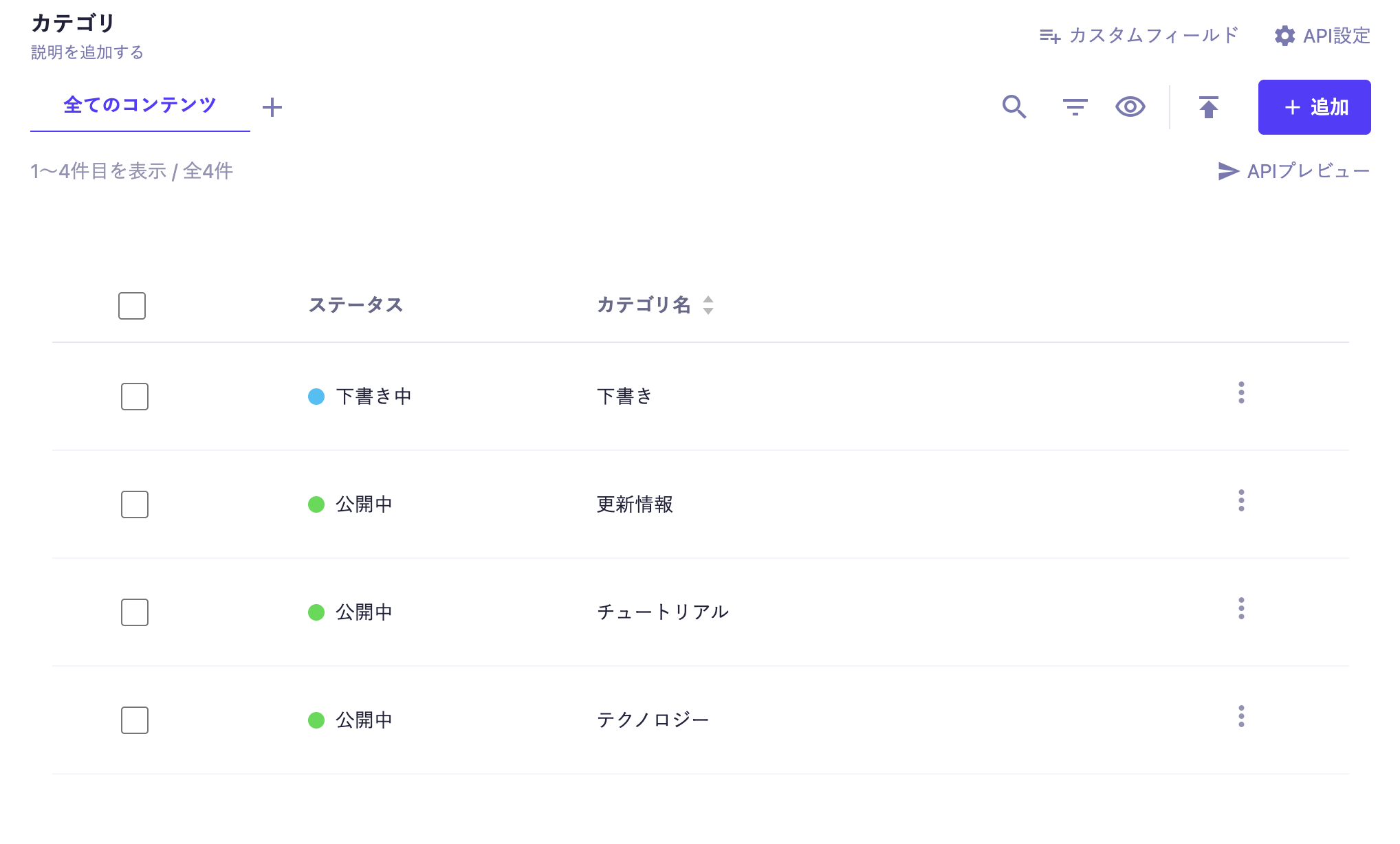
Change Display Order

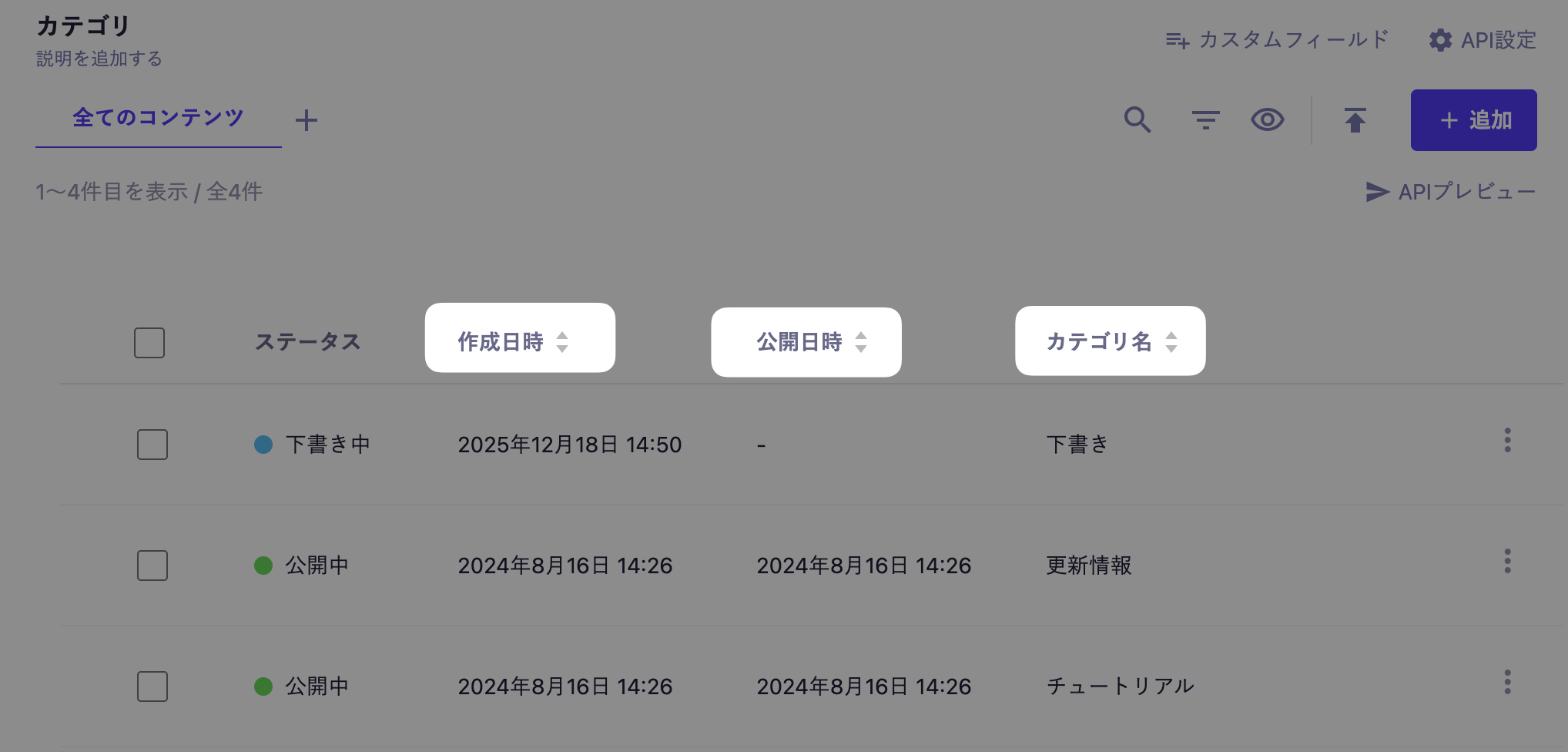
You can change the display order by clicking on the header of the table.


The items and fields that can be changed in display order are as follows:

  • Creation Date
  • Update Date
  • Publication Date
  • Revision Date
  • Text Field
  • Text Area
  • Number
  • Date and Time
  • Boolean

Content Management

Managing Individual Content

The following operations can be performed on individual content.

  • Change the order of content
  • Copy content to create new
  • Delete content

Change the Order of Content

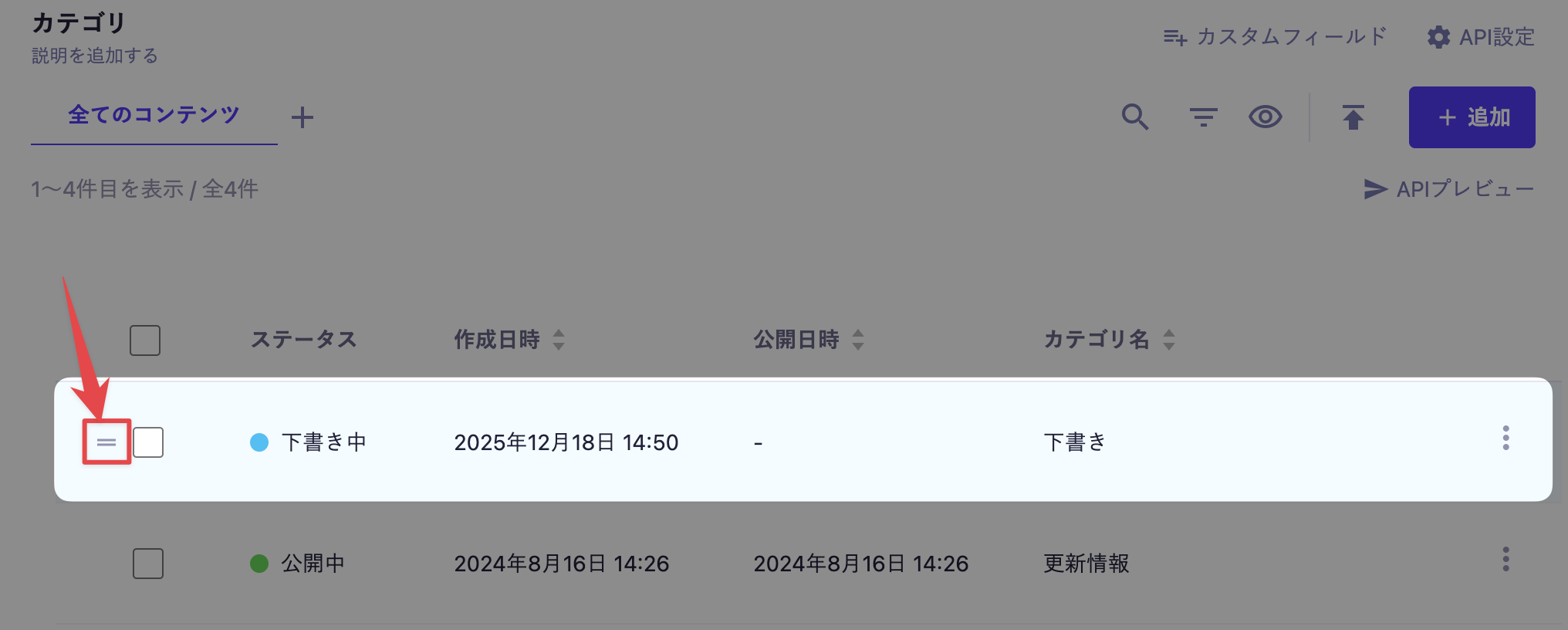
You can change the order of content by clicking and dragging the icon that appears on the left when hovering over each content.


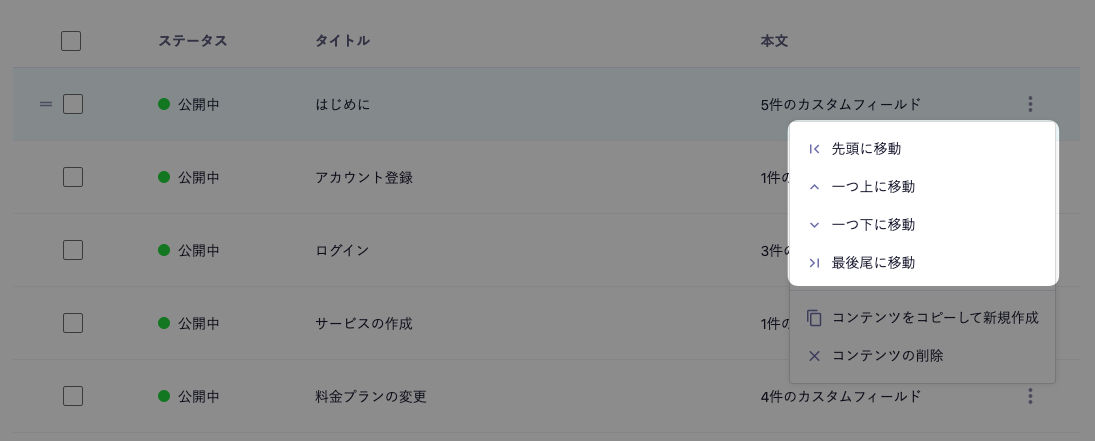
You can also change the order of content from the menu on the right side of the content (which appears when you click the three-dot icon).


The operations for sorting are as follows.

  • Move to the top
  • Move up one
  • Move down one
  • Move to the bottom


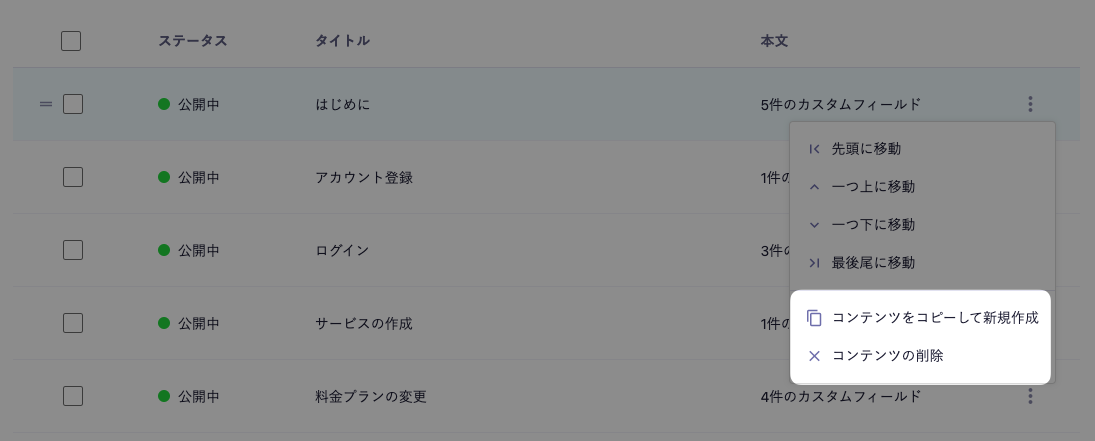
Additionally, from the content menu, you can perform the following various operations.


Copy Content to Create New

You can copy the relevant content and transition to the new content creation screen.
If necessary, you can edit the content and create new content.

Delete Content

This will delete the content.

Managing Multiple Content

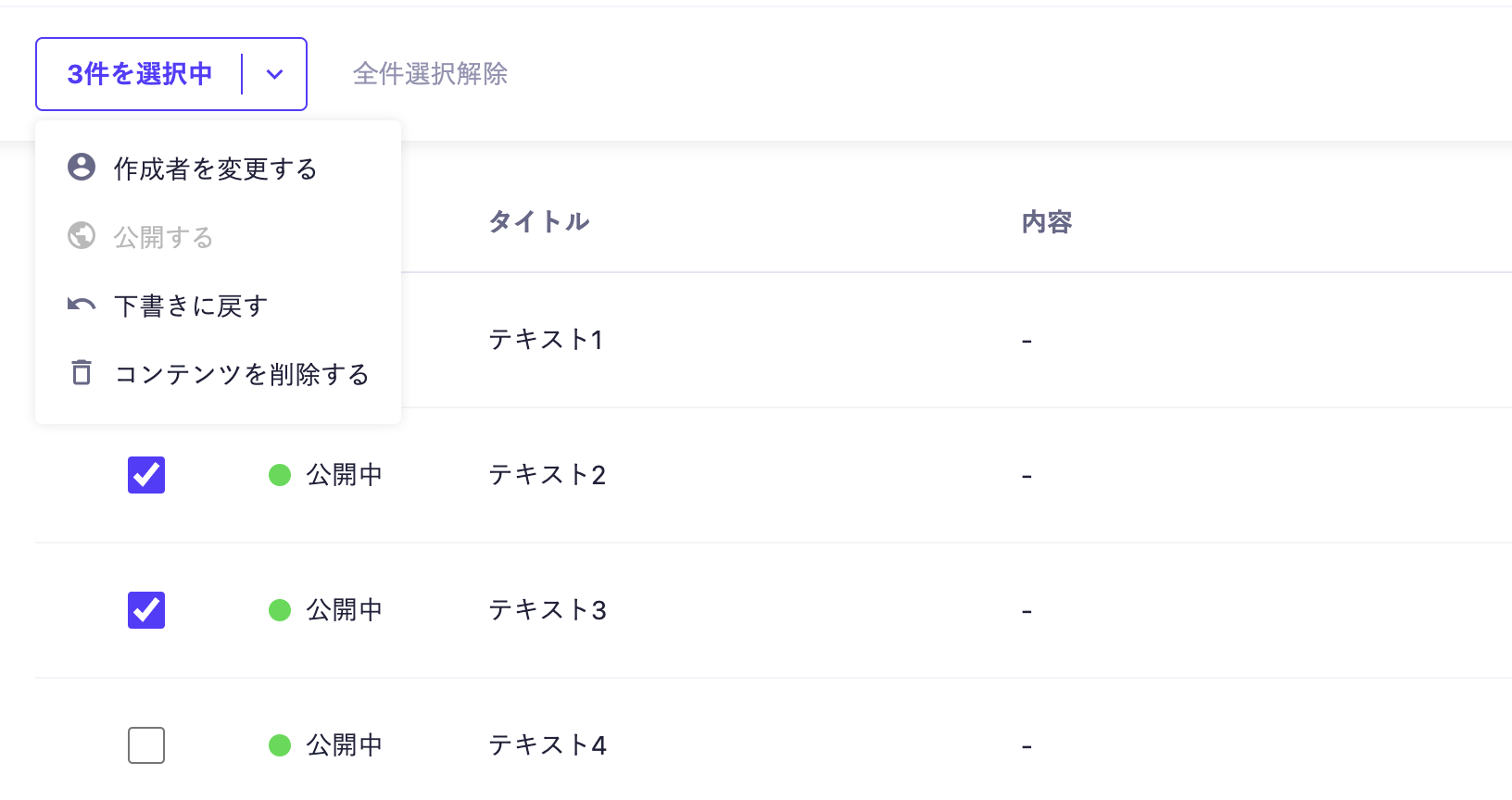
You can perform operations on multiple content by checking and selecting them.


Change the Creator

You can change the creator of the selected content.

Publish

You can publish the selected content.

Revert to Draft

You can revert the selected content to draft.

Delete Selected Content

This will delete the selected content.