Single Sign-On
microCMS allows you to configure single sign-on using the SAML authentication method. You can utilize it to build an authentication flow tailored to your team's environment.
Information
Single Sign-On is a feature available with the Enterprise plan.
A free trial is also possible, so please contact us via the contact form if you are interested.
For information on the features available with each plan, please refer to the pricing page.
Verified IdPs
The IdPs that have been verified for operation are as follows:
- Auth0
- Azure AD
- Okta
- GMO Trust Login
In principle, other IdPs should also work without issues.
If you encounter any problems with the IdP you are considering, please contact us via the chat section at the bottom right of the screen.
Notes
There are several constraints to consider when setting up. Please check the following items.
- You cannot switch registered users from microCMS to single sign-on login midway.
- Only SP-initiated SAML authentication is supported. IdP-initiated SAML authentication is not supported.
- Depending on the IdP settings, it may be possible to log in just by knowing the login URL. This behavior depends on the IdP's configuration, so please thoroughly check and adjust the handling of URLs and the security settings of the IdP.
- Depending on the IdP used, it may not be possible to link multiple applications created in the IdP with multiple services of microCMS on a one-to-one basis. If you are considering using multiple services, please conduct functionality tests during the free trial in advance.
// NG
microCMS Service A <--> IdP Application A
microCMS Service B <--> IdP Application B
// OK
microCMS Services A and B <--> IdP Application AIntegration Methods for Each IdP
For detailed integration methods for each IdP, please refer to the links below.
Setup Instructions
This document explains the general method for integrating IdP with microCMS using SAML.
1. Configure microCMS Information in IdP
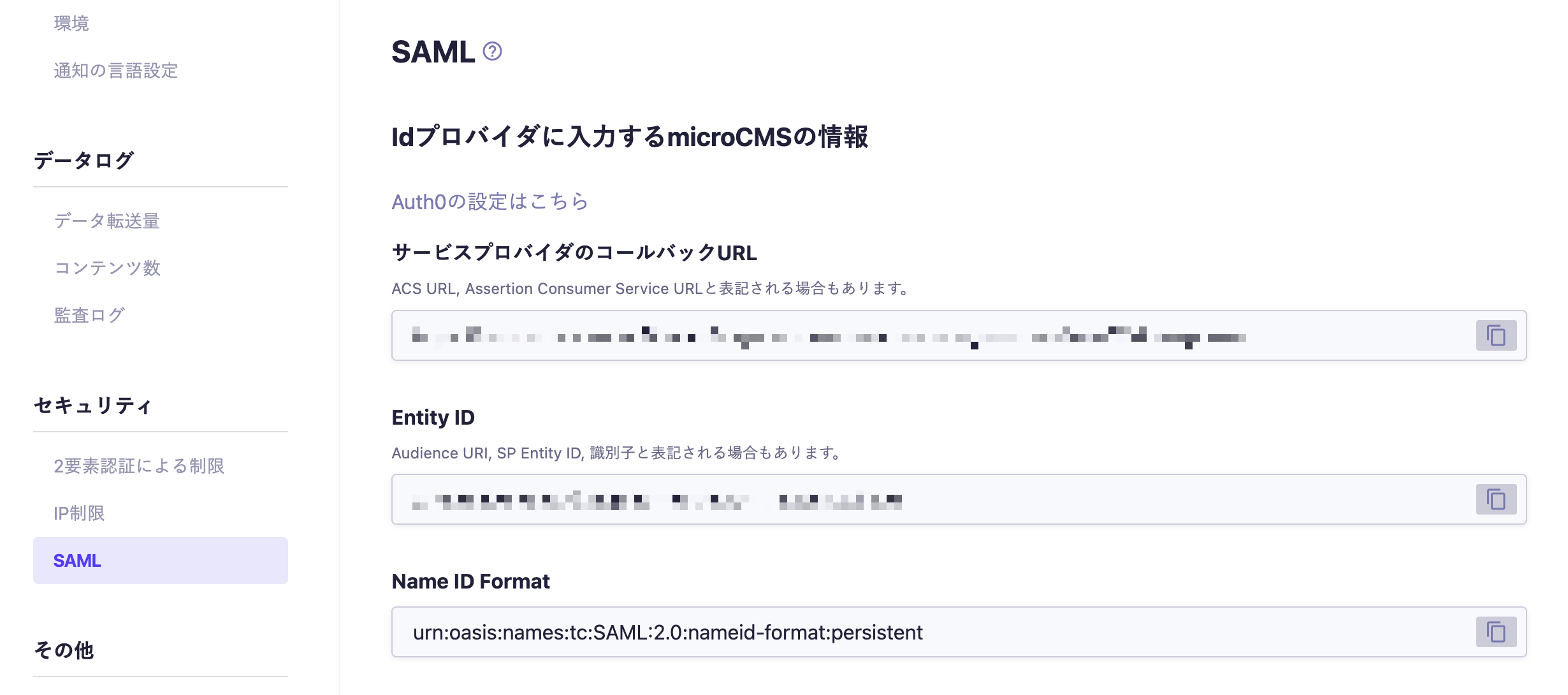
Navigate to the service settings in the microCMS management screen > Security > SAML.

Information
- Only users with an administrator role can make changes to the SAML settings.
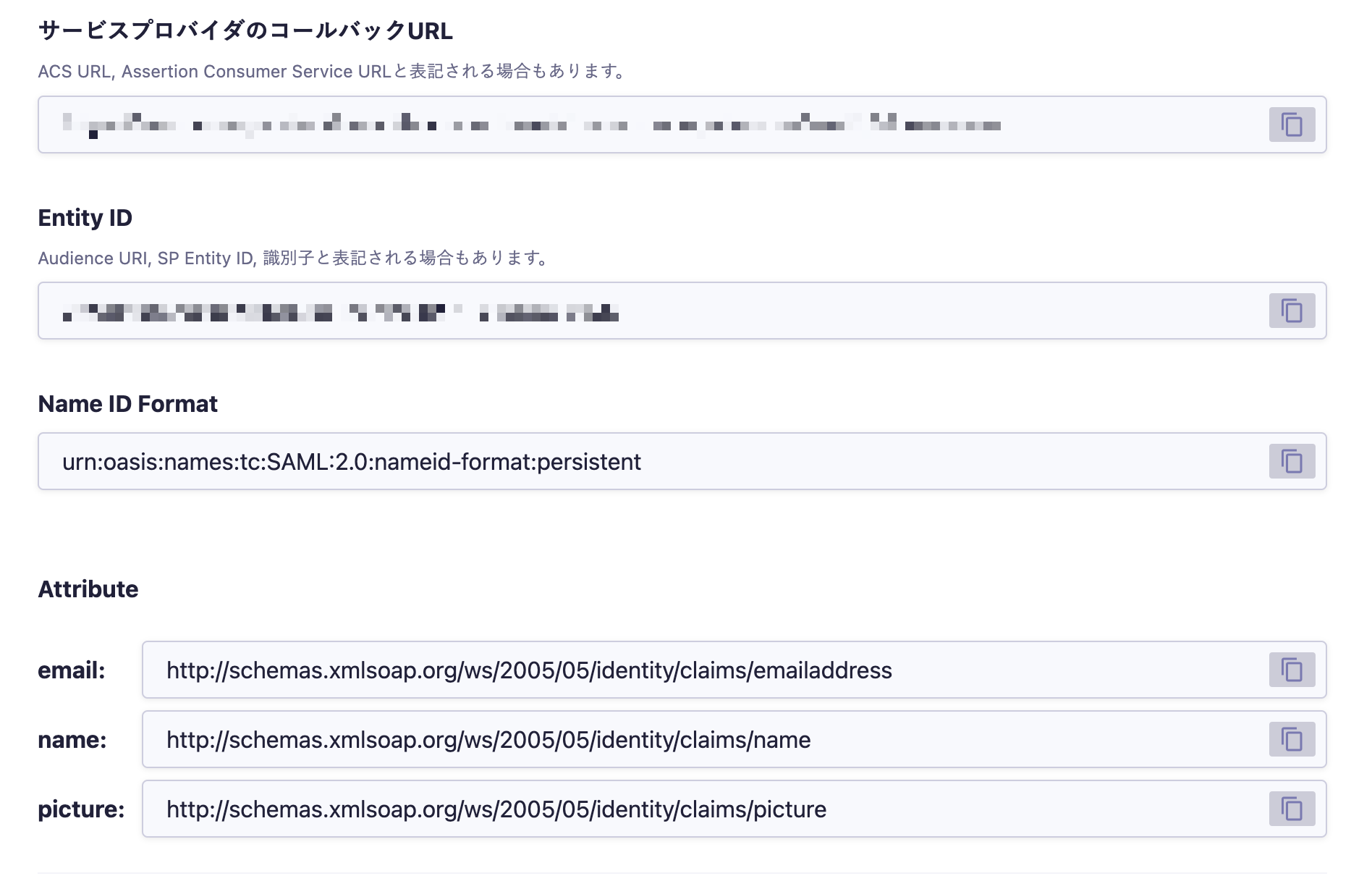
Items that need to be configured on the IdP side will be displayed. Please set these values on the IdP side.
- Service Provider Callback URL
- Entity ID
- Name ID Format
- Attribute (email / name / picture)

Information
If the attribute mapping settings are not configured, the login process may not function correctly depending on the IdP.
If you have configured SAML but the login process is still not functioning properly, please check whether the attribute mapping is set with the correct values.
2. Set IdP Information in microCMS
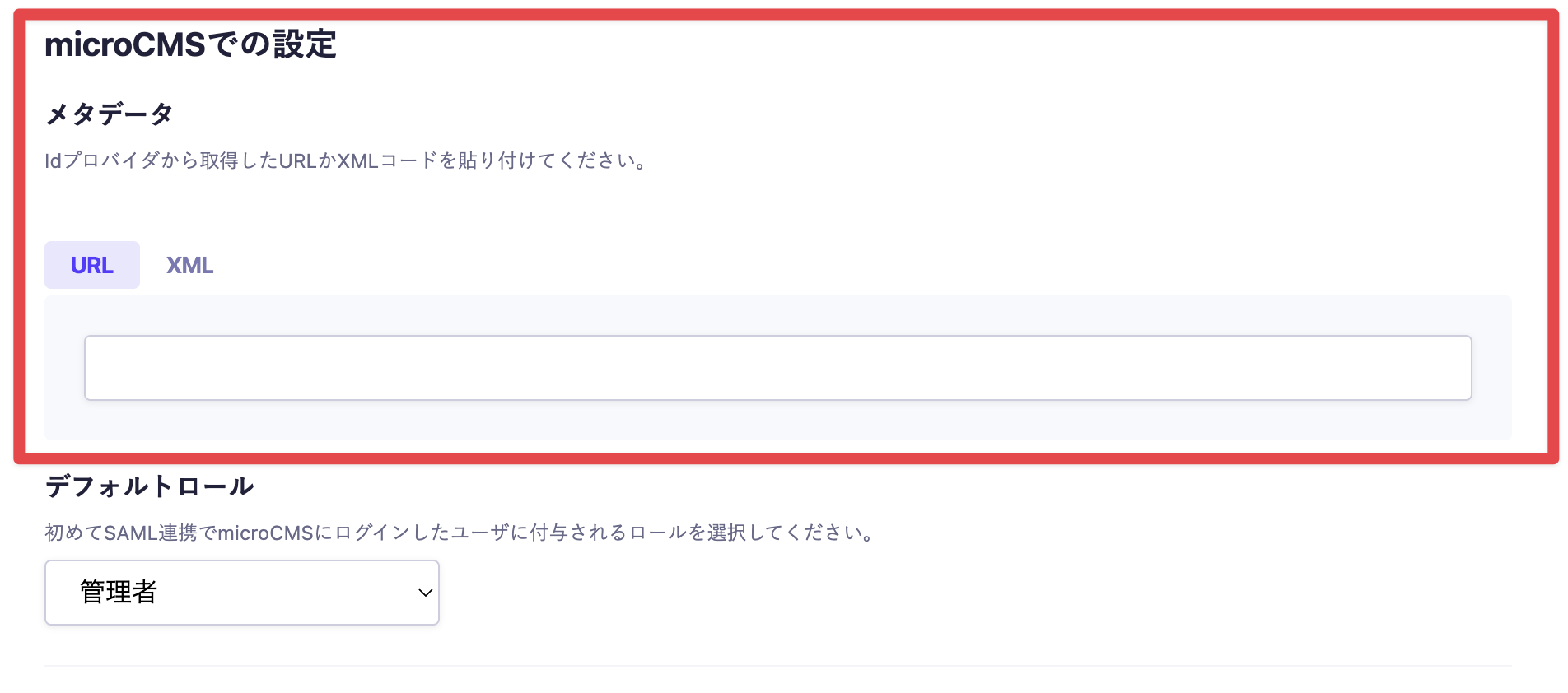
Obtain the metadata information from the IdP settings page.
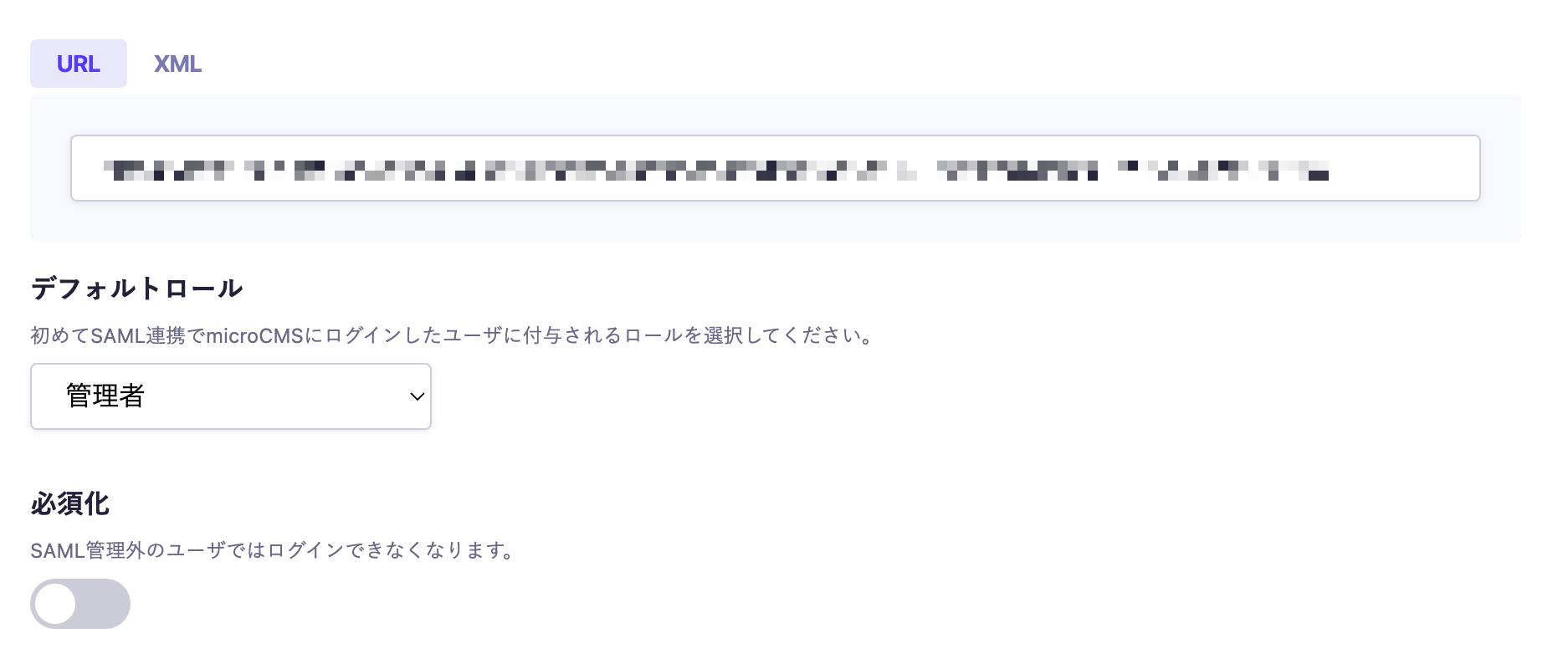
Please enter that information into microCMS in either URL or XML format.

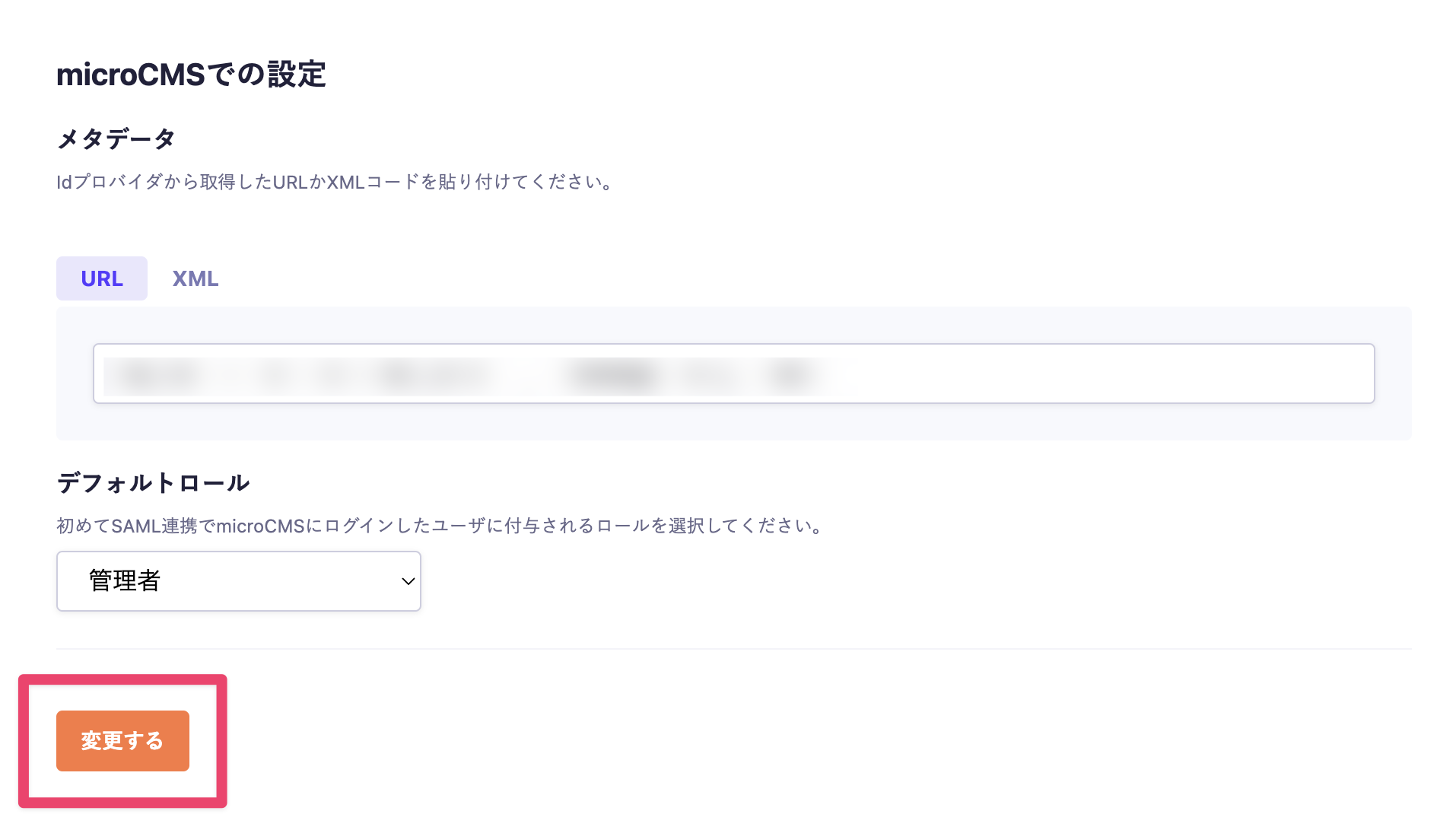
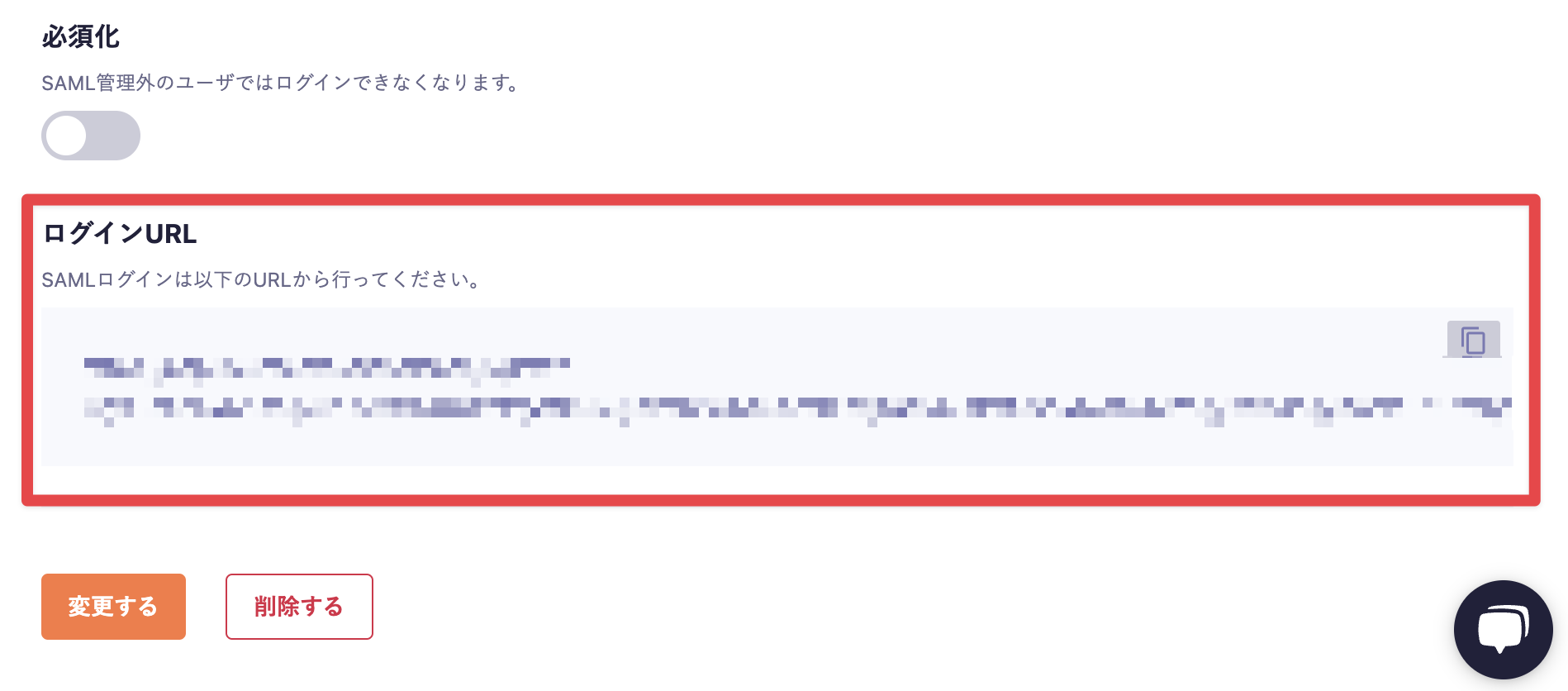
The SSO configuration is now complete. Let's save it by clicking the "Save Changes" button.

3. Configure Behavior During SAML Login
You can set the roles assigned during SAML login and make SAML login mandatory.

4. Log In from the Login URL
Once the configuration is complete, please log in using the URL specified in the "Login URL".
If you can log in, the SAML configuration is complete.