Content Reference
The content reference is a field that allows you to link content managed by another API.
It is used to associate information such as linking an "author (from another API)" to an article or linking a "category (from another API)" to a product, facilitating information sharing and relationships.
How to Upload Data

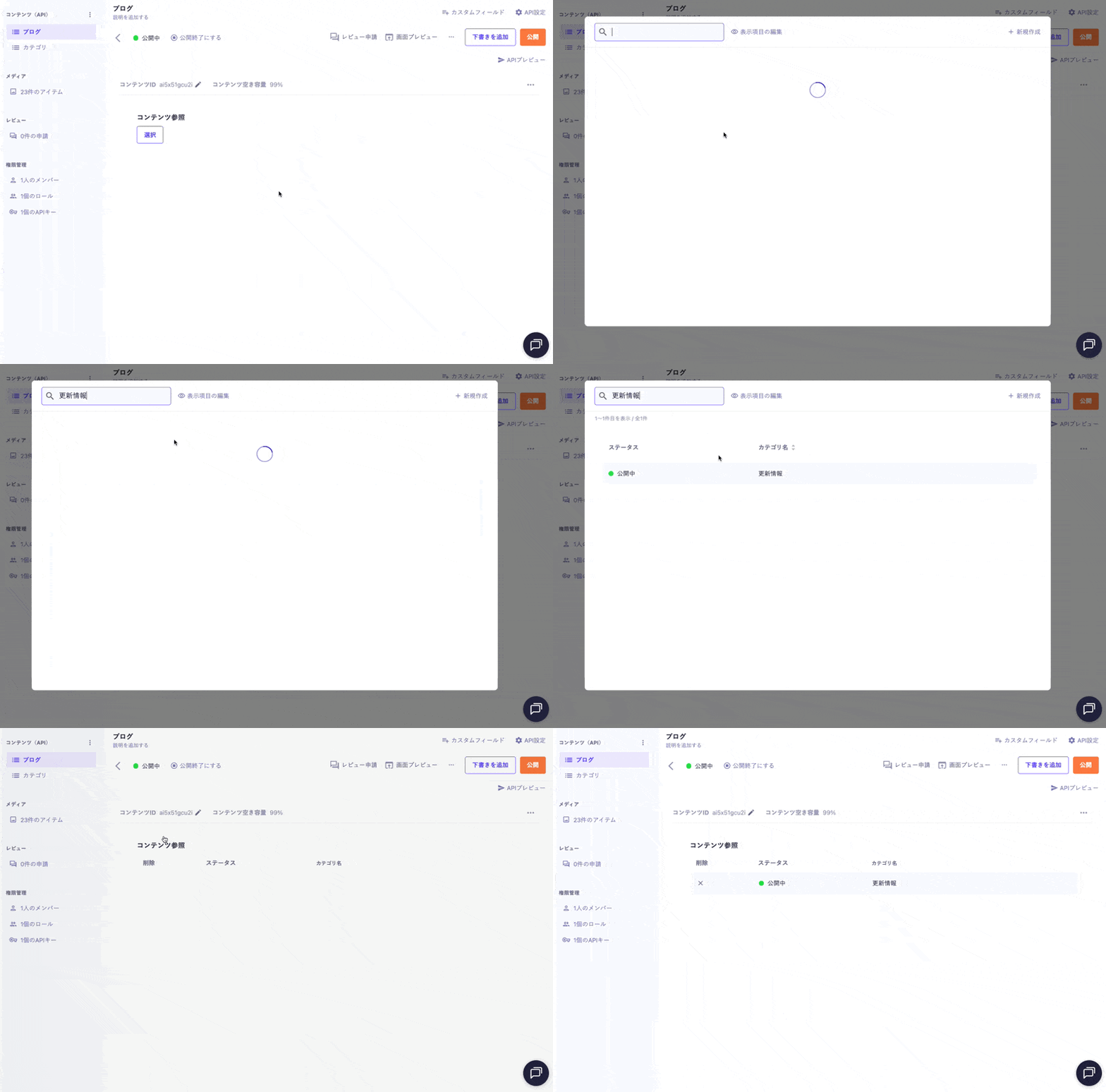
Clicking on the field will display a modal window with a list of reference content, from which you can select the content you want to link.
Notes
- If there are many filtered contents, you can use the search box in the upper left to narrow down the desired data.
- From "Edit Display Items," you can customize the items displayed in the list to make selection easier.
- If the data you want to reference is not registered, you can create it on the spot using the [+ Create New] button in the upper right, and after saving, you can select it from the list to link.
For information on uploading using API and CSV, please refer to the following documentation.
Checking Referenced Content

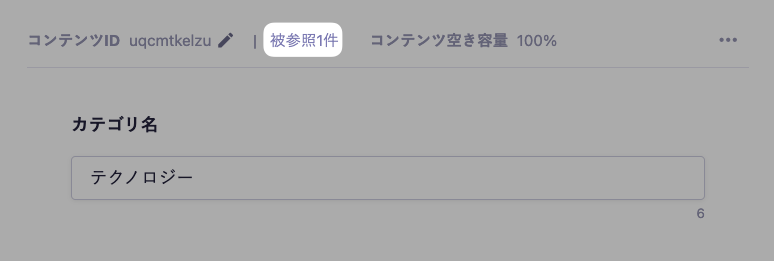
If a specific content is referenced by other contents, a button labeled [Referenced n times] will appear in the upper right corner of the content detail screen, allowing you to check the current number of references.
Clicking this button will display a list of the referencing contents in a modal window.
Limitations / Notes
- If you want to link multiple contents, please use the "Multiple Content References".
- If you do not have viewing permissions for the API that is the reference destination, you will not be able to select contents or check the selection status.
- If the selected content is in draft or has ended publication, it will not be included in the API response. It can be retrieved if the API key has permissions for "Retrieve all draft contents" or "Retrieve all ended publication contents".
- As a known issue, there may be cases where unreferenced content is linked to "Referenced 0 times". For more details, please refer to the help article "Unreferenced content is linked to 'Referenced 0 times' and cannot be deleted. What should I do?".
Settings Item | Description |
|---|---|
Required Field | When set to ON, input will be required during submission. |
Description Text | This is the description text displayed on the submission screen. |
Referenced Content | Select the API to reference. This can only be selected when creating a new entry. |
Items Displayed on List Screen | You can select items to display on the content list screen from the content ID or text field items. If the specified item does not exist, the content ID will be displayed instead. |
Response Format of GET API
Please refer to the documentation below for details.
How to Use in Frontend
The content reference field returns data in object format, so you specify the properties (field IDs) of the referenced content to display the information.
Below is an implementation example in Next.js that displays the author (writer) information linked to the article details.
export default async function Page({ params }) {
const { slug } = await params;
// Fetch data using the microCMS JavaScript SDK (https://github.com/microcmsio/microcms-js-sdk)
const data = await client.getListDetail({
endpoint: "blog",
contentId: slug,
});
return (
<main>
<h1>{data.title}</h1>
{/* writer is the field ID. Please replace it with the actual field ID */}
<div>
<Image
src={data.writer.profileImage.url}
alt={data.writer.profileImage.alt || ""}
width={100}
height={100}
/>
<h2>{data.writer.name}</h2>
<p>{data.writer.description}</p>
</div>
<div>{data.content}</div>
</main>
);
}