microCMS

Automatically Assigned Values for Content

When you save content, several values are automatically assigned.
These automatically assigned values can be checked and modified in the management screen. They can also be retrieved via the Content API.

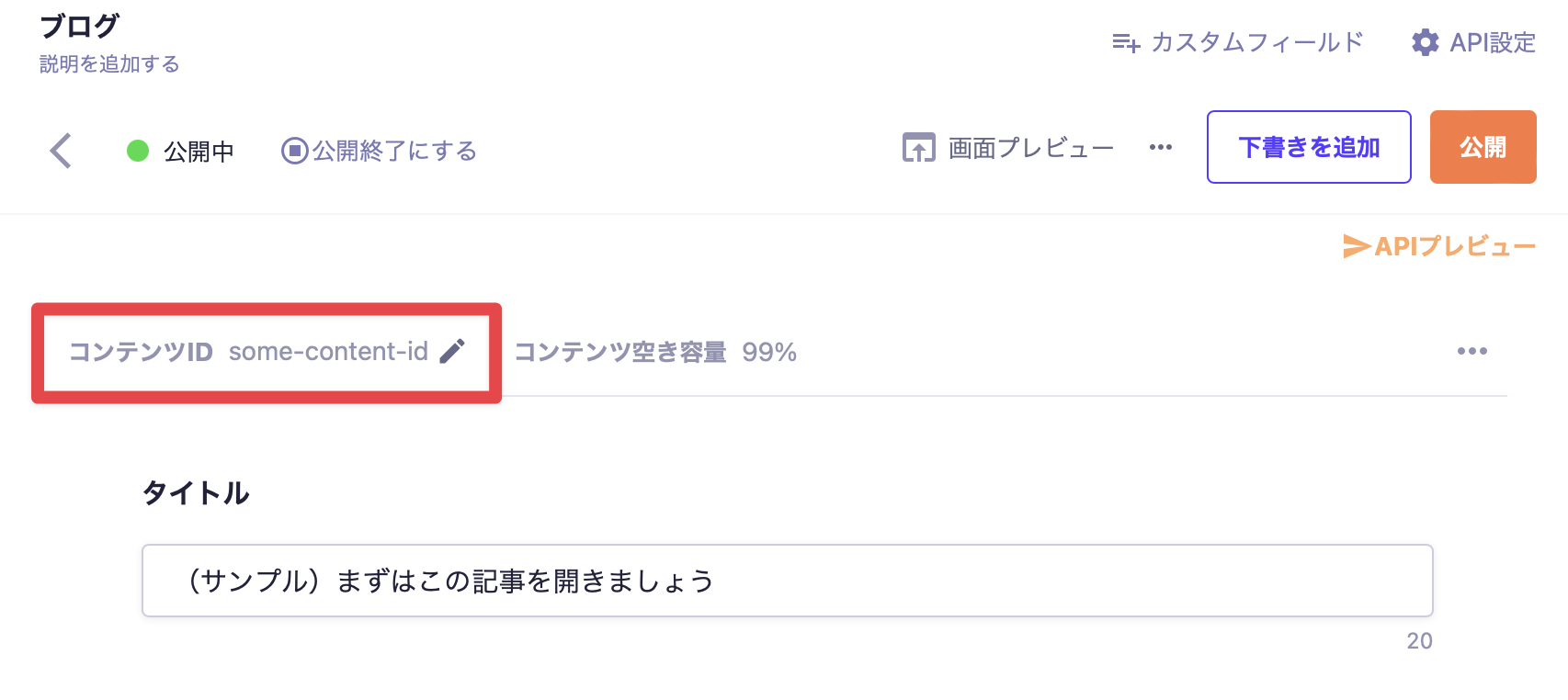
id: Content ID

This is the ID of the created content. It is composed of a string according to the Content ID settings.
The content ID can be edited in the management screen. The allowable character count is from 1 to 50 characters.
Additionally, since it must be a unique value for each API, it can also be used as a slug (a part of the URL).

informationInformation

No ID is assigned to the object format API.


createdAt: Content Creation Date

This is the date and time when the content was created.
The creation date will not be updated after the content is created.


updatedAt: Content Update Date and Time

This is the date and time when the content was updated.

Timing of Value Updates

The value will be updated when any of the following actions are performed.

Actions in the Management Screen

  • When the [Publish] button is clicked
  • When the [Re-Publish] button is clicked
  • When the [Save as Draft] button is clicked
  • When the [Add Draft] button is clicked
  • When the [Discard Draft] button is clicked
  • When the [Revert to Draft] button is clicked
  • When the [End Publication] button is clicked
  • When the publication status changes due to Scheduled Start/End of Publication
  • When the Content ID is changed

Actions via API

Content API

  • When content is registered using the POST API
  • When content is registered using the PUT API
  • When content is updated using the PATCH API

Management API


publishedAt: Content Publication Date

The date and time when the content was published.

Timing of Value Updates

The value is assigned or updated when any of the following actions are performed.

Actions in the Management Screen

  • When the [Publish] button is clicked (excluding content that is "Published and Draft")
  • When the [Re-Publish] button is clicked
  • When the publication date is edited to any desired date in the management screen

Actions via API

Content API

Management API

Examples of Timing for Publication Date Updates

Here are some examples of when the publication date is updated.

【Example 1】After Publishing, if Rewritten and then Re-Published

1. Draft → Published: Publication date is assigned
2. Published → Published and Draft (after rewriting and adding a draft): Publication date is not updated
3. Published and Draft → Published: Publication date is not updated

【Example 2】After Publishing, if Returned to Draft and then Re-Published

1. Draft → Published: Publication date is assigned
2. Published → Draft (returning to draft): Publication date is not updated
3. Draft → Published: Publication date is updated


revisedAt: Content Revision Date

The date and time when the published content was updated.

Timing of Value Updates

The value is assigned or updated when any of the following actions are performed.

Actions in the Management Screen

  • When the [Publish] button is clicked
  • When the [Re-Publish] button is clicked
  • When content is published via Scheduled Publishing

Actions via API

Content API

  • When content is registered using the POST API (excluding cases where status=draft or status=closed parameters are applied)
  • When content is registered using the PUT API (excluding cases where status=draft or status=closed parameters are applied)
  • When content is updated using the PATCH API

Management API

Examples of Timing for Revision Date Updates

Here are examples of when the revision date is updated.

[Example 1] After Publishing, if a Rewrite is Done and then Re-Published

1. Draft → Published: Revision date is assigned
2. Published → Published and Draft (after rewriting and adding a draft): Revision date is not updated
3. Published and Draft → Published: Revision date is updated

tipsTips

Unlike the updatedAt timestamp, the revisedAt timestamp is not updated when a draft is saved.

Therefore, if you need to display the "update date" in article content, you can use the revisedAt timestamp.