You can export content data as a CSV file from the content list in the management screen. This can be used for simple backups, editing and analyzing in Excel, or editing existing data for re-importing.
Information
This feature is available for customers on the Team, Business, and Enterprise plans. For details on the features available for each plan, please visit the pricing page.
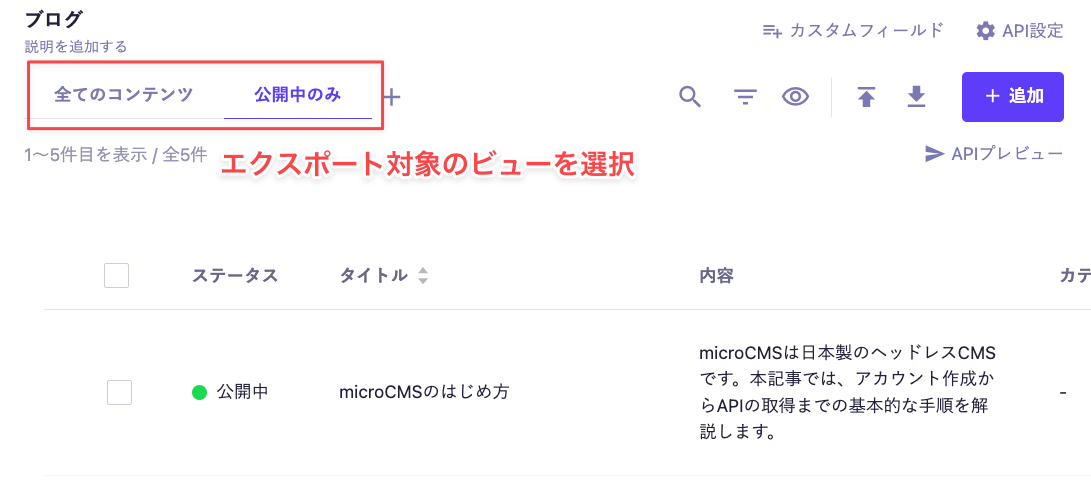
1: Open the Contents screen. 2: Select the view for export.
If you want to export all items: Proceed to the next step while keeping the view as "All Contents."
If you want to extract specific data: Select the tab set in the view feature and proceed to the next step.
For more details on the view feature, please refer to the documentation.
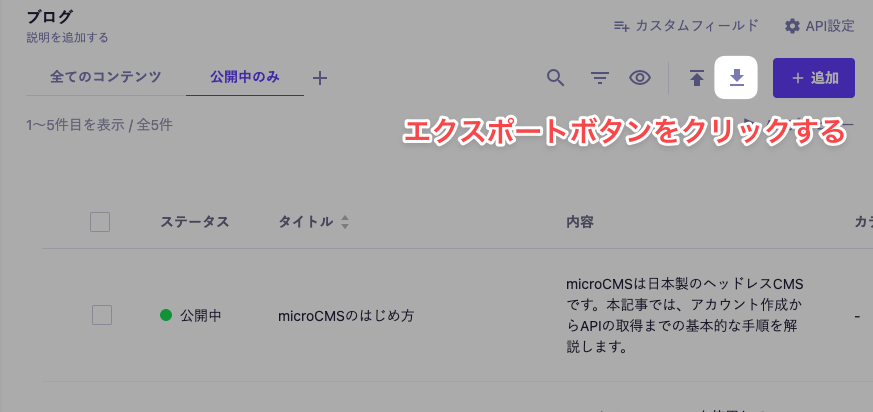
3: Click the [CSV Export] button.
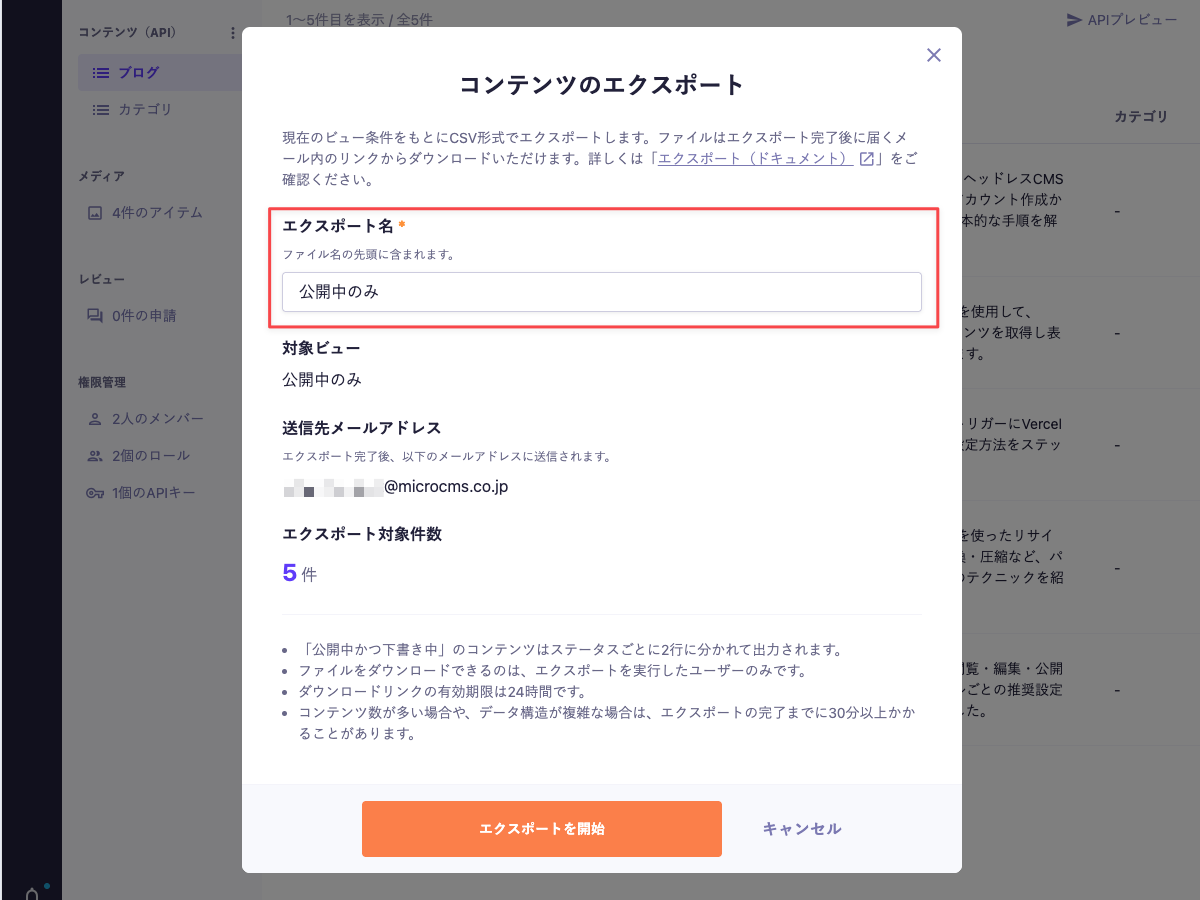
4: A dialog will appear to confirm and set options for the export. You can set the export name as desired. The data to be exported is based on the conditions currently displayed in the view (filters, keyword search, sorting).
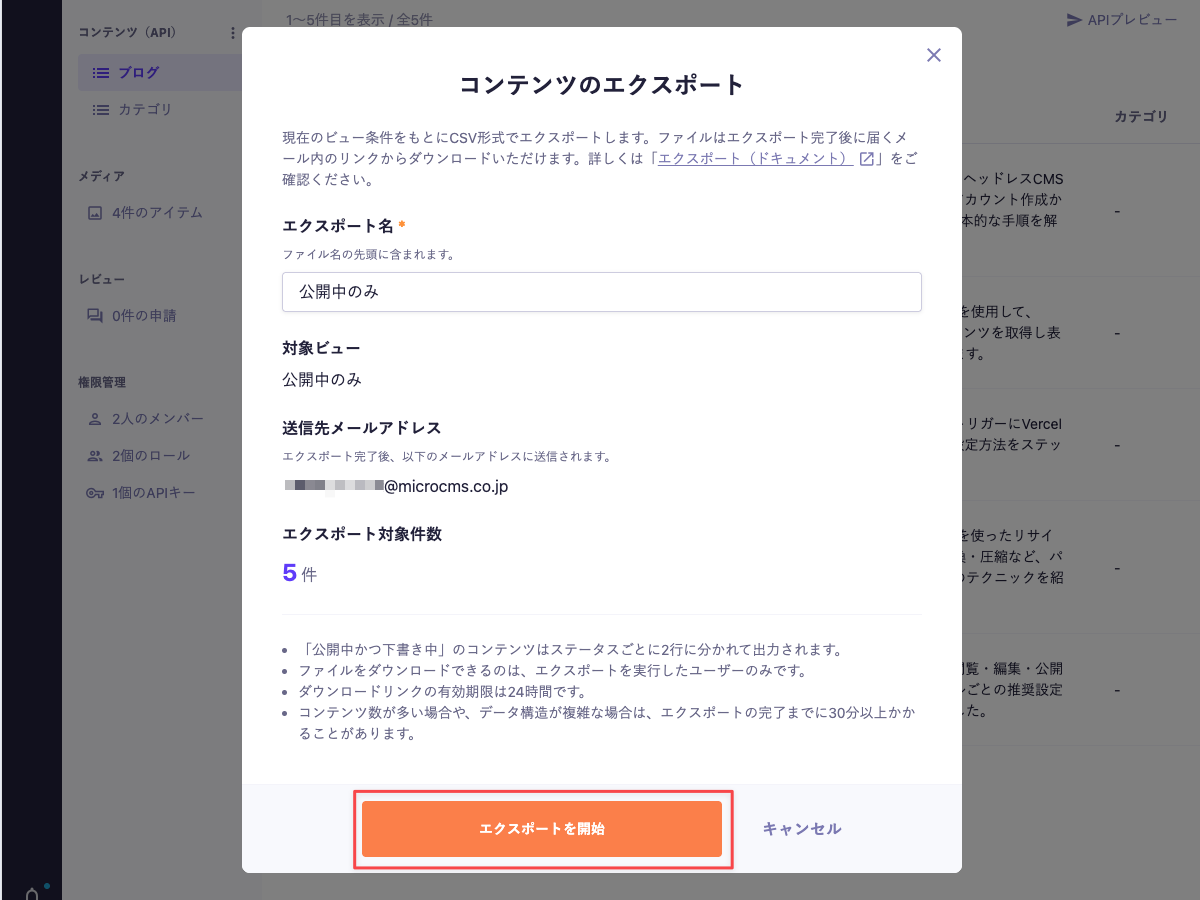
5: Review the contents and click the [Start Export] button.
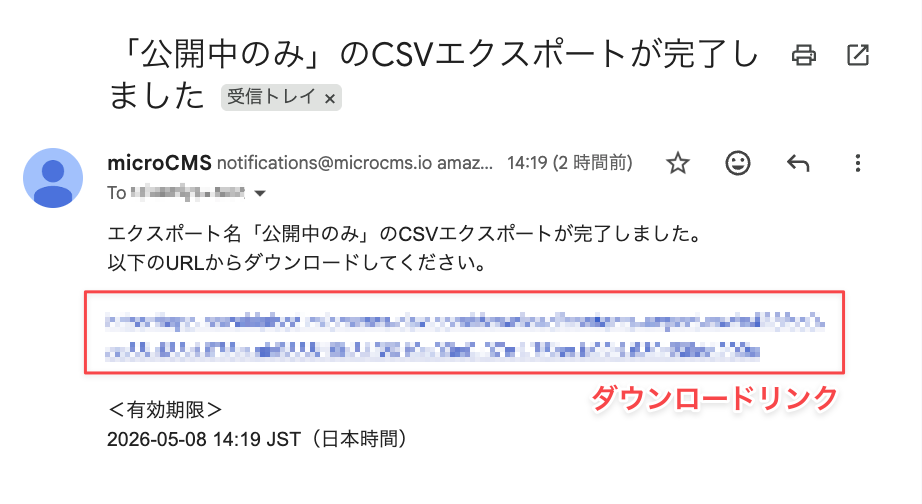
6: A toast notification will appear stating "CSV export has started." 7: Once the export is complete, an email with a download link will be sent to the specified email address. A toast notification will also appear on the Administration console.
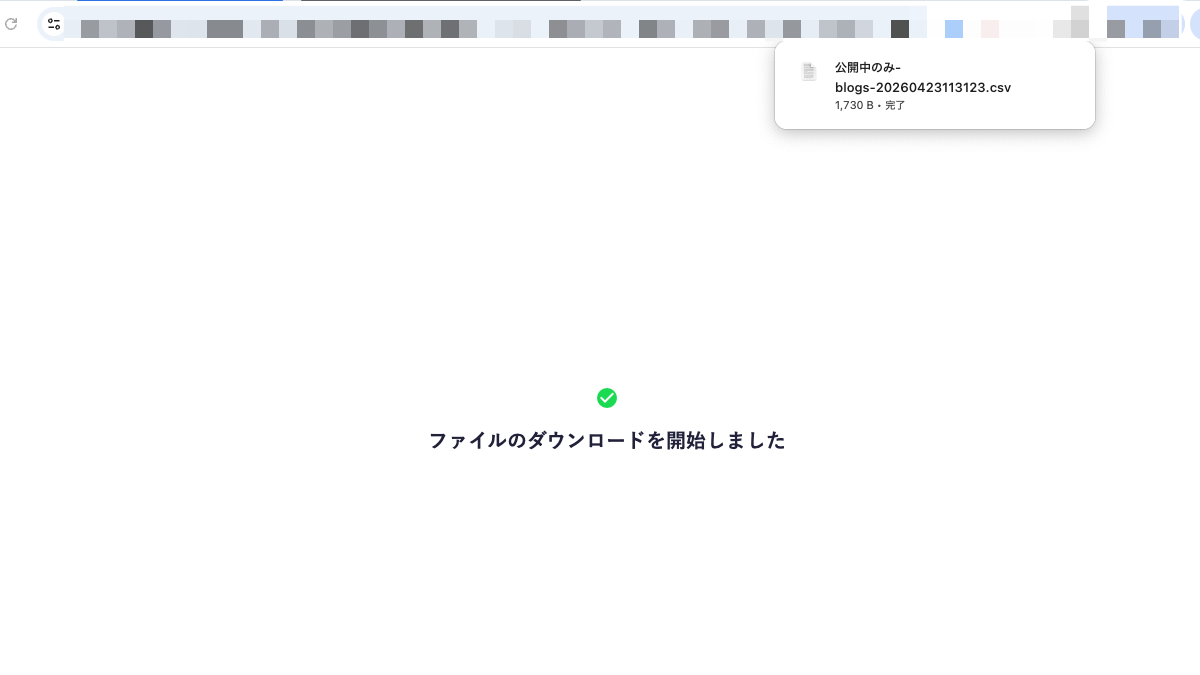
8: Click the download link in the email to download the CSV file.
Information
The download link can only be used by the user who executed the export.
The validity period of the download link is 24 hours. After the expiration, the download will no longer be available. If the validity period has expired, please execute the export again.
If there are many pieces of content or if the data structure is complex, it may take more than 30 minutes to complete the export.
Editing of content or API schemas during the export process may be reflected in the export results. If accurate data is required, please refrain from making edits while executing the export.
The generated CSV file name will be in the format {export_name}-{API_endpoint}-{timestamp}.csv .
Q. If I do not receive the export completion email? A. Please check your spam folder or if it has been sorted into a different folder. Additionally, the completion of the export may take time depending on the number of contents and the structure of the fields. Please wait a moment and check again.
Q. The export button is not displayed This feature is not available on the Hobby plan. CSV export is available on the Team plan, Business plan, and Enterprise plan.
Q. How to re-import the exported CSV? The exported CSV file can be re-imported for the purpose of registering new contents against a similar API Schema. For specific steps and precautions, please refer to the document "CSV Import of Contents".

 Information