microCMS

Service Configuration

You can set the basic information of the service on the service settings screen ( https://xxxxx.microcms.io/settings ).

This document explains the following operations:

  1. Setting the service name / service image
  2. Limiting content during reservations
  3. Setting the notification language
  4. Changing the service ID

Service Name / Service Image Settings

The service name and service ID are information used to uniquely identify the service.

This section explains how to change the service name and service image.


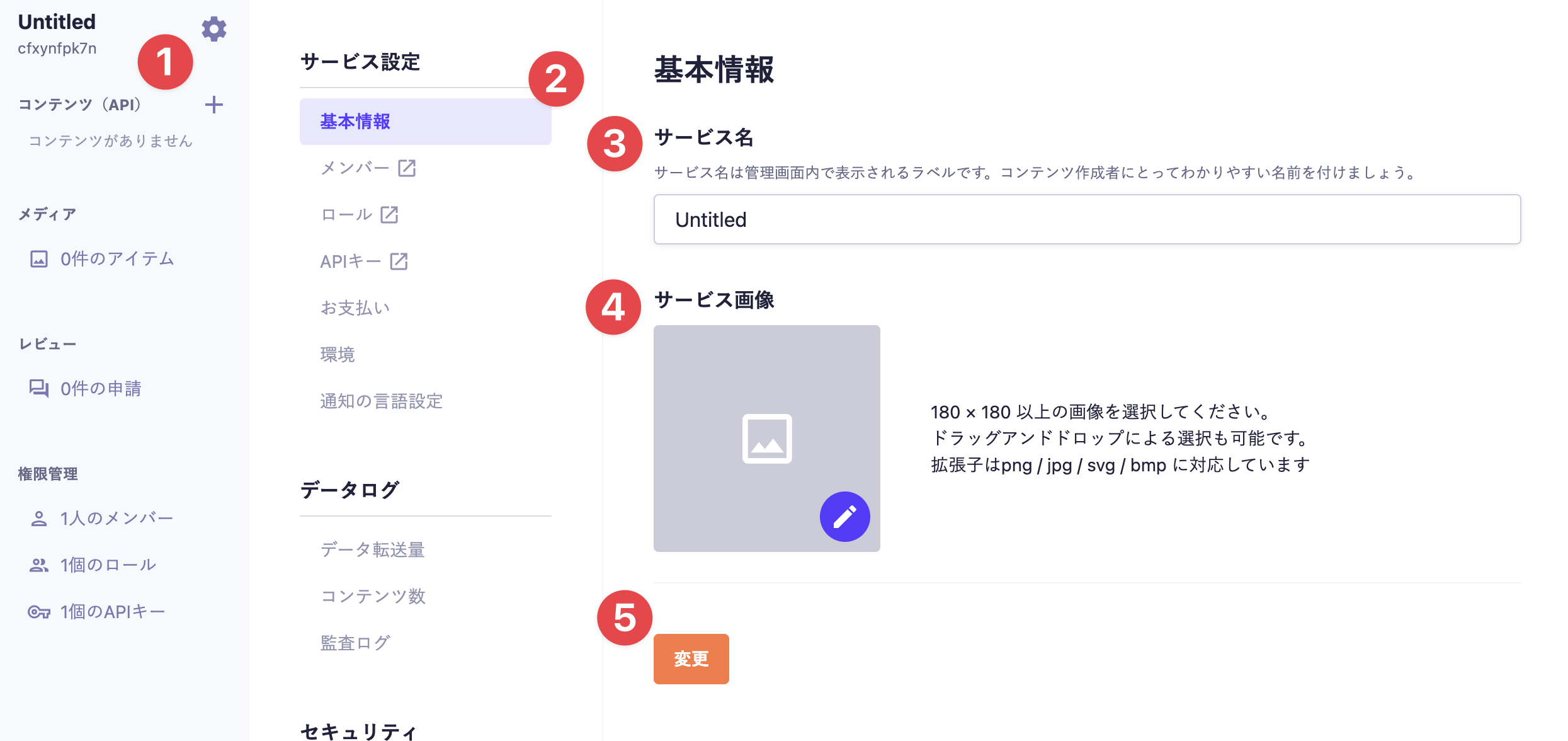
1. Click the gear icon at the top of the menu on the left side of the admin screen

Clicking the gear icon at the top of the menu on the left side of the admin screen will display the service settings screen.

2. Click on [Basic Information] in the service settings menu

Clicking on [Basic Information] in the service settings menu will display the basic information settings screen.

3. Enter the service name

Enter your desired service name.

4. Select the service image

Select and upload the service image from your device.
Please choose an image that is 180 × 180 or larger. Supported file extensions are png / jpg / svg / bmp.

5. Click the [Change] button

Clicking the [Change] button will apply the settings.

Restrictions on Scheduled Content

Certain operations such as editing, saving, and publishing will be restricted for scheduled content.
This prevents unintended changes to scheduled content after review approval, allowing for more stringent content management.

When the setting is turned ON, changes other than scheduling for the content will generally be restricted.

informationInformation

The reservation content restrictions are features available to customers on the Business and Enterprise plans.
For details on the features available for each plan, please refer to the pricing page.

This section explains how to set restrictions for reserved content.


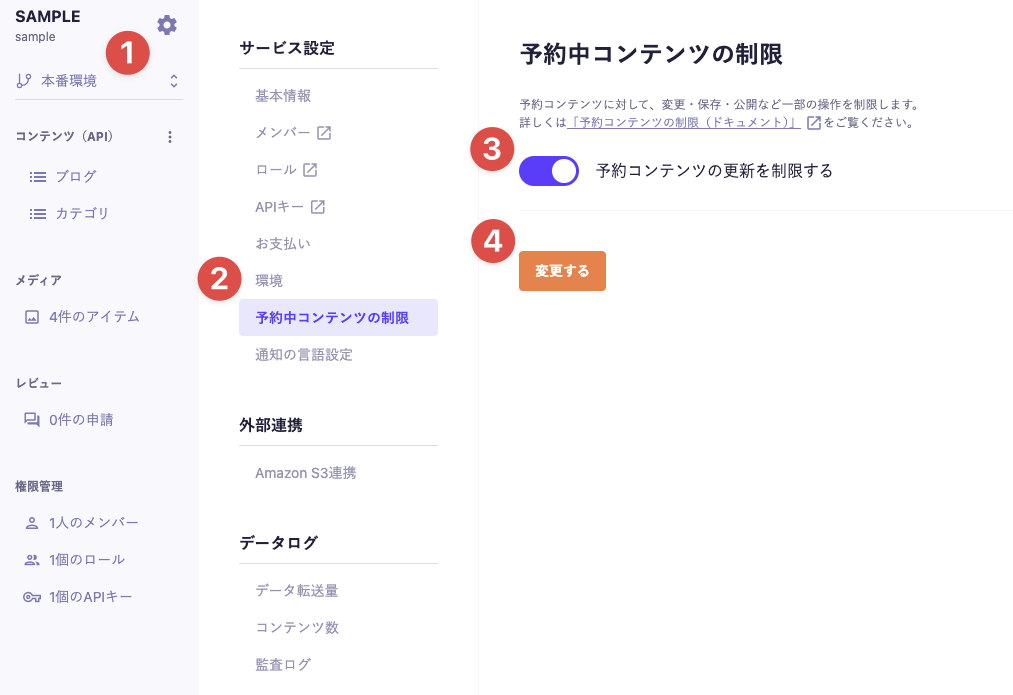
1. Click the gear icon at the top of the menu on the left side of the management screen

Clicking the gear icon at the top of the menu on the left side of the management screen will display the service settings screen.

2. Click on [Restrictions for Reserved Content] in the service settings menu

Clicking on [Restrictions for Reserved Content] in the service settings menu will display the settings screen.

3. Turn ON "Restrict Updates for Reserved Content"

Click the toggle to switch it ON. By default, it is set to OFF.

4. Click the [Apply Changes] button

Clicking the [Apply Changes] button will reflect the settings.

informationInformation

If you want to change the content that is currently reserved while the reservation restriction is ON, please cancel the reservation in the schedule settings.

Notification Language Settings

You can set the language for webhook notifications and emails sent during user invitations.

Here are the steps to change the notification language settings.


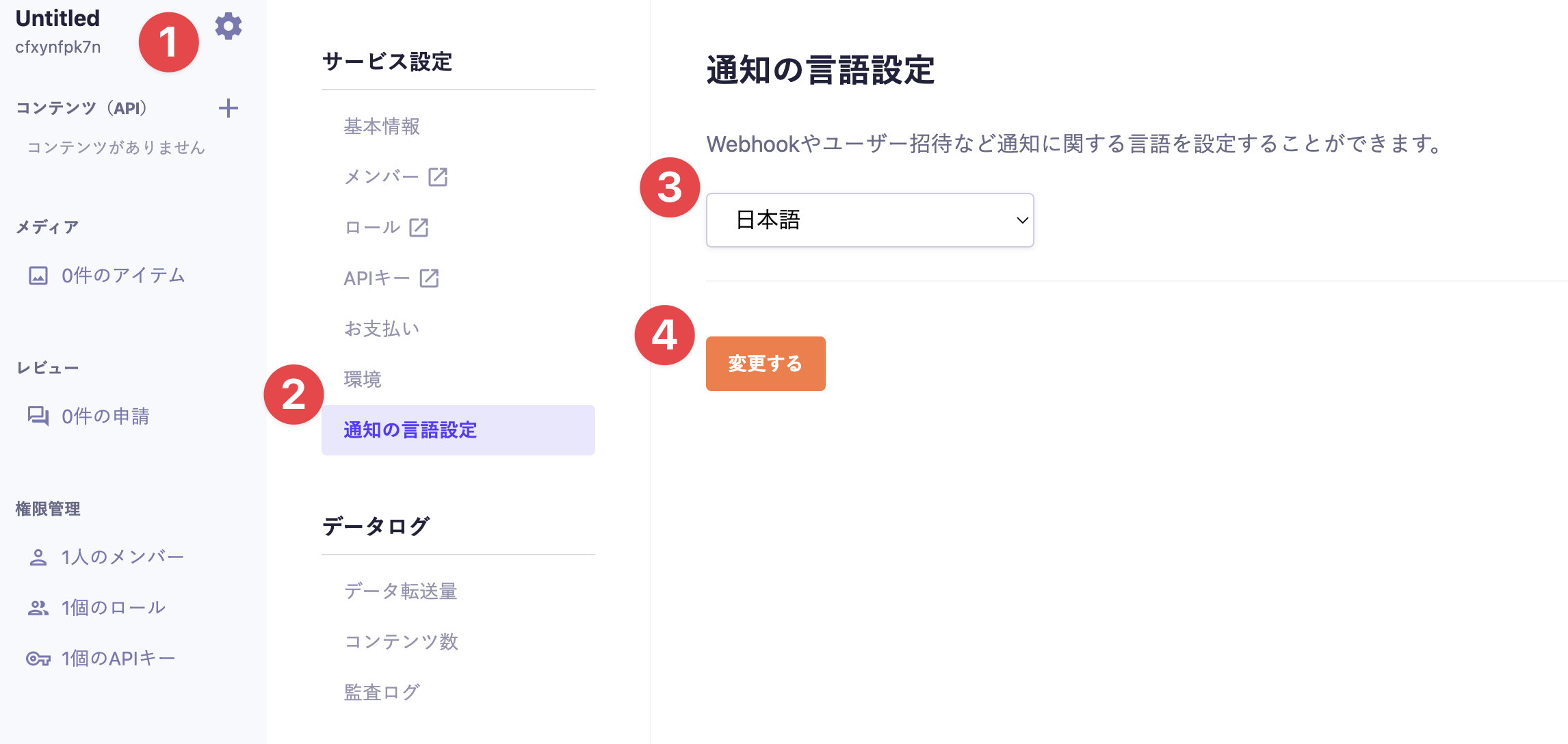
1. Click the gear icon at the top of the menu on the left side of the admin panel

Clicking the gear icon at the top of the menu on the left side of the admin panel will display the service settings screen.

2. Click on [Notification Language Settings] in the service settings menu

Clicking on [Notification Language Settings] in the service settings menu will display the notification language settings screen.

3. Select a language

Choose any language from Japanese or English.

4. Click the [Change] button

Clicking the [Change] button will apply the settings.

Changing the Service ID

The Service ID is the ID that serves as the subdomain for the service.

Here are the steps to change the Service ID.


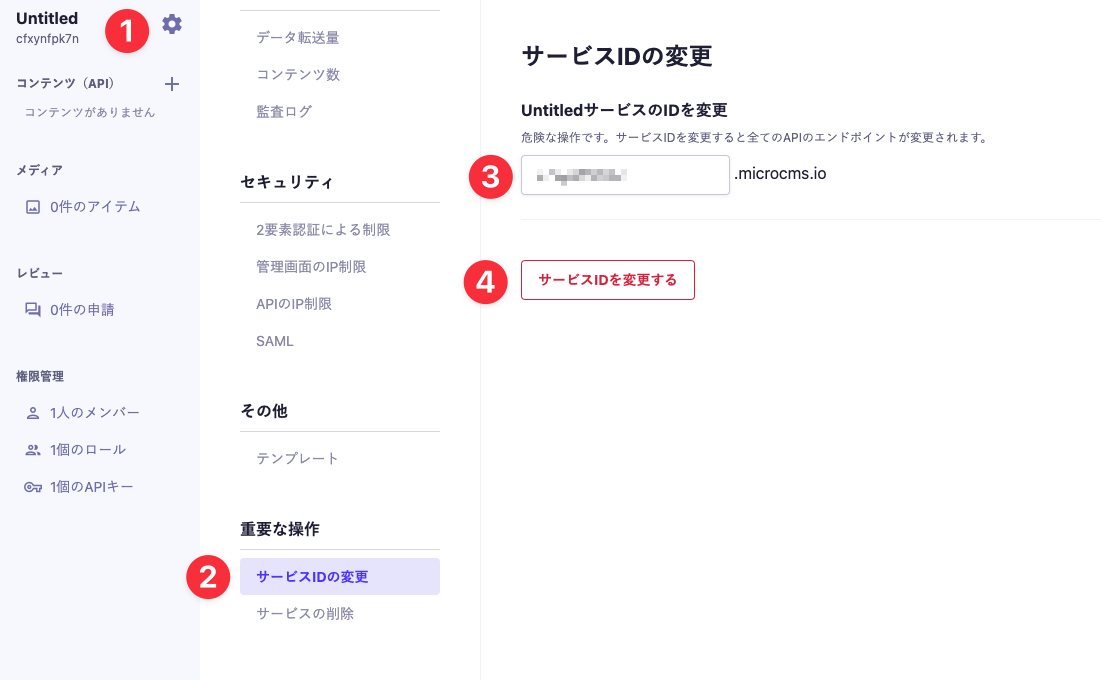
1. Click the gear icon at the top of the menu on the left side of the admin panel

Clicking the gear icon at the top of the menu on the left side of the admin panel will display the service settings screen.

2. Click on [Change Service ID] in the Important Operations menu

Clicking on [Change Service ID] in the Important Operations menu will display the Service ID change screen.

3. Enter the desired Service ID

Enter the desired Service ID using half-width alphanumeric characters.

4. Click the [Change Service ID] button

Clicking the [Change Service ID] button will display a confirmation dialog.
Clicking the [Change] button in the confirmation dialog will apply the changes.

cautionCaution

Changing the service ID will affect all API requests associated with the service. Please exercise caution when making changes.

informationInformation

Only members with "administrator privileges" can change the service ID. Please refer to the document below for information on permissions.
https://document.microcms.io/manual/roles

informationInformation

Only services created on or after February 20, 2021, can have their Service ID changed. Services created before this date cannot have their Service ID modified.