This document outlines the shortest steps to use microCMS with Gatsby. If you are using microCMS from Gatsby for the first time, please try these steps first.
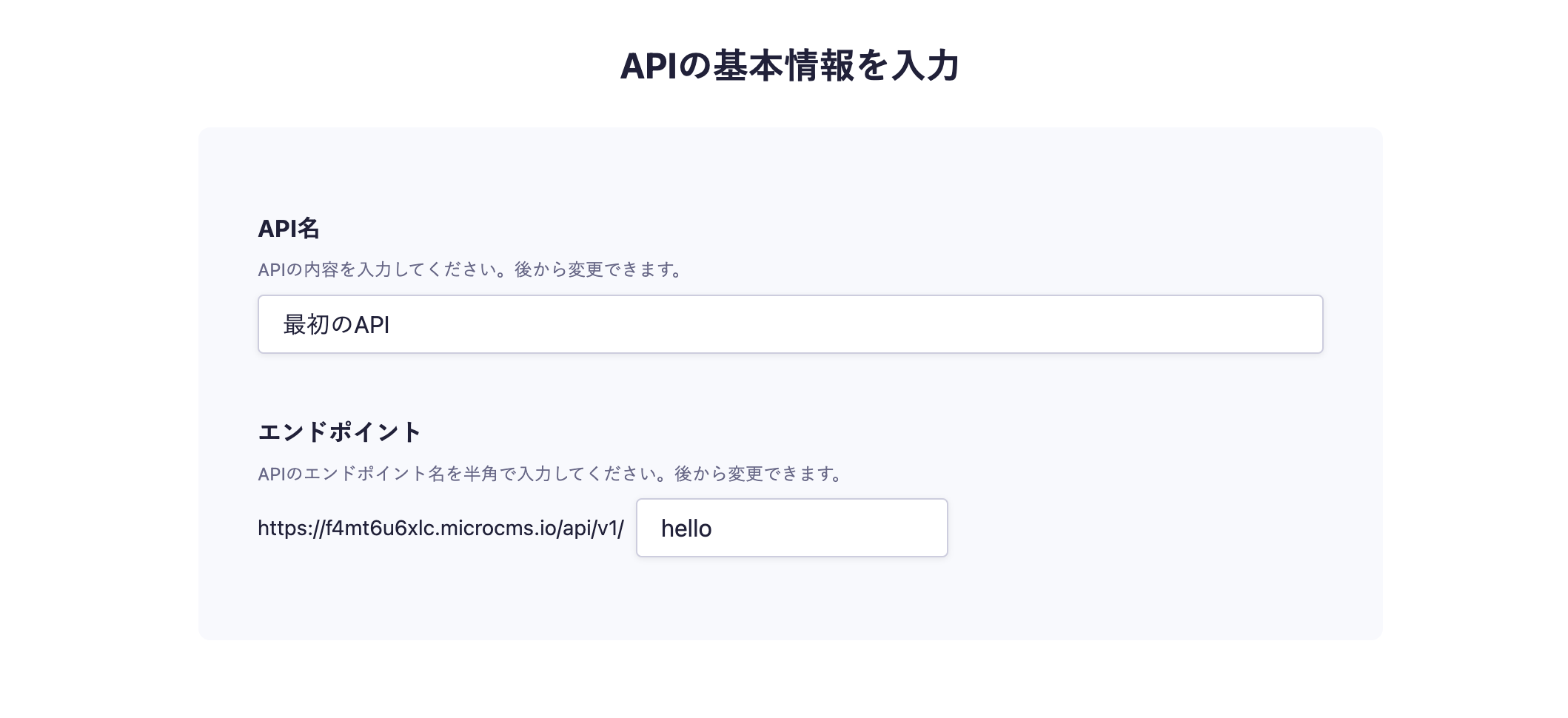
In the API creation screen, enter a desired API name and Endpoint.
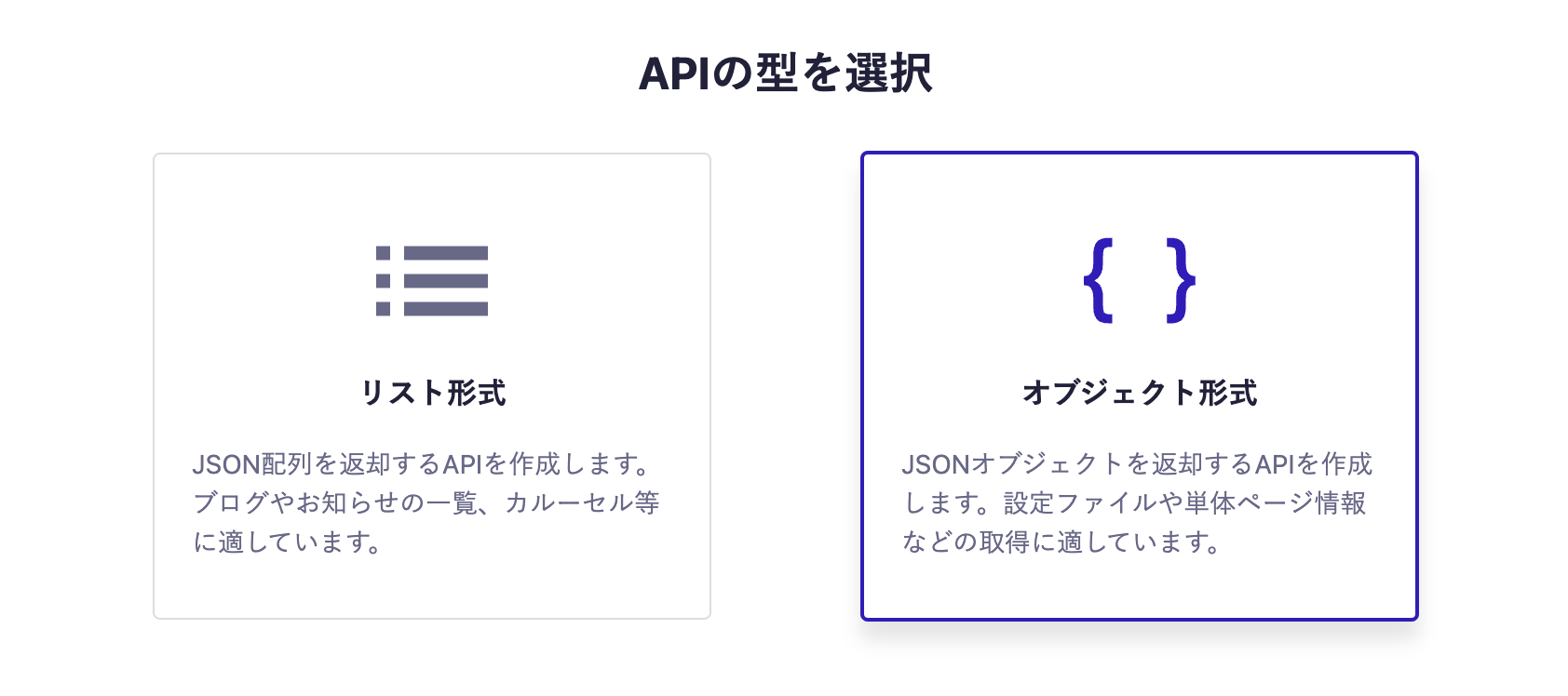
Next, select the object format.
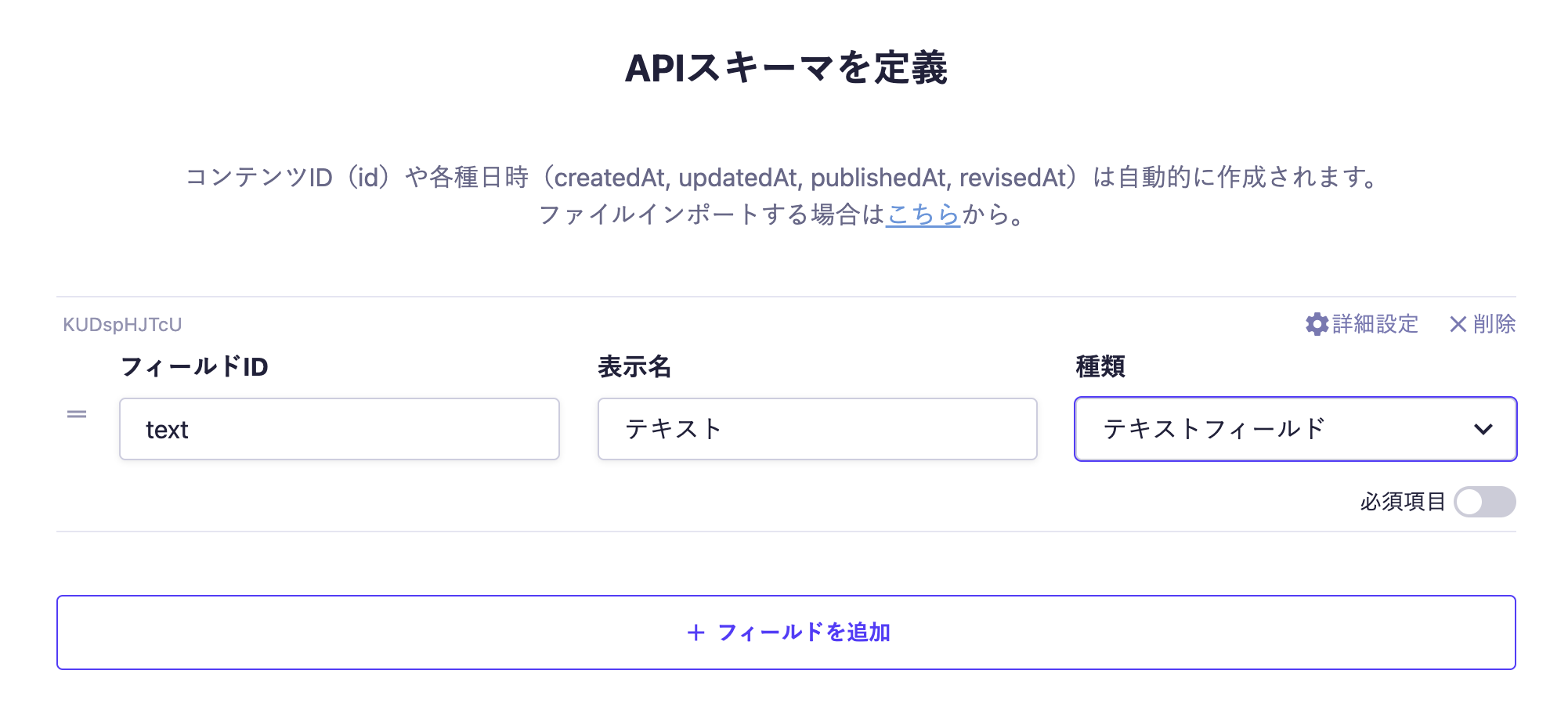
Finally, set the fields. In this case, we will set only one Text Field.
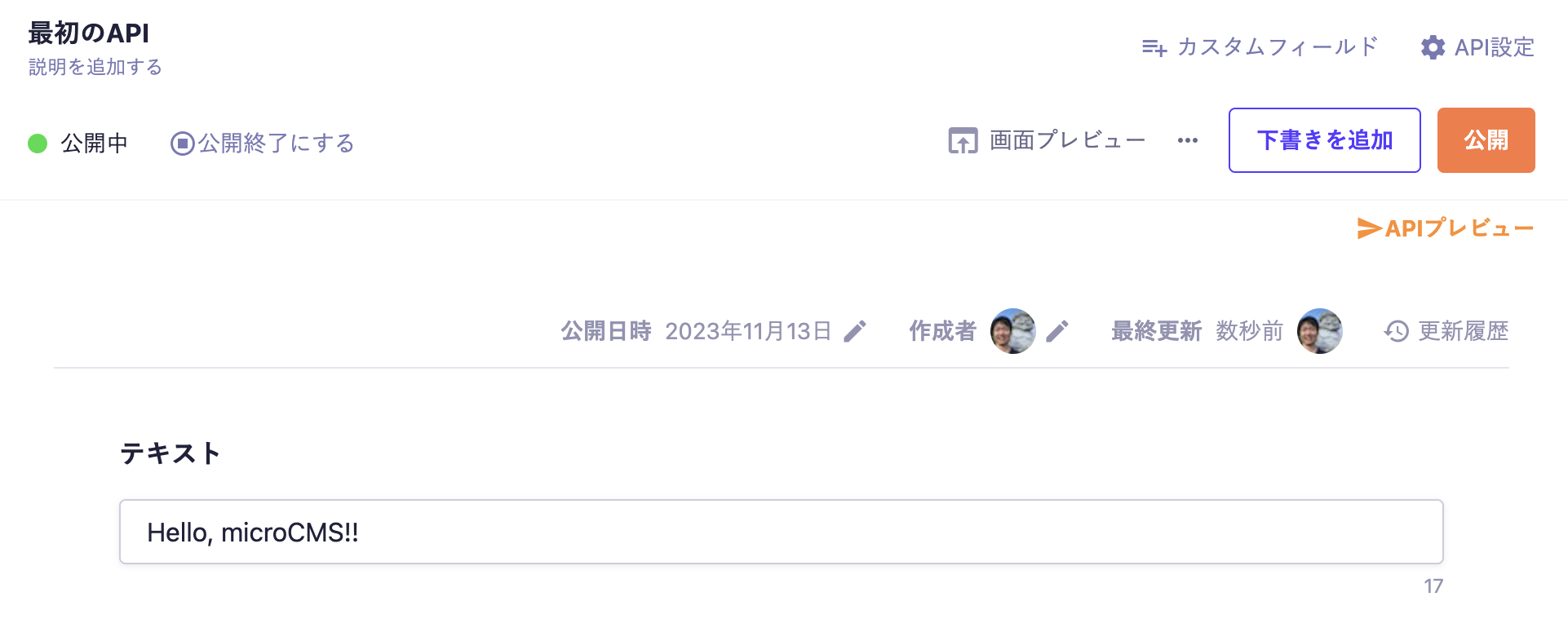
With the above settings, the API will be created, allowing you to submit content. Move to the editing screen, enter the desired values, and publish.
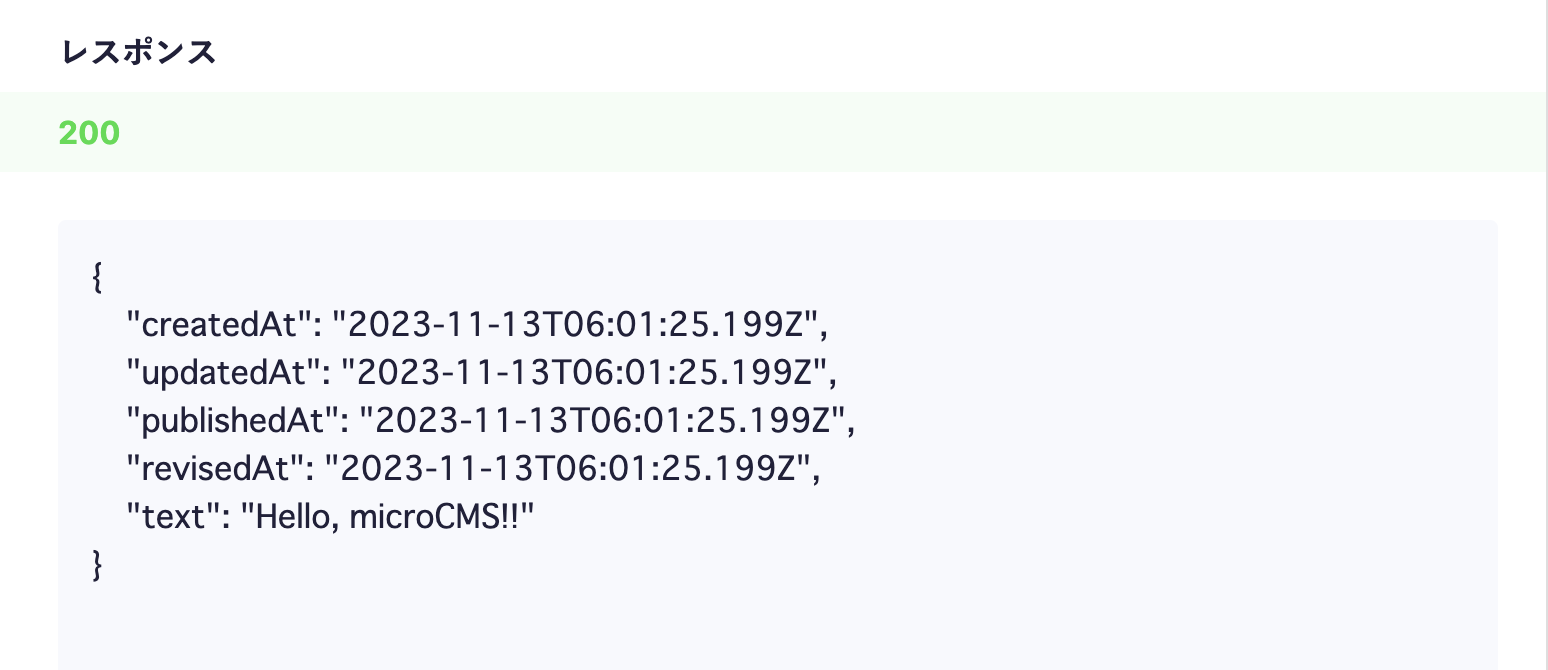
At this point, a response containing content data will be returned from the API. Click on the API Preview in the upper right corner to access the created API and confirm that a JSON response is being returned.
Next, we will implement the process to retrieve information from the microCMS API created earlier and display it on the screen. To fetch data in Gatsby, install gatsby-source-microcms.
npm install gatsby-source-microcms
Next, add the configuration to retrieve data from microCMS in gatsby-config.js.
You can find the API_KEY in the "◯ API Keys" section on the left column of the Administration console. Set the serviceId to the one you configured. Since we are using object format, specify format as object.
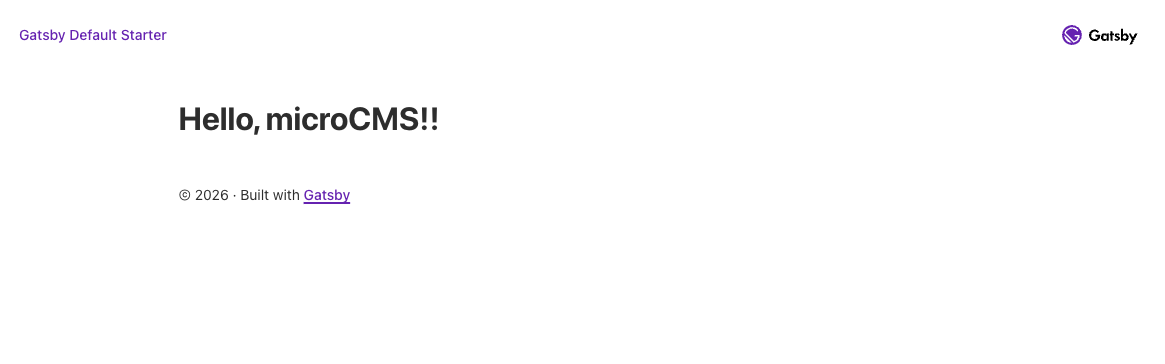
Here, we are using a GraphQL query to fetch the data. You can retrieve the data you submitted earlier with microcmsHello.text. Access http://localhost:8000/hello to see the result.
Change the content in microCMS and run npm run develop again to confirm that the displayed content changes as well.


 Integration with Gatsby