microCMS

Date

The date and time field is used to input date and time data using a calendar and time selection panel.
It is suitable for managing specific dates and times as content, such as the event date, seminar application period, campaign duration, and the start and end times of reservation slots.

How to Submit Data

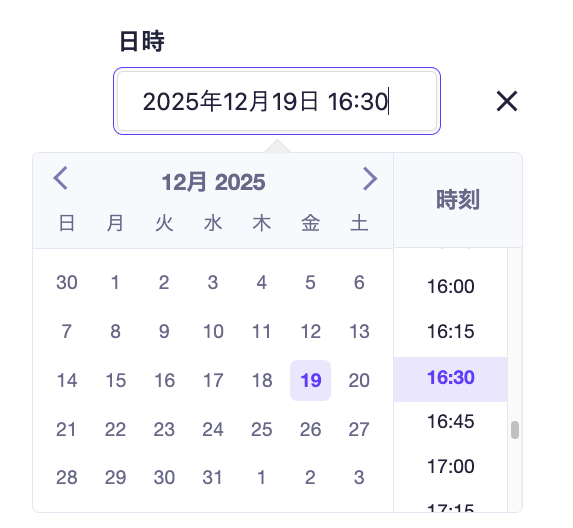
Operation screen for the date and time field. A UI that allows date selection in calendar format and time selection in list format.
  1. Clicking on the field will display a panel for selecting the date and time.
  2. Select a date from the calendar, and clicking on a time from the list on the right will reflect it in the input field.


Please refer to the following documents for submissions using API and CSV.

Setting Item

Description

Required Field

When enabled, input will be mandatory during submission.

Description Text

This is the description text displayed on the submission screen.

Date Only

When enabled, the time specification will be disabled, allowing only date selection and management.

informationInformation
  • When "Date only" is turned ON, the API response will still include the time information (the part "T00:00:00.000Z").
  • Currently, there is no support for specifying only the time (without a date). If you want to manage only the time, please consider alternative options using "Text Field" or "Select Field".

Response Format of GET API

Please refer to the documentation below for details.

How to Use in the Frontend

The date field is returned as a string in ISO 8601 format (UTC), so on the frontend, you can convert it to a Date object as needed and format it into any desired timezone or format.
Below is an implementation example using Next.js.

export default async function Page({ params }) {
  const { slug } = await params;

  // Fetch data using the microCMS JavaScript SDK (https://github.com/microcmsio/microcms-js-sdk)
  const data = await client.getListDetail({
    endpoint: "blog",
    contentId: slug,
  });

  // dateField is the field ID. Please replace it with the actual field ID.
  const date = new Date(data.dateField);

  // Format to Japan Standard Time (JST) and "YYYY年MM月DD日"
  const formattedDate = new Intl.DateTimeFormat("ja-JP", {
    dateStyle: "long",
    timeZone: "Asia/Tokyo",
  }).format(date);

  return (
    <main>
      <time dateTime={data.dateField}>{formattedDate}</time>
    </main>
  );
}