microCMS

How to Use the Old Rich Editor

One of the fields for entering content is the rich editor.
Here, we will explain how to operate the rich editor.

informationInformation

This page is about the old rich editor.

On May 31, 2023, a new rich editor was added, significantly enhancing its features.
We recommend using the new rich editor when starting fresh (click here for the new rich editor documentation).

Heading and Paragraph

h1 to h5 and p tags are supported.
h1 to h5 will have a hashed string assigned as the id. (This means the id remains fixed unless the text is changed.)

Using the assigned id, it is possible to generate a table of contents on the frontend.
For more details, please refer to the article below.

Font Size

You can choose from Small / Standard / Large / Maximum.
Each corresponds to a font-size of 0.75em / 1em / 1.5em / 2.5em.

Bold

The text will be wrapped in the strong tag.

Italic

The text will be wrapped in the em tag.

Underline

The text will be wrapped in the u tag.

Strikethrough

The text will be wrapped in the s tag.

Inline Code

The text will be wrapped in the code tag.

Background Color

A background color will be applied to the text.

Text Color

A text color will be applied to the text.

Text Alignment

You can specify Left / Center / Right / Justified alignment.

Quote

The text will be wrapped in the blockquote tag.

Code

The text will be wrapped in the pre and code tags.
It is suitable for entering source code.
Please refer to the article below for implementation that adds syntax highlighting.

Numbered List

The text will be enclosed in ol and li tags.

Bullet List

The text will be enclosed in ul and li tags.

Links

You can specify links.
If it starts with https:// or http://, it will be an external link, while a path input like /hoge will be an internal link.

Images

You can upload or select images.
Image uploads can also be done from the media screen.
By clicking on the image entered in the rich editor, you can specify the image's width, height, alt text, and link destination.

Embedding External Services

You can embed by entering the URL of an external service.
The main services currently supported are as follows:


Embedding of external services uses the Embedly API. For other supported providers and schema URLs, please refer to here.
(However, please note that information may not be updated and some services may not be supported.)

Clear Formatting

You can reset styles and HTML tag information for the selected range.

Markdown Syntax

Markdown syntax is also possible within the rich editor.
The following syntax is supported.

# Heading
**Bold**
*Italic*
***Bold Italic***
~~Strikethrough~~
- List
1. Numbered List
[]() Link
> Quote
`Inline Code`
```Code Block```


Shortcut Keys

The following shortcut keys are available in the rich editor.
※ However, they may not work in some environments.

esc → Exit Full Screen
⌘ (Ctrl) + S → Save Draft
⌘ (Ctrl) + B → Bold
⌘ (Ctrl) + I → Italic
⌘ (Ctrl) + U → Underline


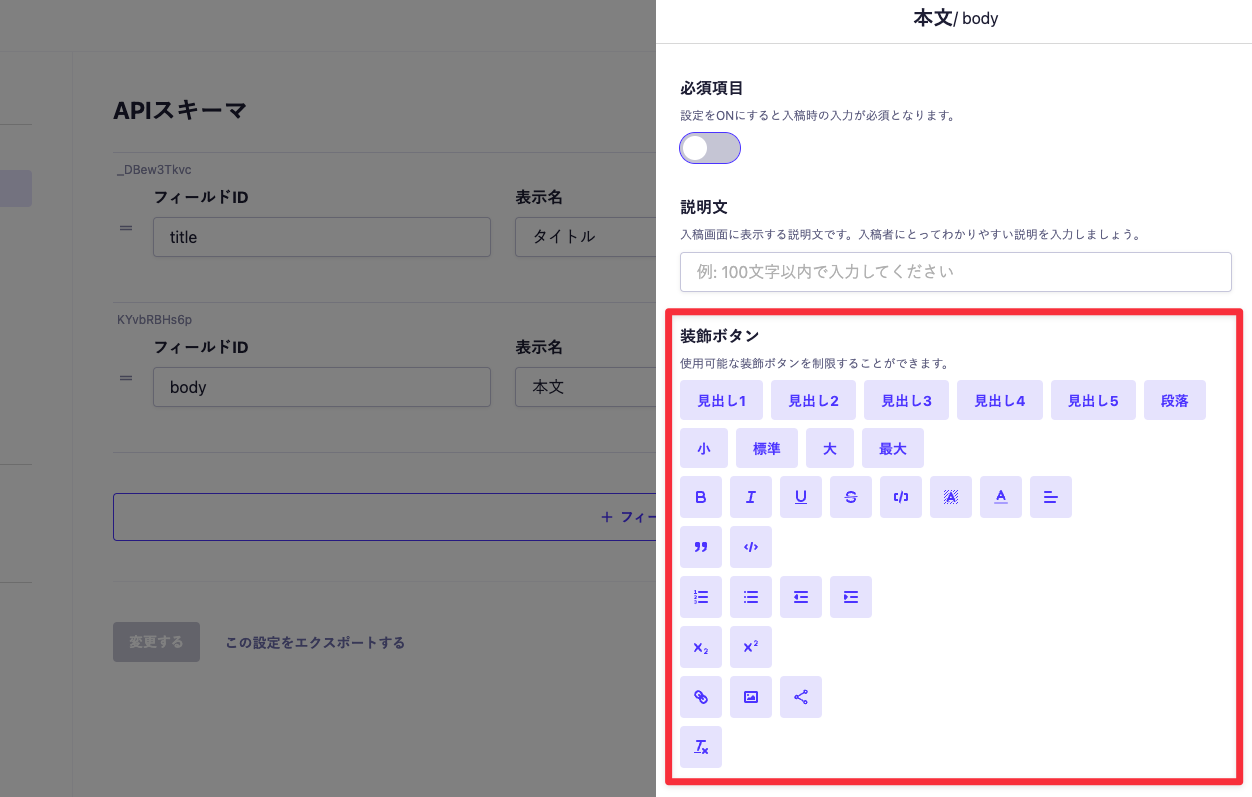
Customize Decoration Buttons

You can customize the decoration buttons in the rich editor. From the rich editor in the API schema, click on Advanced Settings to open the side menu, where you can customize from Decoration Buttons.


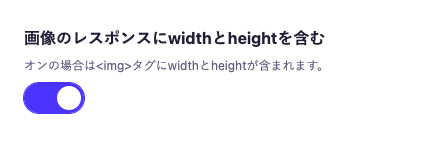
Include Width and Height in Image Response

You can include width and height in the image response within the rich editor. From the rich editor in the API schema, click on Advanced Settings to open the side menu, where you can turn on Include Width and Height in Image Response to set it.


An example of the actual response is as follows.

<img src="https://images.microcms-assets.io/assets/8a794a32a4bb49e5b3b04c23cae3a151/b8dd812b49994130a92536da203b69b6/test.png" alt="test" width="300" height="115">
informationInformation

The use of the rich editor is primarily intended for direct input in the management screen.
When pasting text or HTML data created in applications like Microsoft Word, while some formatting may be preserved, we cannot guarantee that all submitted content will be saved correctly.