microCMS

CSV Import of Content

This is a feature that allows you to bulk register content from a CSV file.
It can be used when migrating content from other CMSs or when registering content in bulk.

Content Registration Procedure

For New Registration

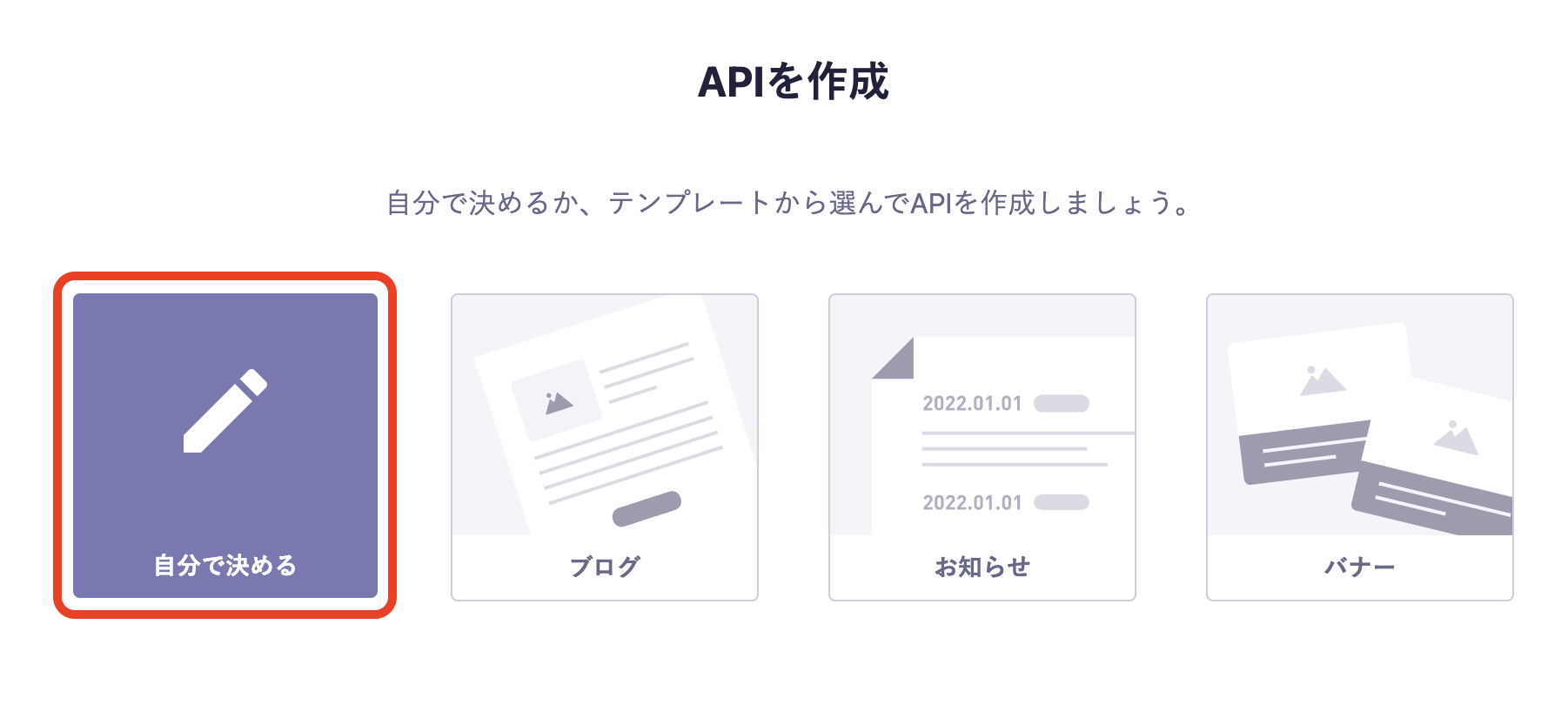
1: Create any API you like.


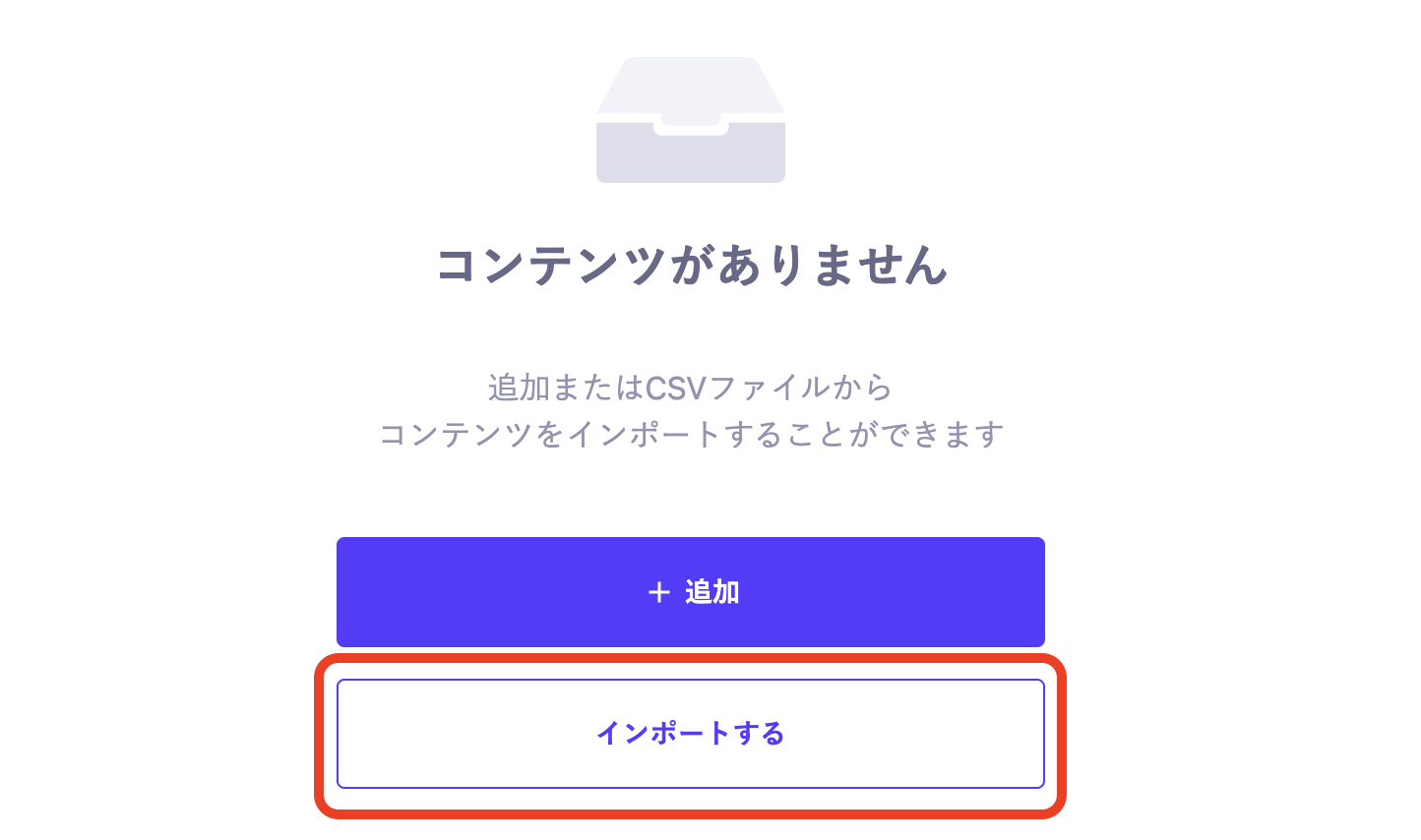
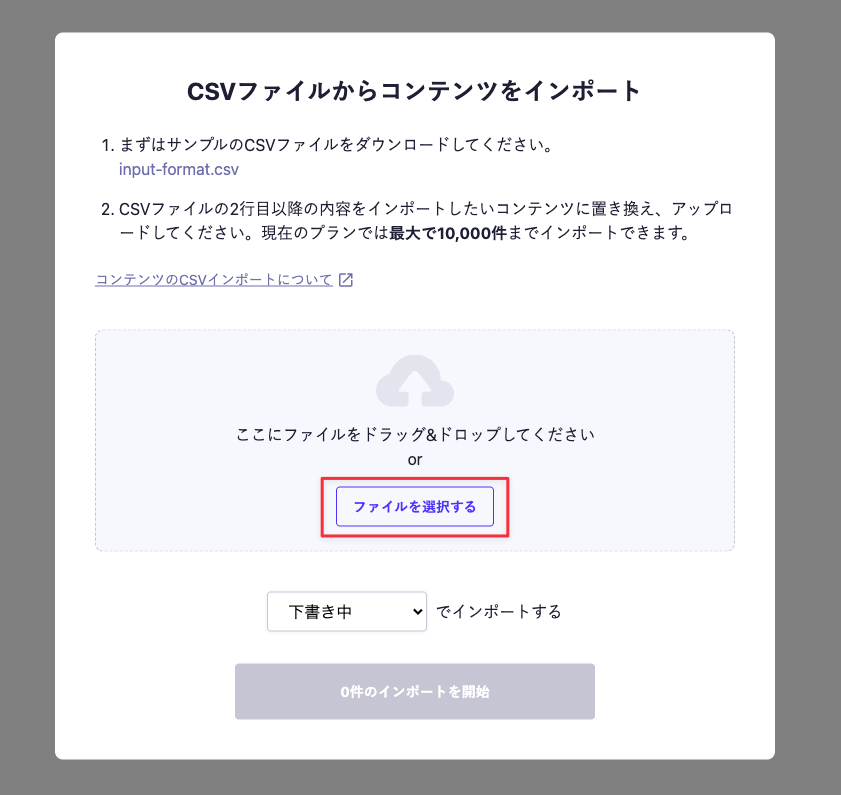
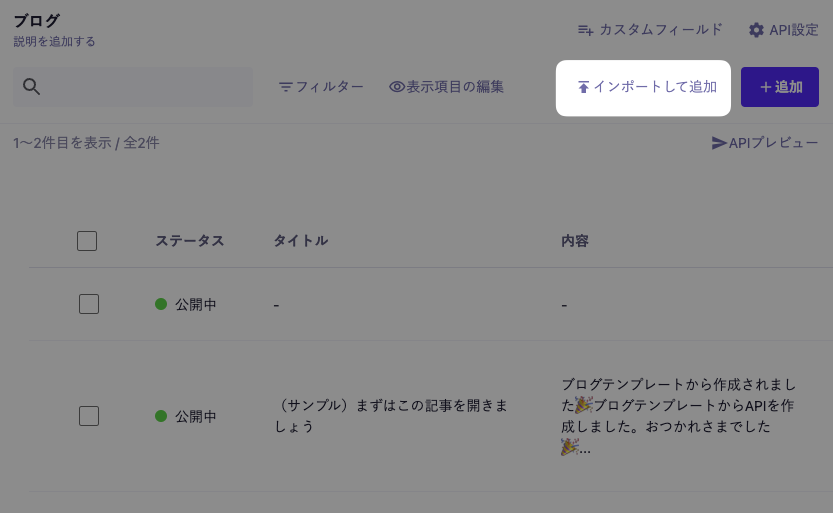
2: Click the [Import] button.


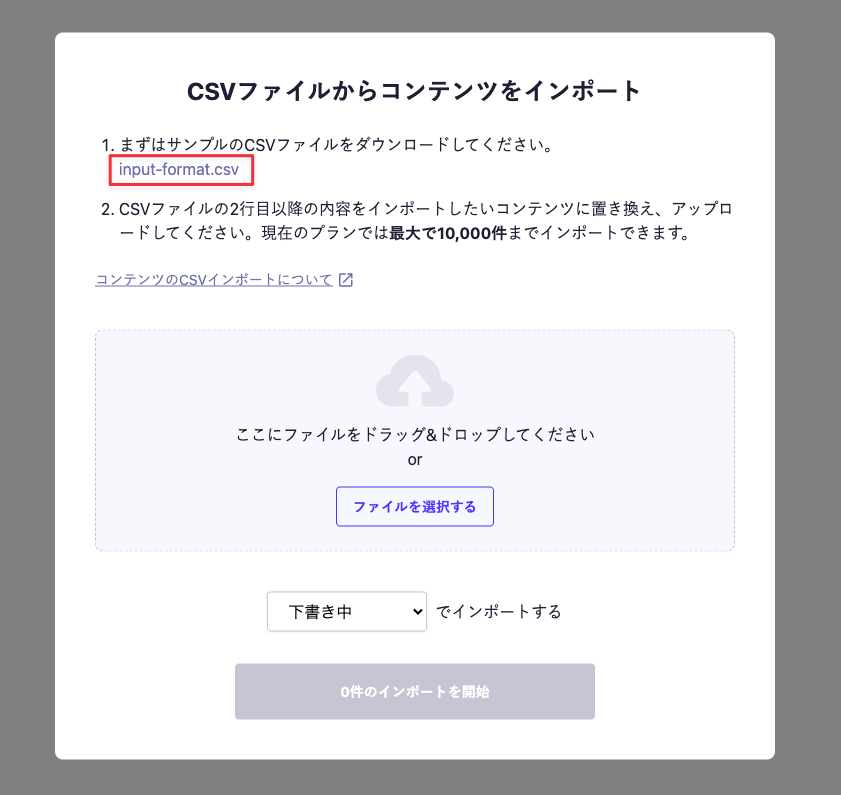
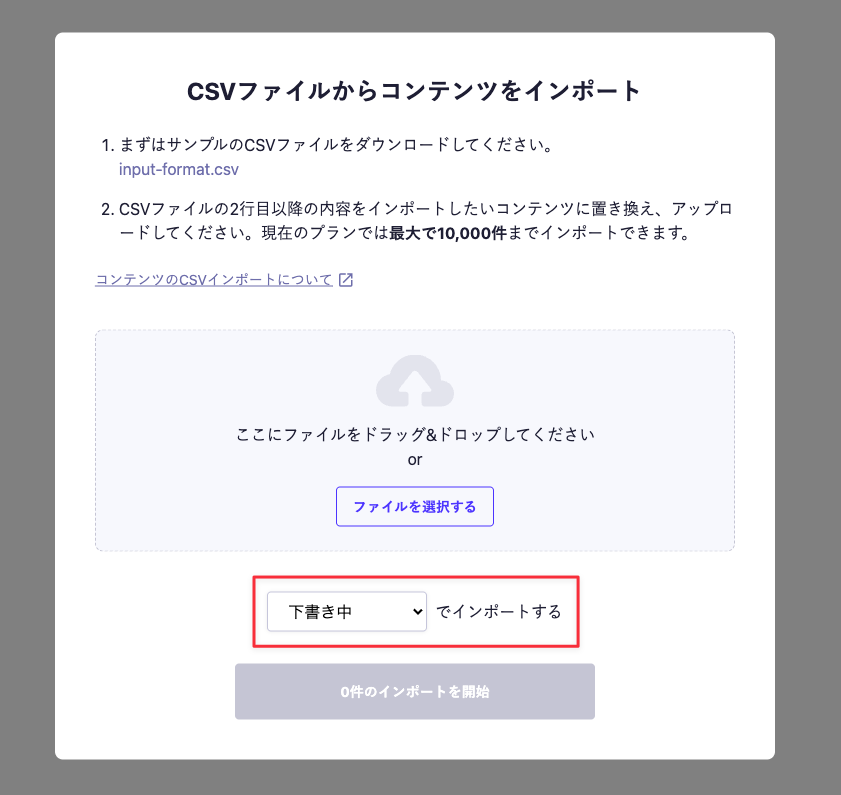
3: Click the link for the sample CSV file (input-format.csv) to download it.

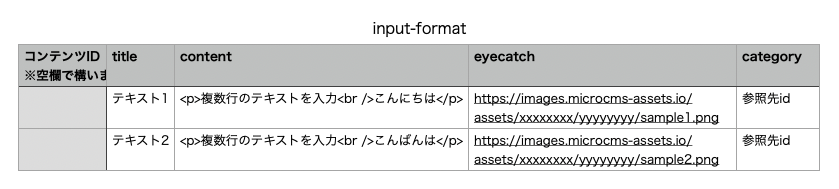
The sample CSV file (input-format.csv) contains sample values based on the types of fields that are registered. Please use it during the import process.

informationInformation
  • The downloadable sample CSV file (input-format.csv) is encoded in UTF-8 (without BOM). Please save it in the same format after editing.
  • When opening the sample file in your application, the CSV file may become garbled. For solutions to garbled text, please refer to the help article "The sample file for CSV import appears garbled. What should I do?".


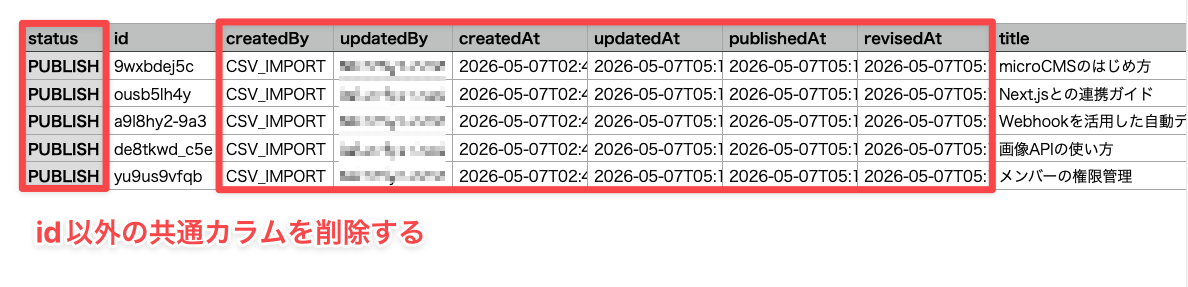
4: Enter the content you want to register and update/save the CSV file.


5: Click the [Select File] button to load the CSV file you want to register.


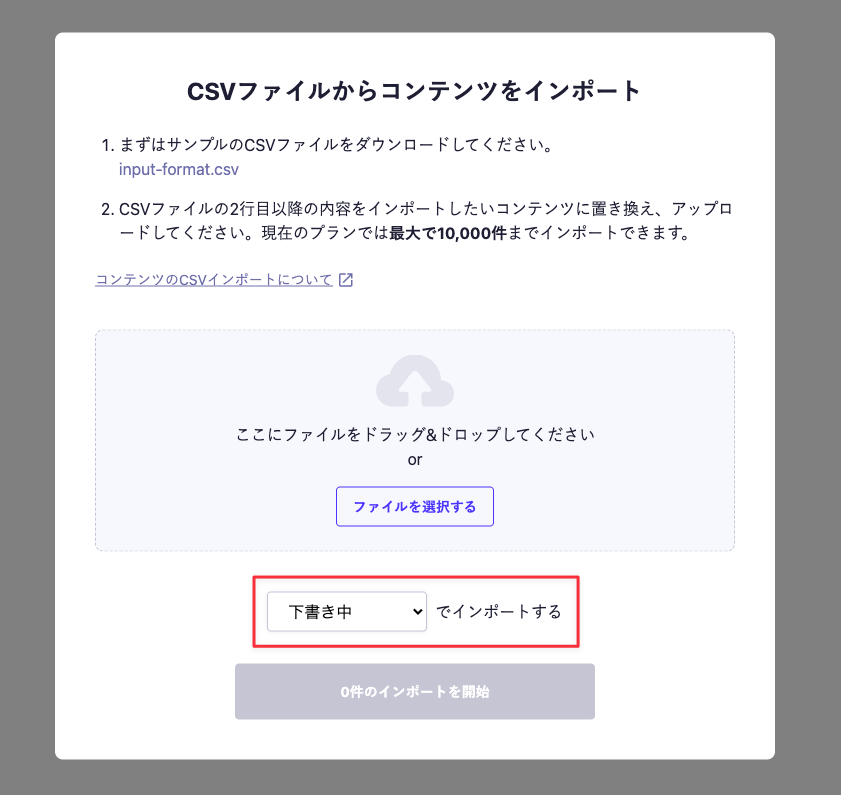
6: Choose the status of the content to be imported (Draft or Published).

informationInformation

If you are using the role feature, the selectable items will vary depending on the granted "content" permissions.

  • Draft: This option can be selected if you have the permission to save new content as a draft.
  • Published: This option can be selected if you have the permission to publish new content.


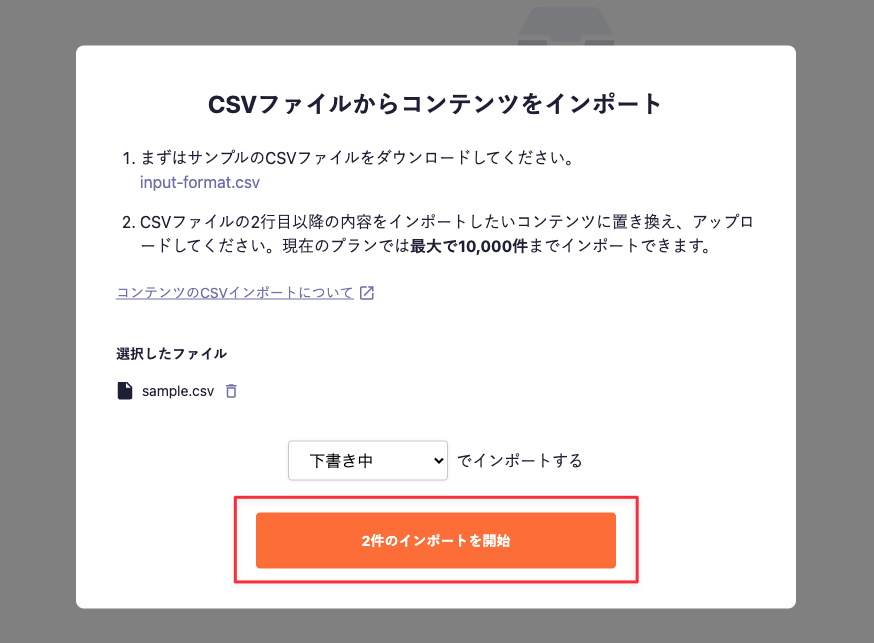
7: Click the [Start Import of ◯ Items] button.


8: The import process will be executed. It may take a few minutes until the registration is complete.

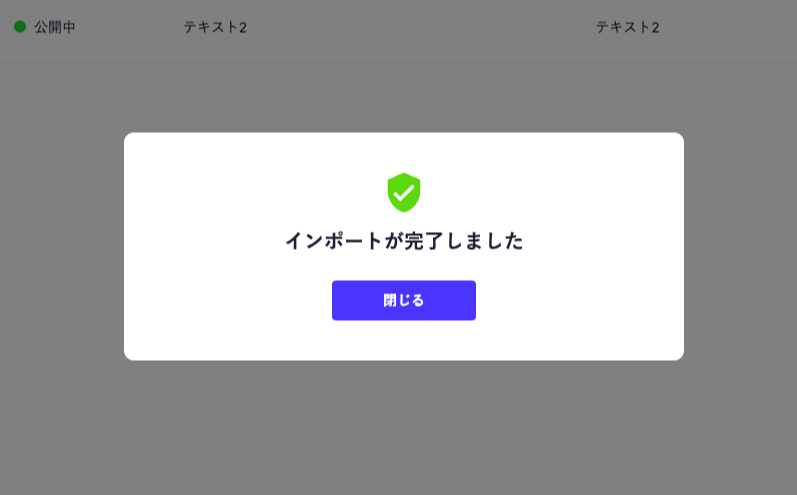
9: If the process completes successfully, a message saying "Import Completed" will be displayed, and the content registration will be finished. If an error is displayed, please check the content of the error message.

Adding in Between

1: Select any API
2: Click the [Import and Add] button


3: After this, the process will follow the same flow as steps 3 and onward for new registrations.

Input Format Rules

  • Only list format APIs are available for use.
  • Please import CSV files with character encoding UTF-8 (without BOM).

Supported Fields and Their Input Formats

Field Name

Input Format

Input Example (*1)

Text Field

Any text

Text

Text Area

Any text

Input multiple lines of text

Hello

Rich Editor

HTML string (*2)

<p>Input multiple lines of text<br />Hello</p>

Old Rich Editor

Any text (*3)

Input multiple lines of text

Hello

Image

URL of the image distributed by microCMS (*4)

https://images.microcms-assets.io/assets/xxxx/yyyy/sample.png

Multiple Images

Specify URLs of images distributed by microCMS, separated by commas (*5)

https://images.microcms-assets.io/assets/xxxx/yyyy/sample1.png,
https://images.microcms-assets.io/assets/xxxx/yyyy/sample2.png

Date and Time

ISO format (ISO 8601)

2024-01-01T00:00:00Z

Boolean

TRUE or FALSE

TRUE

Select Field

Elements set as options

Option 1

Select Field (Multiple Selection)

Specify elements set as options, separated by commas

Option 1,Option 2

Content Reference

Content ID of the referenced content

category01

Multiple Content References

Specify Content IDs of the referenced content, separated by commas

category01,category02

Number

Number

100

Custom

JSON (only registerable keys) (*7)

{"fieldId":"xxxxxxxx","some_value": "xxxxxxxx"}

Repeating

JSON array (only registerable keys) (*7)

[{"fieldId":"xxxxxxxx","some_value": "xxxxxxxx"},{"fieldId":"xxxxxxxx","some_value": "xxxxxxxx"}]

File (*6)

URL of the file distributed by microCMS

https://files.microcms-assets.io/assets/xxxx/yyyy/manual.pdf

Extended Field

JSON (only registerable keys) (*7)

{"id":"xxxxxxxx", "title":"xxxxxxxx", "description":"xxxxxxxx", "imageUrl":"https://images.microcms-assets.io/assets/xxxxxxxx/yyyyyyyy/sample1.png", "updatedAt":"2025-01-01T00:00:00.000Z","data":{"id": "123"}}

  • (*1) When editing a CSV file from a text editor, you need to enclose input values that contain line breaks or commas (,) in double quotes (").
  • (*2) Only HTML within the range supported by the rich editor can be submitted. Please note that not all HTML syntax is supported. The available formats are the same as those in the WRITE API of the rich editor.
  • (*3) Only plain text registration is possible. Registration with text formatting is not allowed.
  • (*4) If you are using custom domain settings for media, you can specify the URL of the custom domain as well. This also applies to multiple images and files.
  • (*5) You can import up to 100 images per field.
  • (*6) The Hobby plan is excluded.
  • (*7) The JSON format is specified in the same way as the WRITE API. Note that due to the specifications of the CSV format, when editing from a text editor, you need to register " as "".

Limitations

  • The maximum number of contents that can be imported at once varies by plan. For more details, please check the pricing page.

Import Errors

During content import, the content is checked based on the rules set for each input field, just like when registering data from the management screen (validation).
If there is even one error in the content being imported, the process will be halted at that point, and the content will not be added.

Common Error Examples

Errors Specific to CSV Import

In addition to the validation of each field, if there are issues with the data in the CSV file such as the following, it will also result in an error.

  • The number of columns in the CSV does not match the number of fields in the API schema
  • The number of content items being imported exceeds the limit of the plan

Other Specifications

  • Content IDs can be registered with spaces (duplicates are not allowed).
  • The order of the content will be registered as it appears in the CSV file (the content from the second row will be displayed at the top of the management screen).

Reference Information

In addition to CSV import, there is also the option to register content in bulk using WRITE APIs.
For detailed information on the features and distinctions of each method, please refer to the blog post below.