In microCMS, you can make payments using two methods: credit card and invoice payment.
Information
Invoice payment is a feature available with the Enterprise plan. For details on the features available with each plan, please refer to the pricing page.
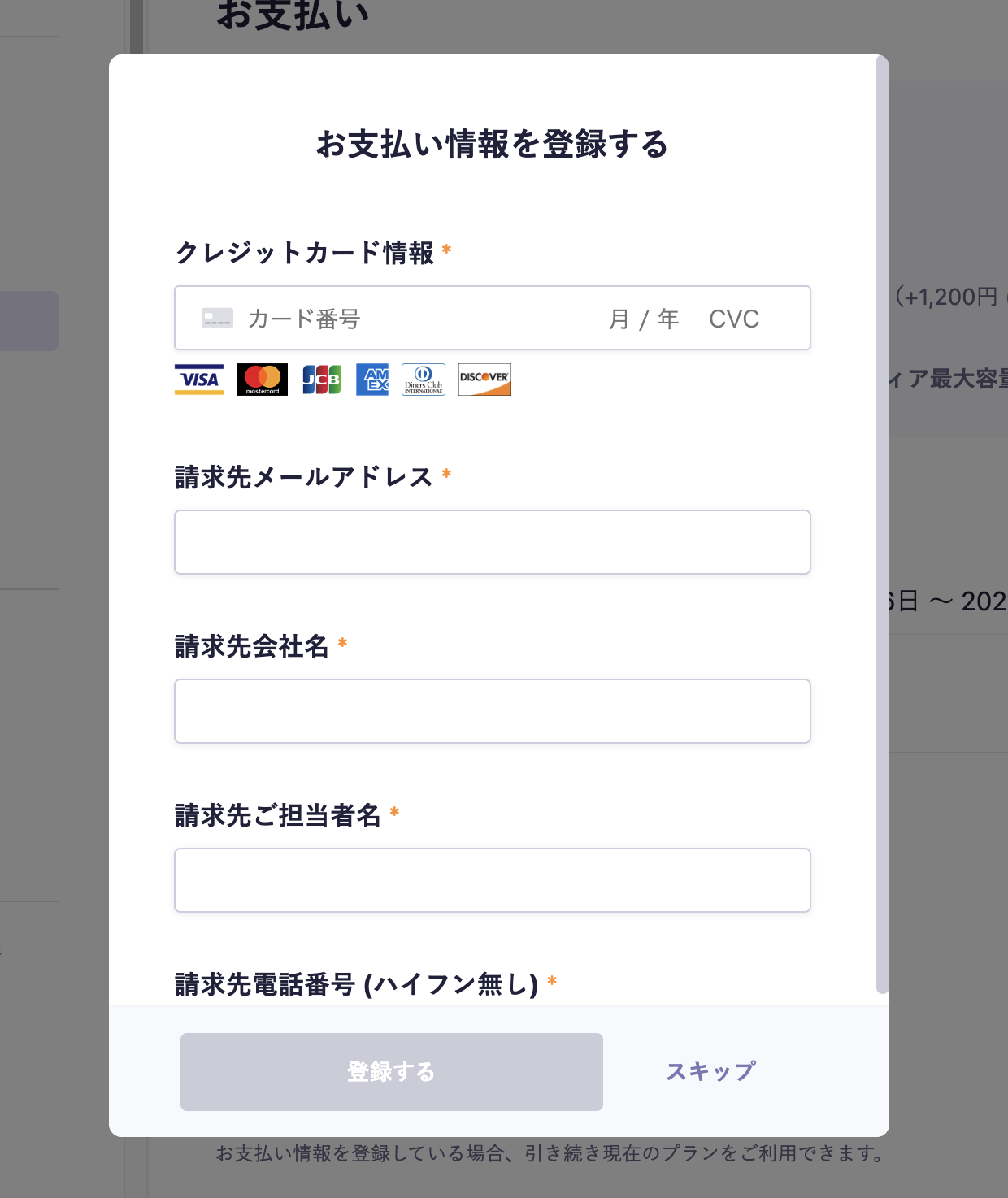
You can set up your credit card by clicking on Register Payment Information under Service Settings > Payment.
The information required for credit card payment is as follows:
Credit card information
Billing email address
Billing company name
Billing contact name
Billing phone number (without hyphens)
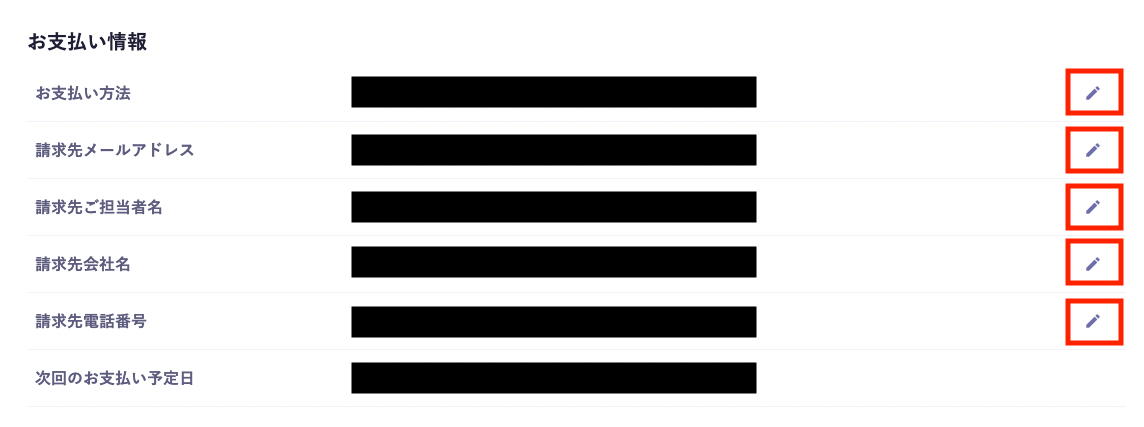
If you want to change your payment method later, click the pencil icon on the right side of the item you wish to change in the payment information.
Information
When registering or changing credit card information, you may be required to verify your identity. In such cases, please follow the instructions on the identity verification screen that appears to complete the verification process.
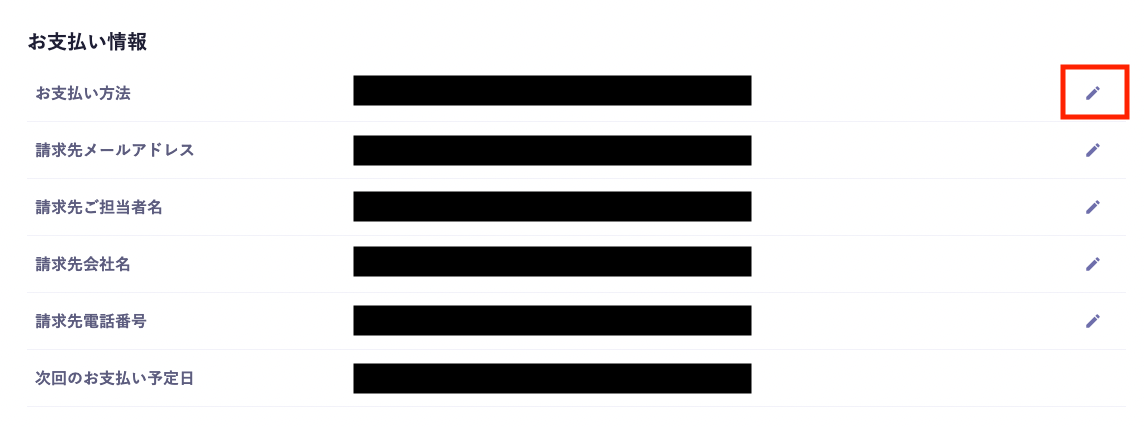
Only the Hobby plan allows you to delete credit card settings. Click the pencil icon next to Payment Method in your payment information, and then click Delete Credit Card Information.
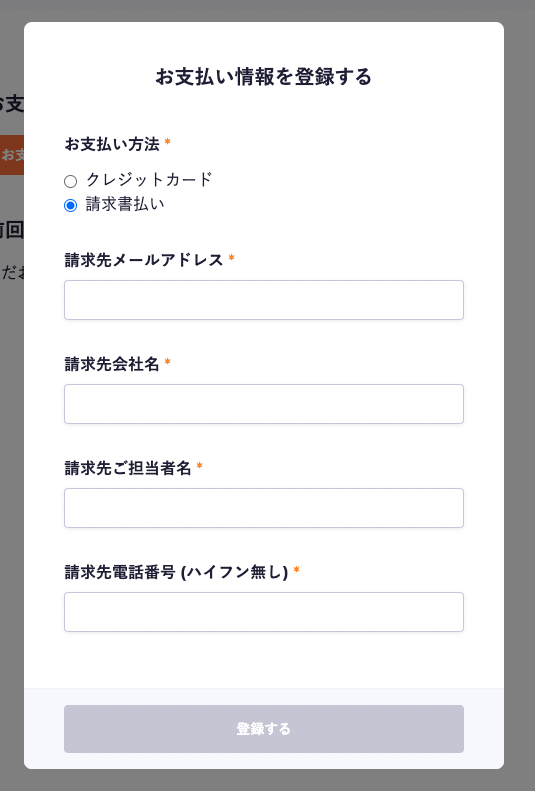
Invoice Payment Check the box and enter the required information.
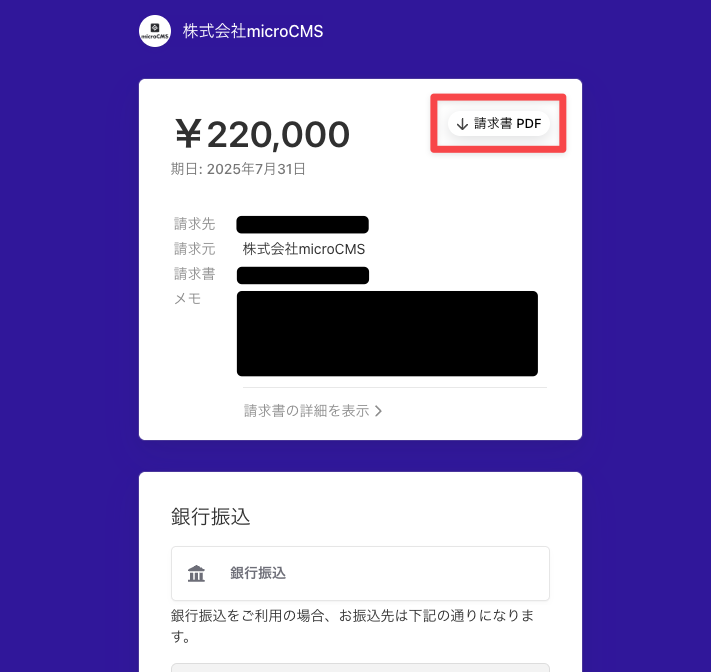
If you setInvoice Payment as your payment method, an invoice will be sent to you via email on the scheduled payment date. Please check the email content and click on the[Invoice PDF] highlighted in red to download the invoice.
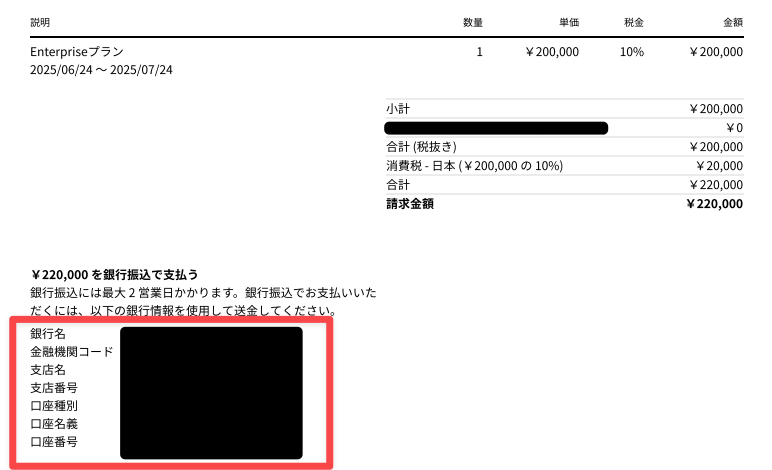
The footer of the invoice contains the bank transfer information, so please make your payment to this account.

 Information