microCMS

File

The file field is used to manage and associate various file formats other than images, such as PDF, CSV, ZIP, and Excel.
It is suitable for use cases like distributing white papers and sharing product specifications.

How to Upload Data

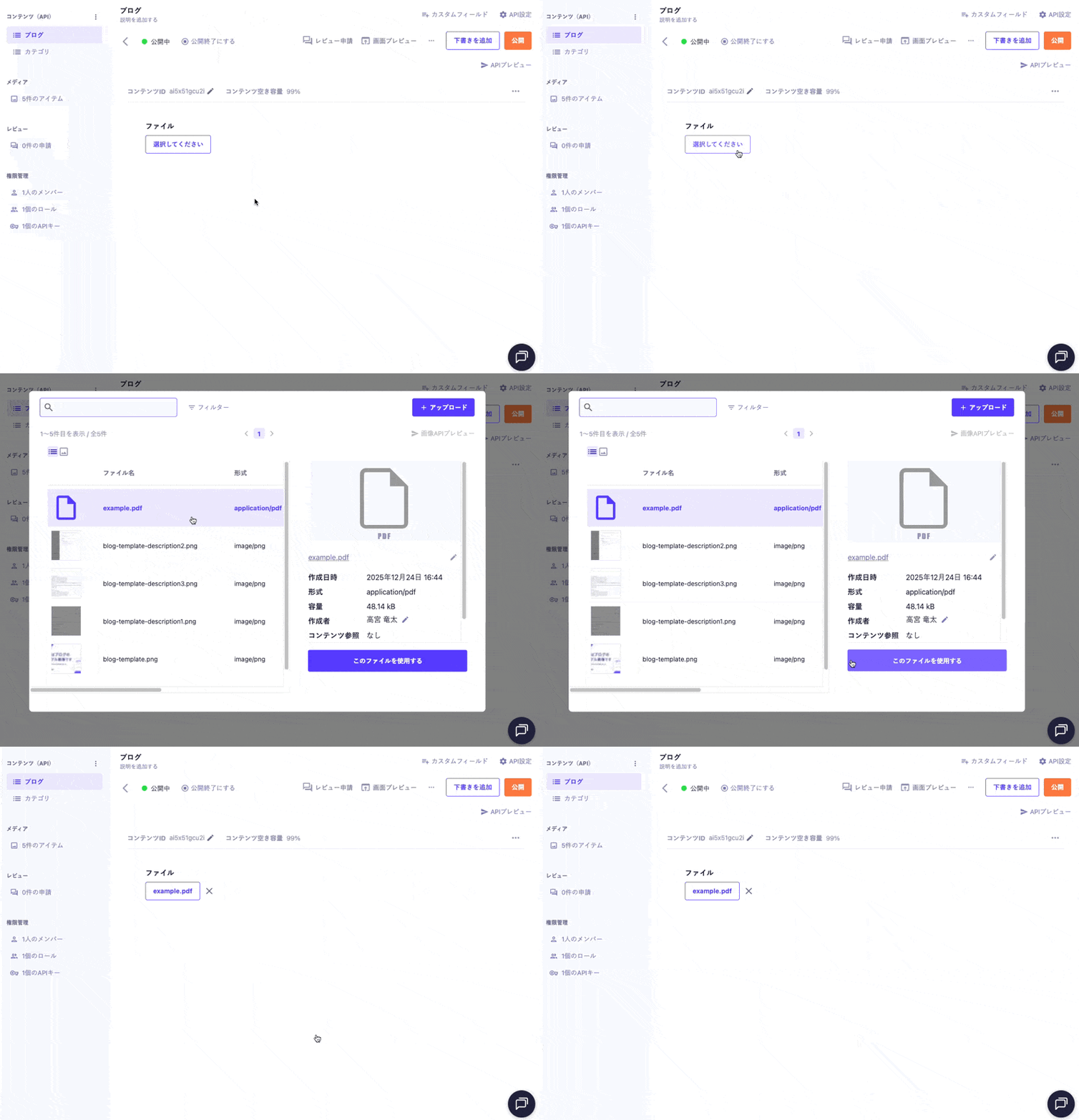
GIF image showing how to operate the file field.
  1. Clicking the file field will display the "Media Management" modal.
  2. Select an already uploaded file or upload a new file using the [+ Upload] button.
  3. Click the file you want to use and press the [Use this file] button to confirm your selection.

Notes

  • Clicking the [×] button displayed after uploading will deselect the file.


Please refer to the following documentation for uploading using the API and CSV.

Limitations / Notes

  • The file field is not available on the Hobby plan.
  • You can only upload files that have been uploaded to the same service on microCMS.

Settings Item

Description

Required Field

When set to ON, input will be required during submission.

Description Text

This is the description text displayed on the submission screen.

Response Format of GET API

Please refer to the documentation below for details.

How to Use in Frontend

The file field is returned in object format, so you create a link by referencing the url property.
Below is an implementation example that displays a link to a PDF document using Next.js.

export default async function Page({ params }) {
  const { slug } = await params;

  // Fetch data using the microCMS JavaScript SDK (https://github.com/microcmsio/microcms-js-sdk)
  const data = await client.getListDetail({
    endpoint: "blog",
    contentId: slug,
  });

  return (
    <main>
      {/* file is the field ID. Replace it with the actual field ID */}
      <a href={data.file.url} target="_blank" rel="noopener noreferrer">
        Download the document
      </a>
    </main>
  );
}