microCMS

Content Update History

This is a feature that allows you to check the update history of the content. Please use it as part of your security measures.

informationInformation

The feature to restore previous versions of content update history is available in the Business and Enterprise plans.
For details on the features available for each plan, please visit the pricing page.

How to Check Content Update History

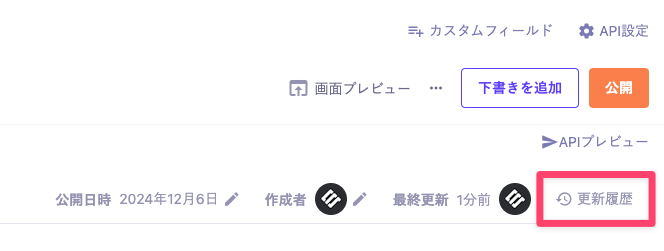
You can check it from the "Update History" in the content editing screen.


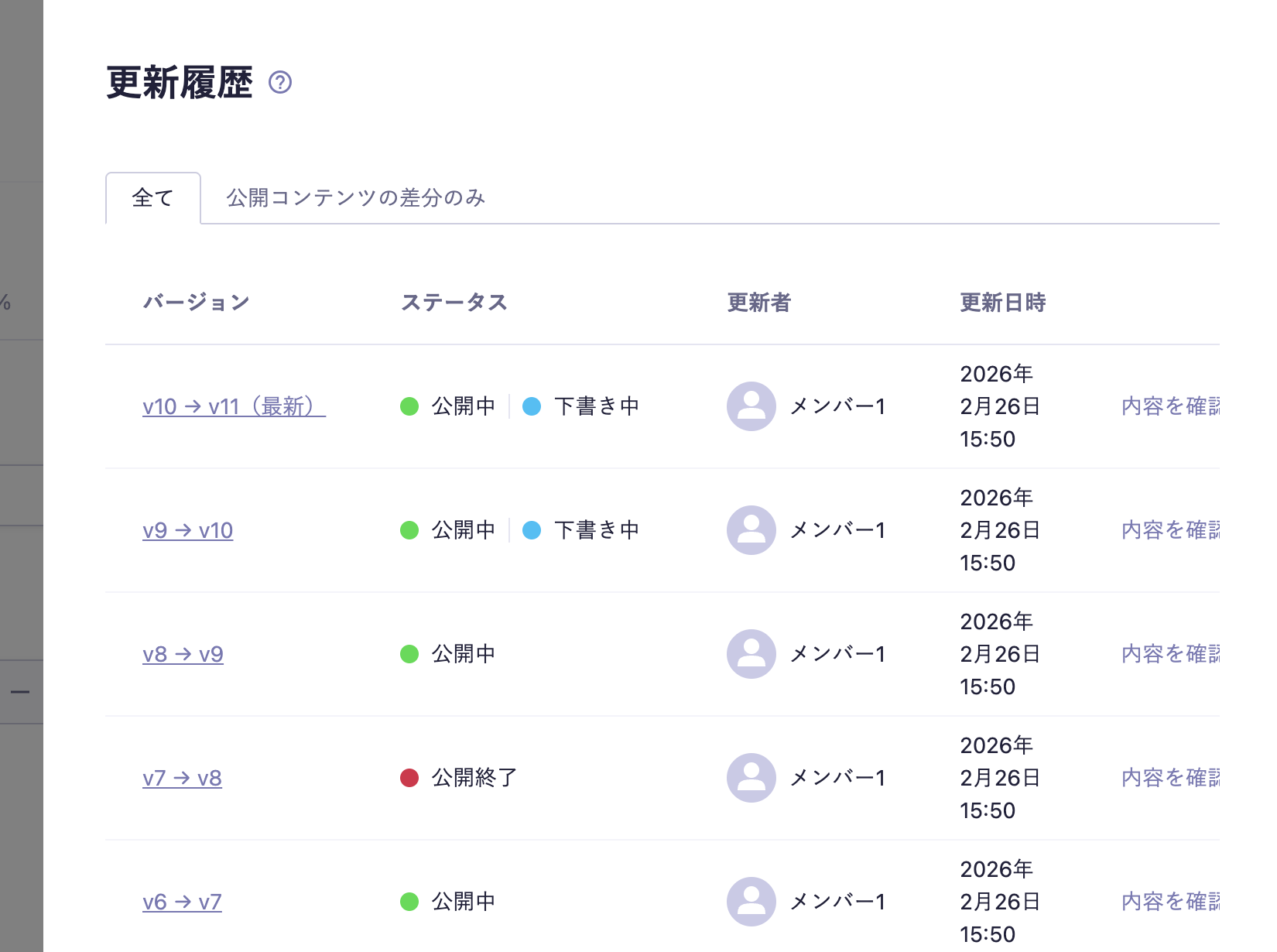
By clicking on "Update History," you can view the list of content update histories.
The history records everything from the initial creation (v1) to the current latest state.


In the update history list, you can check the following details:

  • Version
  • Status (when custom status is set, it will also reflect that content)
  • Updater
  • Update Date and Time
informationInformation

There is no limit to the number of update history entries displayed. For notes regarding items without limit values, please refer to the Limitations / Notes.

Filtering History

You can filter the displayed history as follows using the tabs:

  • All: Displays all history.
  • Only differences of published content: Displays only the history with a status of "Published" or "Published Ended".
informationInformation
  • The comparison in the "Differences of Published Content" tab is made between the published versions displayed in the list.
  • The latest version is always displayed, regardless of the current status (published, draft, etc.).
  • If you are using Custom Status, it will also be filtered based on the associated internal status (published, in draft, etc.).

Check Change Differences

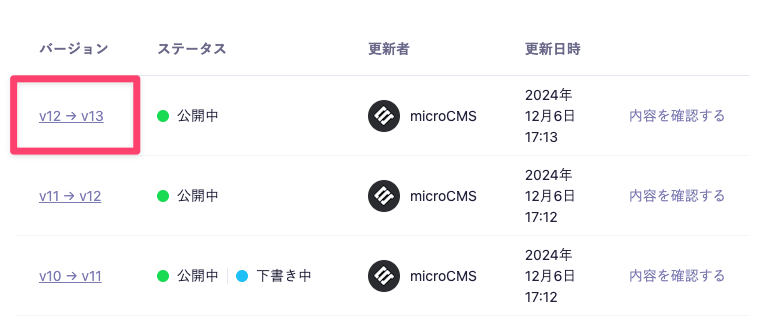
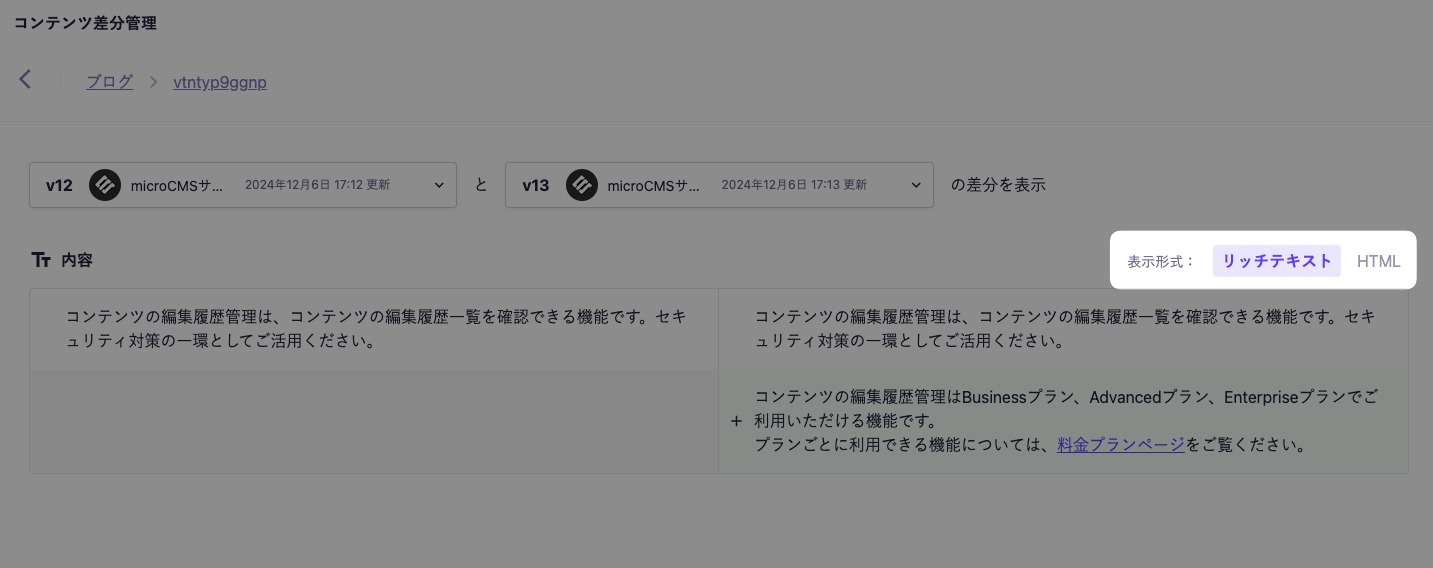
Clicking on any version (v◯ → v◯) will take you to a screen where you can check the differences between those versions.


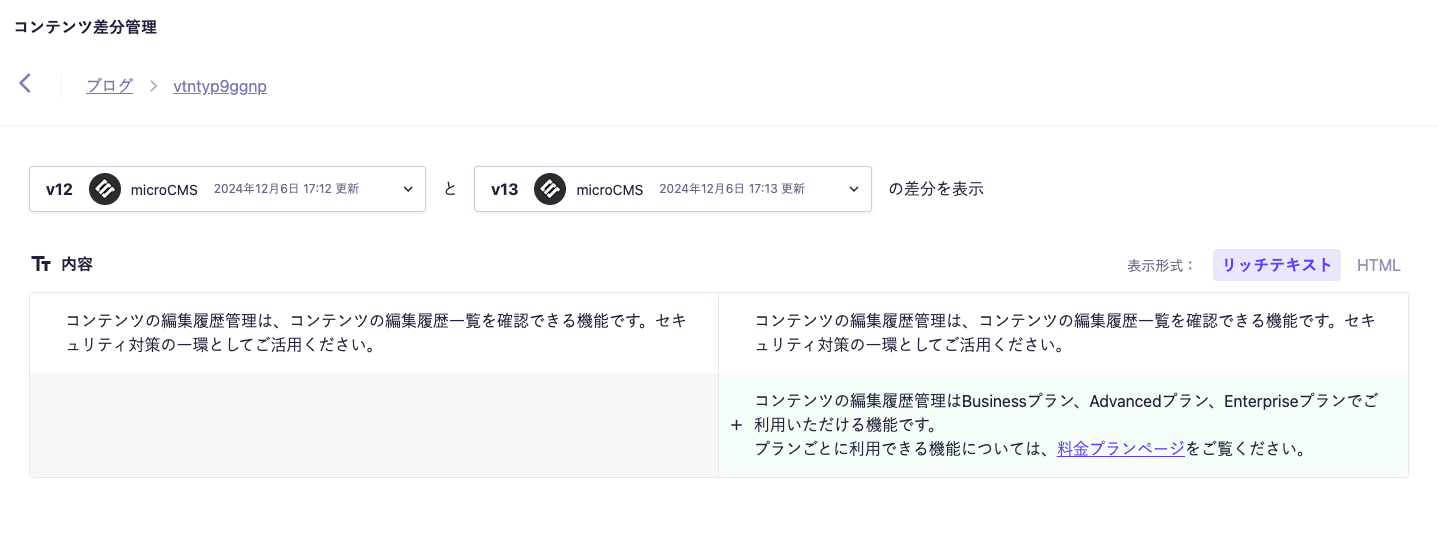
For example, clicking on "v12→v13" will take you to a screen where you can see the differences between version 12 and version 13.

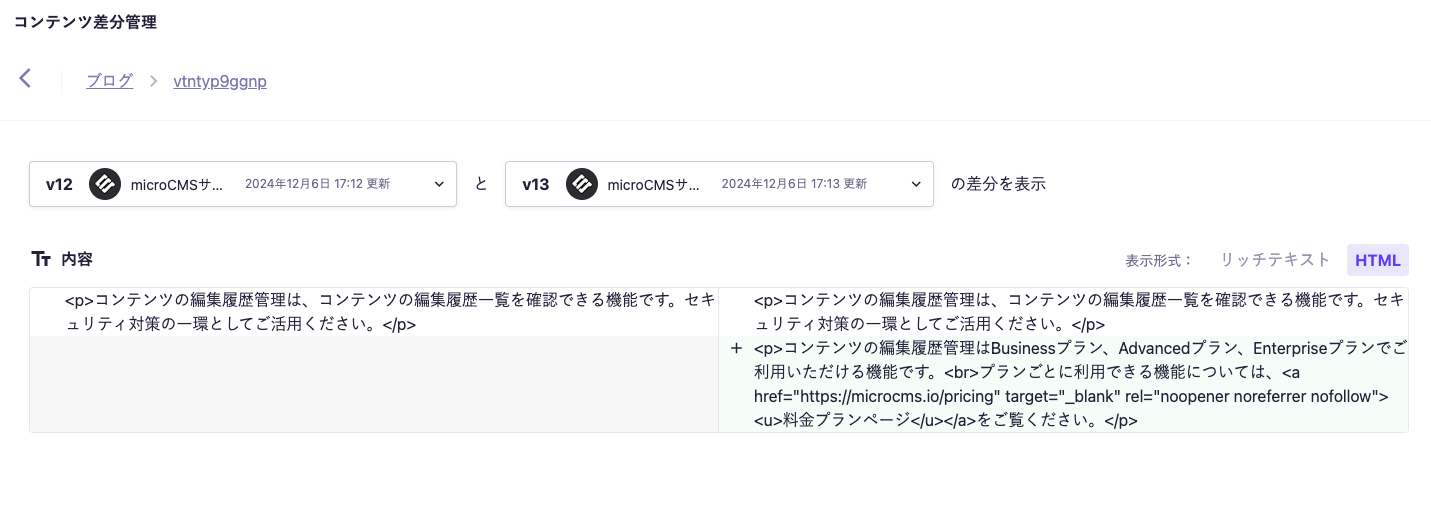
Rich Editor Display Formats

In the difference display of the Rich Editor (including the old Rich Editor), you can choose between two display formats: "Rich Text" and "HTML" to check the differences.


In Rich Text, you can see the content in a format that is almost the same as when you are editing in the content editing screen.


In HTML, you can check the actual HTML returned from the content API.

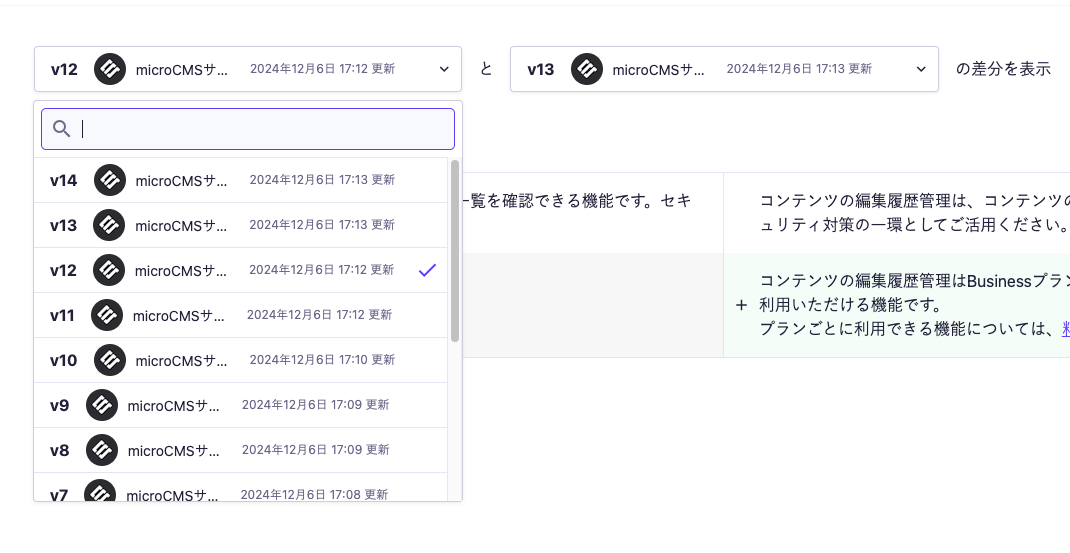
Change the Versions to Compare

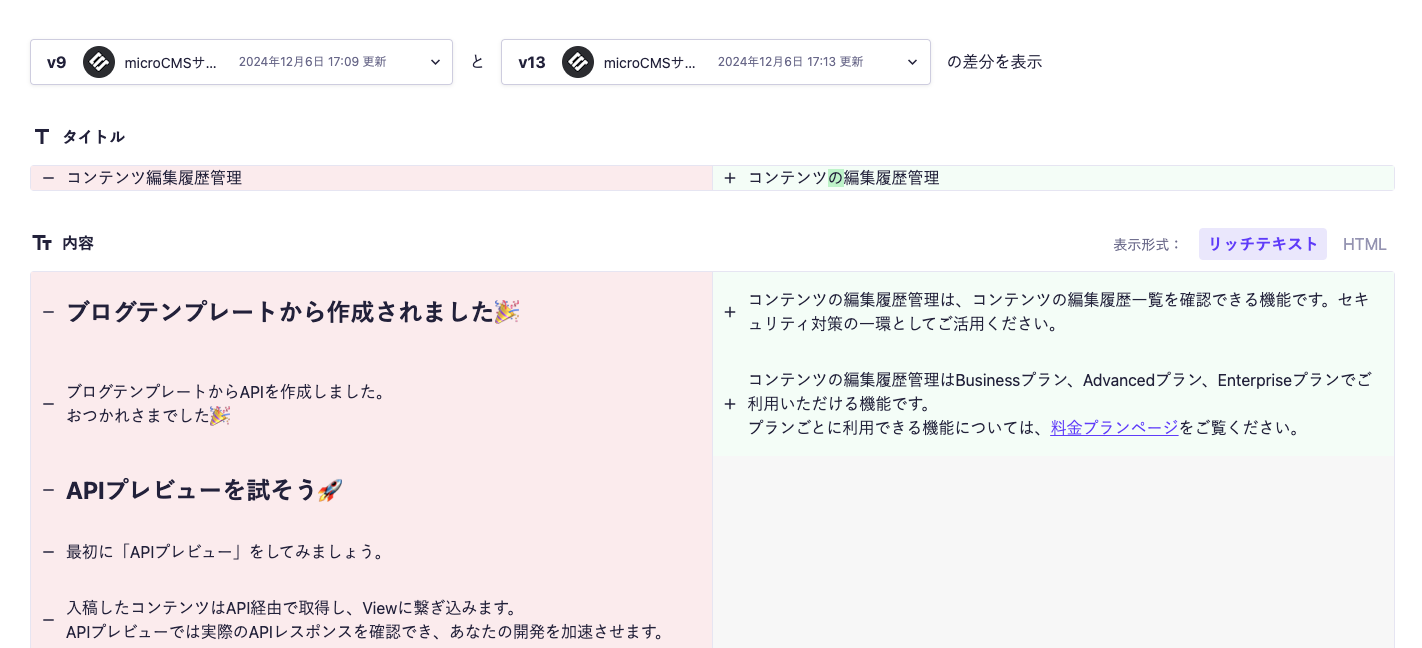
You can also change the version to compare from the select box.


When you select the version you want to compare, the comparison target will be replaced.


Restoring Previous Versions

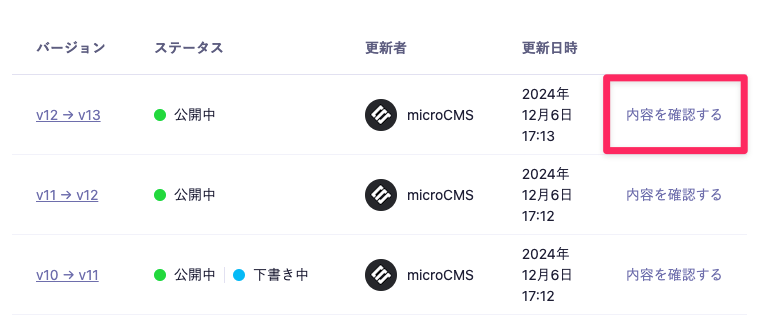
By clicking the "View Content" link for any version, you can restore the content as it was at that specified version and review it.


Additionally, the version of the history currently being reviewed will be displayed at the bottom right of the screen.


While reviewing a previous version, you can also overwrite the content with the current version by performing "Publish" or "Save as Draft".

Cases Where Restoration is Not Possible

Please note that the content of previous versions cannot be restored in certain situations.

Cases Where Restoration is Not Possible at All

  • If the content has been deleted

Cases Where Partial Restoration is Not Possible

  • If the field settings have been changed or the fields themselves have been deleted
  • If the content referenced in content reference/multiple content reference fields has already been deleted or is in a state of unpublished or draft
  • If the images referenced in image/multiple image fields have already been deleted or re-uploaded

Timing of Update History Recording

The update history is recorded at the time of executing the following operations:

  • Saving a draft of the content / Discarding a draft / Reverting to draft
  • Publishing the content / Republishing / Ending publication
  • Changing the status of the content (changing to a custom status)